Sending a fax, Using the control panel, Using the computer – Lexmark MC3224dwe Multifunction Color Laser Printer User Manual
Page 52
Fax
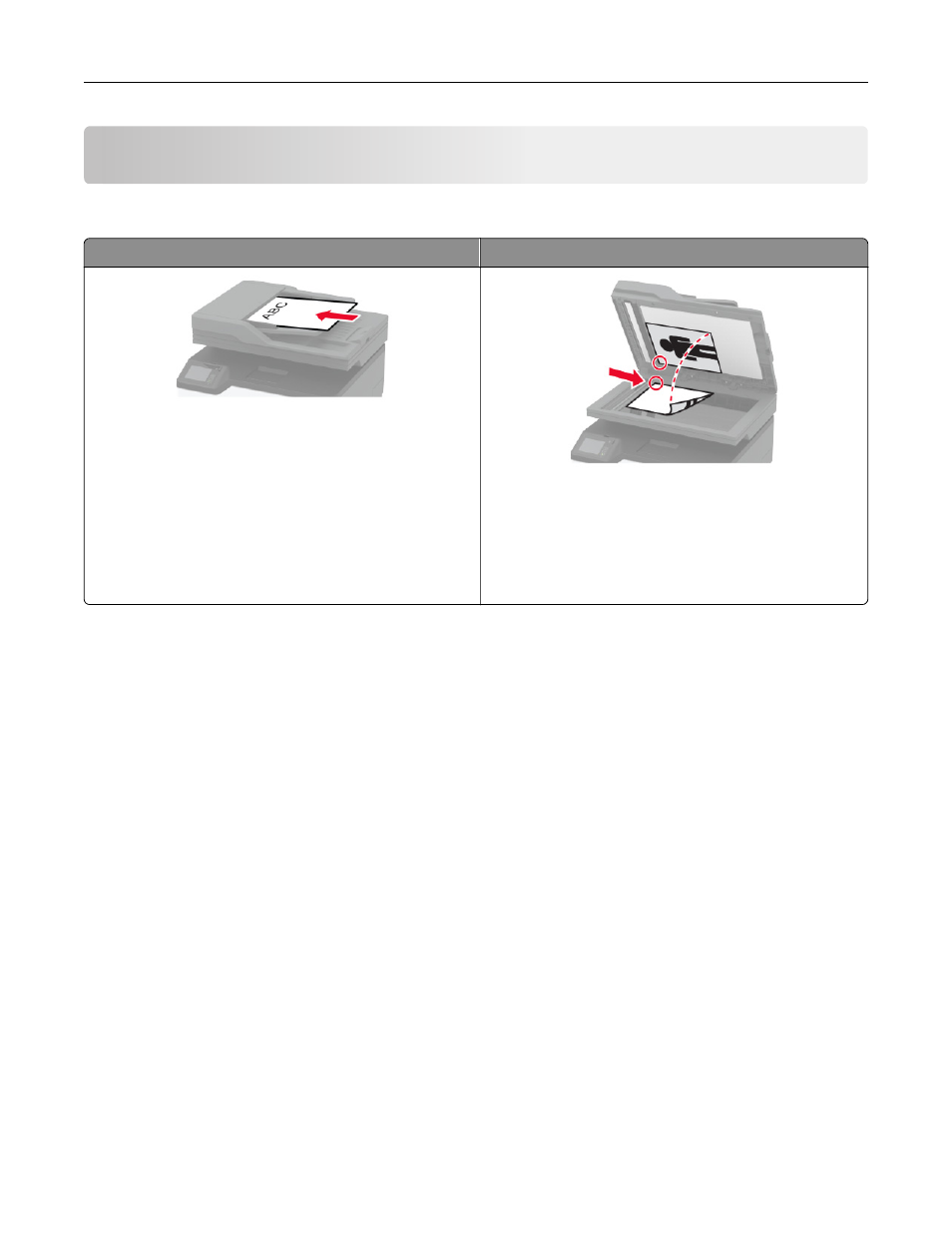
Using the automatic document feeder and scanner glass
Automatic document feeder (ADF)
Scanner glass
•
Use the ADF for multiple
‑
page or two-sided
documents.
•
Load an original document faceup. For multiple
‑
page
documents, make sure to align the leading edge
before loading.
•
Make sure to adjust the ADF guides to match the width
of the paper that you are loading.
•
Use the scanner glass for single
‑
page documents,
book pages, small items (such as postcards or
photos), transparencies, photo paper, or thin media
(such as magazine clippings).
•
Place the document facedown in the corner with the
arrow.
Sending a fax
Using the control panel
1
Load the original document into the ADF tray or on the scanner glass.
2
From the home screen, touch
Fax
, and then enter the needed information.
3
If necessary, configure other fax settings.
4
Send the fax job.
Using the computer
Note:
Make sure that the Universal Fax driver is installed.
For Windows users
1
With a document open, click
File
>
.
2
Select the printer, and then click
Properties
,
Preferences
,
Options
, or
Setup
.
3
Click
Fax
>
Enable fax
, and then enter the recipient number.
4
If necessary, configure other fax settings.
5
Send the fax job.
Fax
52