Mxl ac83, Click here – MXL AC-83 Bluetooth Boundary Microphone User Manual
Page 2
MXL AC83
2
3
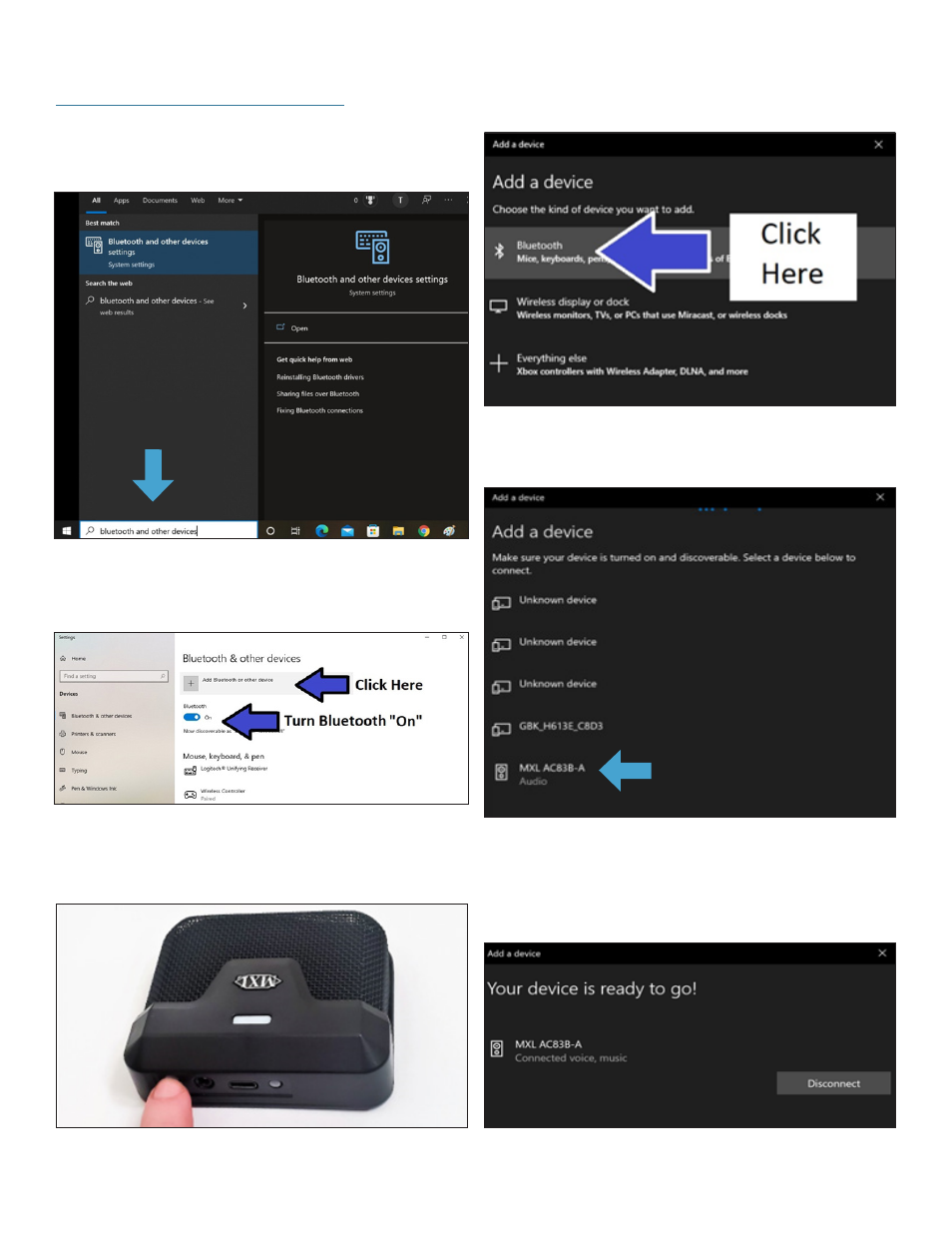
Windows PC Pairing Procedure
Open the
Bluetooth and other devices
system settings on
your Windows PC. These settings can be found by typing
“Bluetooth and other devices” in the search box at the bot-
tom of the screen and pressing Enter.
Use the
Bluetooth toggle slider
to turn Bluetooth
ON
, then
click the
Add Bluetooth or other device
button. The Blue-
tooth Add a device window will then appear on screen.
Next you will want to initiate pairing mode on the MXL AC83.
Press and hold the Bluetooth Power Button for
6
-
8 seconds
to enable pairing mode.
The blue and yellow LEDs will begin flashing to indicate that
the unit is in pairing mode.
Next click on the
Bluetooth
option in the
Add a device
window.
Bluetooth devices within range will begin appearing in the
window. Select
MXL AC83
once it appears on screen.
The PC and microphone will now attempt to establish a
Bluetooth connection. Once the device has been success-
fully paired, the flashing on the MXL AC83 will stop and the
yellow LED will remain illuminated. A message will pop up on
screen indicating that the pairing was successful.
CLICK HERE