User manual – MXL AC-83 Bluetooth Boundary Microphone User Manual
Page 3
User Manual
2
3
Now that a microphone has been successfully paired with
the computer, you will need to select the correct settings in
the
Sound settings
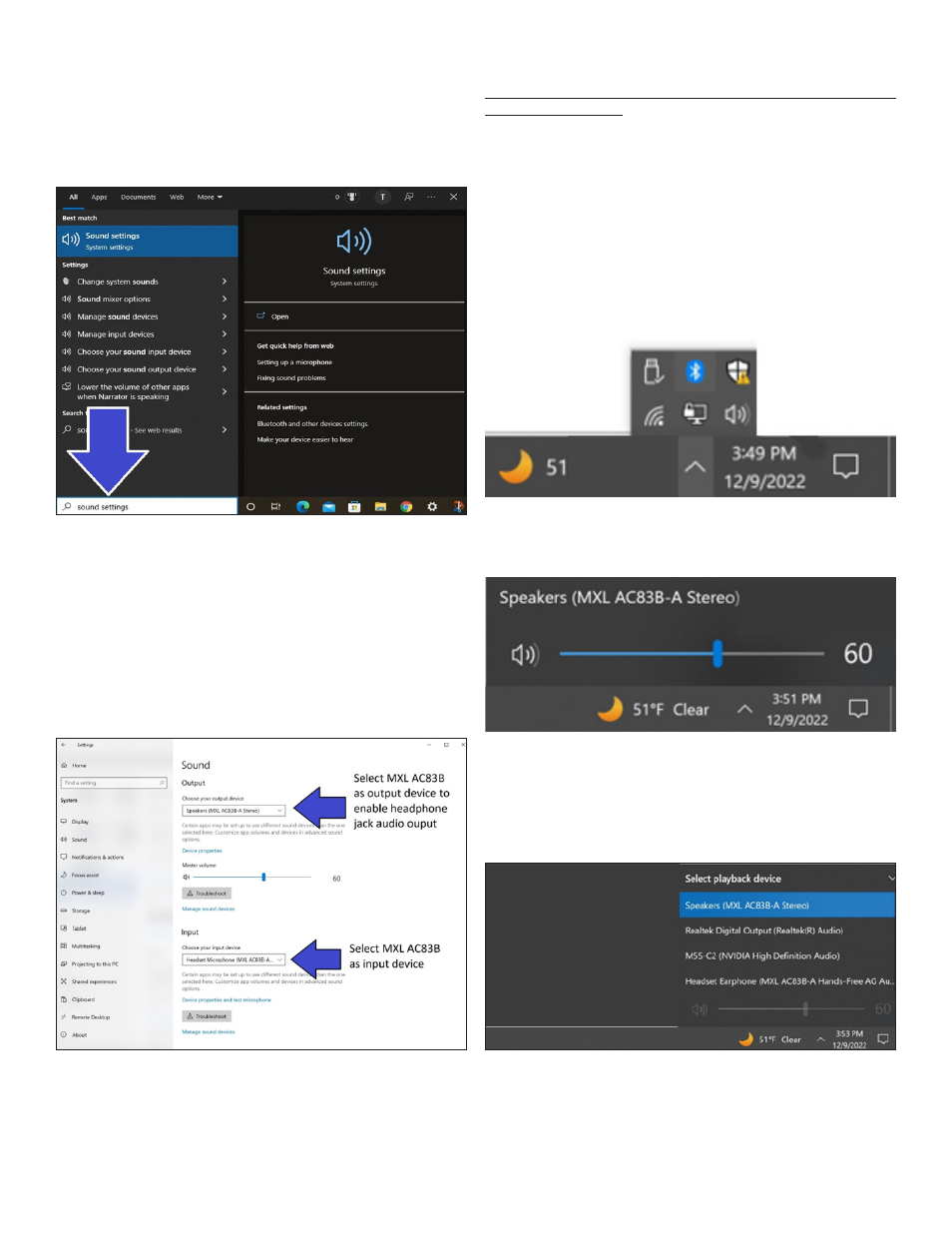
control panel. Type “sound settings” in
the search box at the bottom of the screen and press enter
to open the
Sound settings
control panel window.
The
Sound settings
control panel window will appear show-
ing your currently active sound devices. You will need to se-
lect the correct devices for both
Input
and
Output
.
For the
Input
device, select Headset Microphone
(MXL AC83
Hands-Free AG Audio).
For the
Output
device, you can enable the AC83 headphone
output by selecting
Speakers (MXL AC83 Stereo)
. You can
alternatively select your current speakers or your computer’s
headphone output.
Your MXL AC83 microphone is now ready to use with your
Windows PC.
Important note if you are having problems with the AC83
headphone output:
There are two different Bluetooth profiles that Windows will
automatically switch between:
Mono
output and
Stereo
output.
Mono
output is chosen when you are simultane-
ously using the microphone input. When there is no micro-
phone input present, the higher quality Stereo profile is used
instead. Unfortunately, some Windows applications may not
switch Bluetooth profiles correctly, requiring you to manu
-
ally select the appropriate output.
To select the correct audio output, find your desktop icons
on the bottom right corner of the screen and left click the
audio
icon.
Left click the text showing your current output device.
For high quality stereo output with no microphone input, se-
lect
Speakers (MXL AC83 Stereo)
For mono output with simultaneous microphone input, select
Headset Earphone (MXL AC83-A Hands-Free AG Audio).