Mxl ac83, 45 mac pairing procedure – MXL AC-83 Bluetooth Boundary Microphone User Manual
Page 4
MXL AC83
4
5
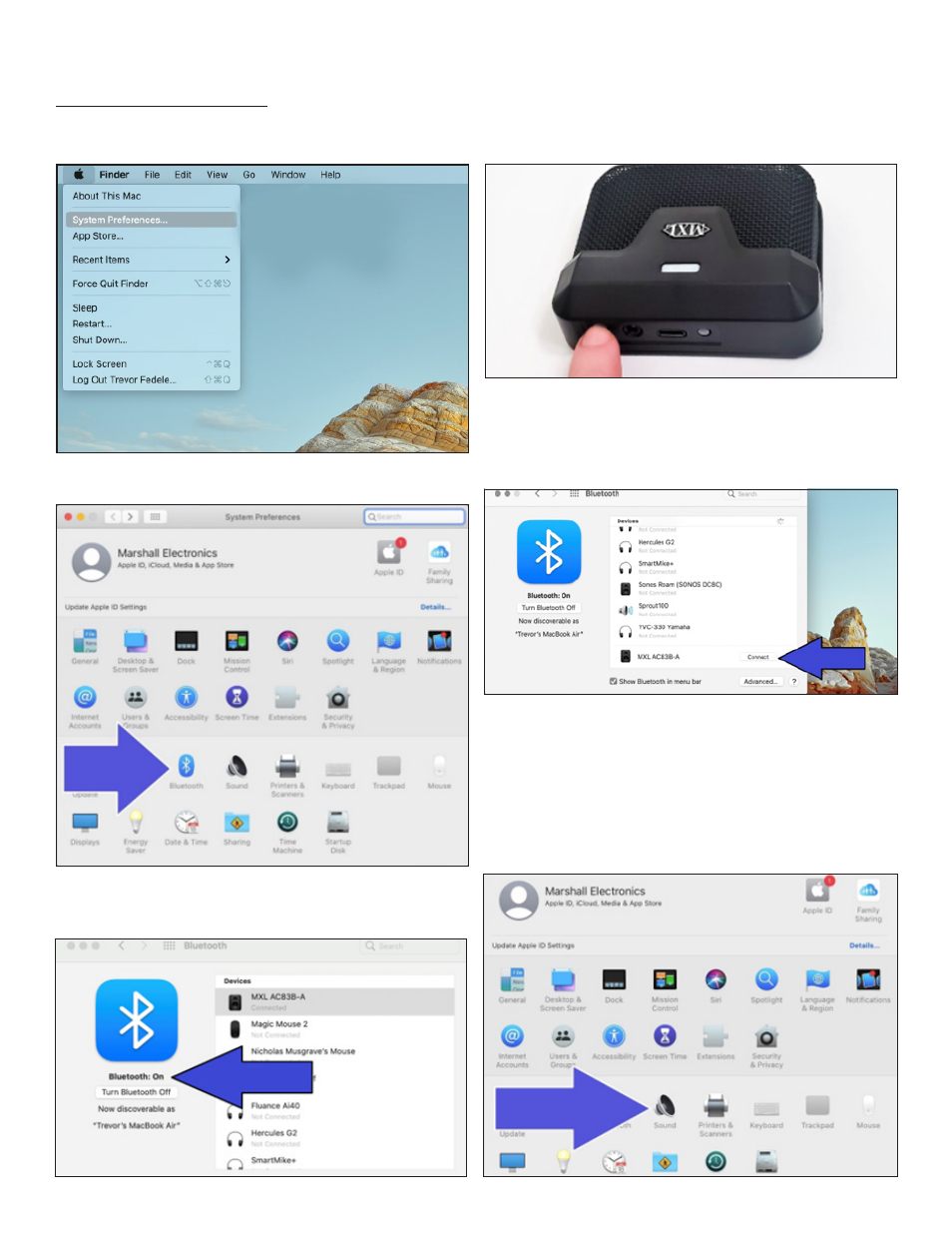
Mac Pairing Procedure
Open the
Apple menu
the at the top-left corner of the
screen and select
System Preferences.
Select the
Bluetooth
icon in the
System Preferences
panel.
Confirm that Bluetooth is set to
On
. If Bluetooth is
Off
, click
the
Turn Bluetooth On
button.
Next you will want to initiate pairing mode on the MXL AC83.
Press and hold the
Bluetooth Power Button
for
6-
8 seconds
to enable pairing mode.
The blue and yellow LEDs will begin flashing to indicate that
the unit is in pairing mode.
MXL AC83-A should now appear in the Bluetooth menu. Click
the Connect button to initiate a Bluetooth connection.
The computer and microphone will now attempt to estab-
lish a Bluetooth connection. Once the device has been suc-
cessfully paired, the flashing on the MXL AC83 will stop and
the yellow LED will remain illuminated.
Now that a microphone has been successfully paired with
the computer, you will need to select the correct sound set-
tings. Return to the
System Preferences
panel and select
the
Sound
icon.