User manual, Turning bluetooth on/off, Usb-c audio – MXL AC-83 Bluetooth Boundary Microphone User Manual
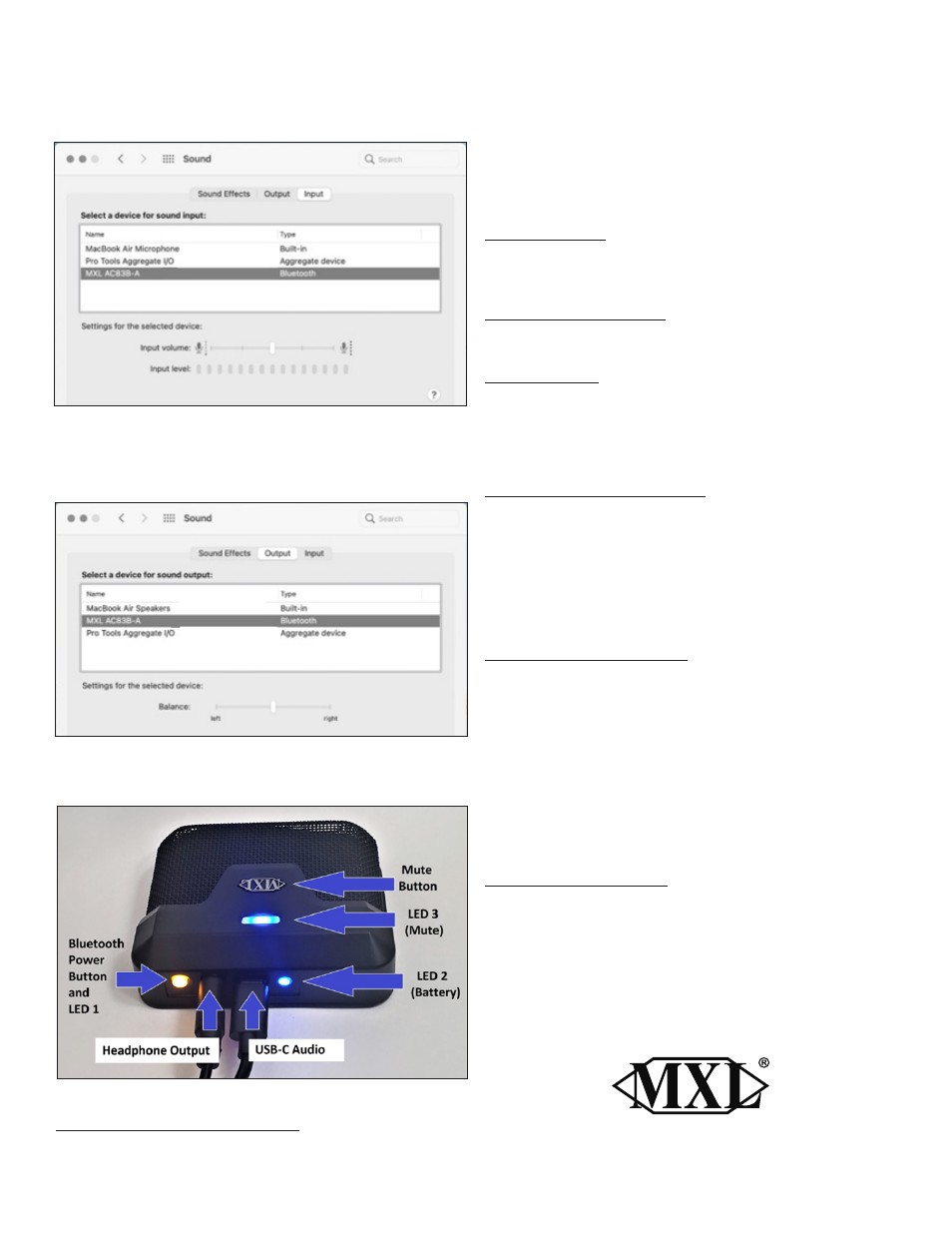
Page 5: Headphone output, Mute button, Led 1 – bluetooth status, Led 2 – battery status, Led 3 – mute status
User Manual
4
5
For the
Input
device, select
MXL AC83.
For the
Output
device, you can enable the AC83 headphone
output by selecting
MXL AC83.
You can alternatively select
your current speakers or any other output device.
Your MXL AC83 microphone is now ready to use with your
Mac computer.
Turning Bluetooth ON/OFF
Briefly press the
Bluetooth Power Button
to turn Bluetooth
ON
or
OFF
. When turning Bluetooth ON, LED 1 will begin flash
-
ing to indicate the microphone is attempting to link back
with the most recently paired device. Once the unit has re-
connected with the most recently paired device, LED 1 will
illuminate solid yellow and LED 3 will turn on.
USB-C Audio
To enable USB audio, simply connect the microphone to a
computer using a standard USB-C cable.
Headphone Output
3.5mm headphone connector for audio output
Mute Button
The capacitive mute button can be used to mute both
Bluetooth audio as well as USB audio. To mute the device,
briefly press the MXL logo. The LED will change from Blue to
Red indicating the device has been muted.
LED 1 – Bluetooth Status
The Bluetooth Power Button has a built-in yellow LED to
indicate that Bluetooth is enabled or if the device is pairing.
Solid Yellow
– Bluetooth is enabled
Flashing Yellow
– Bluetooth pairing
OFF
- Bluetooth is disabled
LED 1
will also very briefly flash after pressing the Bluetooth
Power Button.
LED 2 – Battery Status
LED 2 is used to indicate the current status of the battery.
Solid Blue
– Battery is charging. Once the battery is fully
charged LED 2 will turn off.
Flashing Blue
– Bluetooth pairing
(only when unit is not being charged)
Red
– Low battery
Purple
– The battery is low and is currently being charged
LED 2 will also very briefly flash after pressing the Bluetooth
Power Button.
LED 3 – Mute Status
LED 3 indicates the mute status of the microphone. This LED
will only turn on if USB audio is connected or if Bluetooth
has successfully paired with another device.
Red
– The Mic is muted
Blue
– The Mic is
ON
OFF
– There is no Bluetooth connection or USB audio present
A Division of Marshall Electronics
Phone: 310-333-0606 800-800-6608 Fax: 310-333-0688
www.mxlmics.com [email protected]