Lenco XEMIO-858 User Manual
Page 10
8.
Video Mode
Play Video
•
Tap “Video” icon to enter video mode. Tap “Main Dir / Card Dir” which will appears, when the Micro SD
Card is in used. A list screen appears to use. Choose a file to start the play. Or,
•
Choose a folder name which contains Video file and choose your desired file to play. If you choose a
folder name which have no support ed Video file, then the list will be show blank. Choose another folder.
•
Tap a video file to start the play.
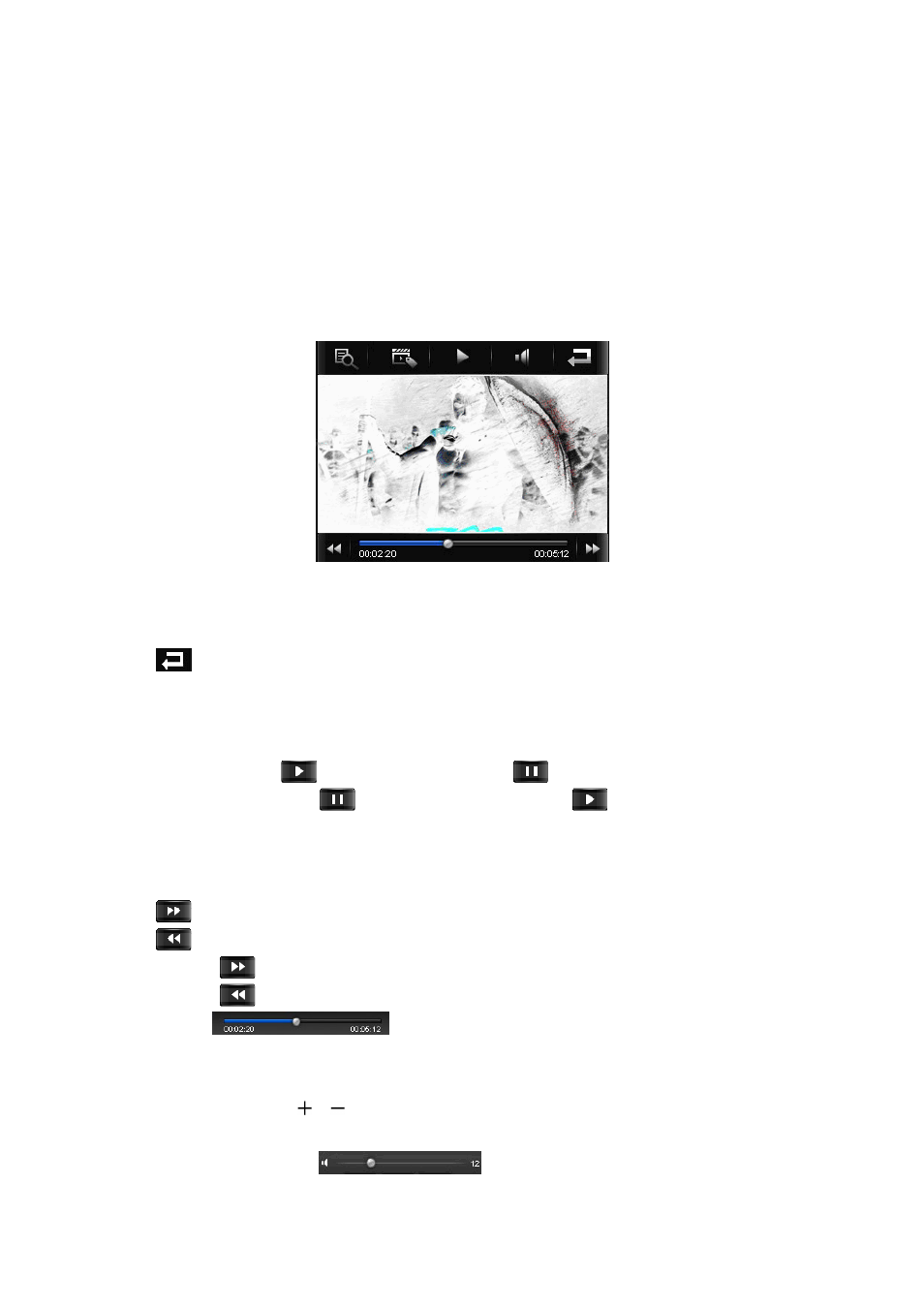
Video Mode Interface
To Call the Video Tools Menu
•
Tap any where on the touch screen, the video tools menu will display to use for 3 seconds.
•
Tap
icon to back to file list screen.
Use Play / Pause
In video tools menu:
•
To pause the play, tap
icon and it will change into
, the video is pause.
•
To play the video again, tap
icon and icon will change into
, the video is continues to play.
Change Next / Previous and Fast-Forward / Fast Backward
In video tools menu:
•
Tap
icon to play next file.
•
Tap
icon to play previous file.
•
Tap and hold
icon to play fast-forward.
•
Tap and hold
icon to play fast-backward.
•
Or, drag the
playing progress bar to adjust the progress.
Change Volume
•
Press or press and hold
/
button to increase / decrease volume levels and the video tools menu
also is appear in screen to use for 3 seconds.
•
You also can direct tag the
volume bar to adjust the volume levels before the
video tools menu is disappear.