Adobe Premiere Pro CS4 User Manual
Page 14
8
USING ADOBE PREMIERE PRO CS4
User interface
Last updated 11/6/2011
2
Do one of the following:
•
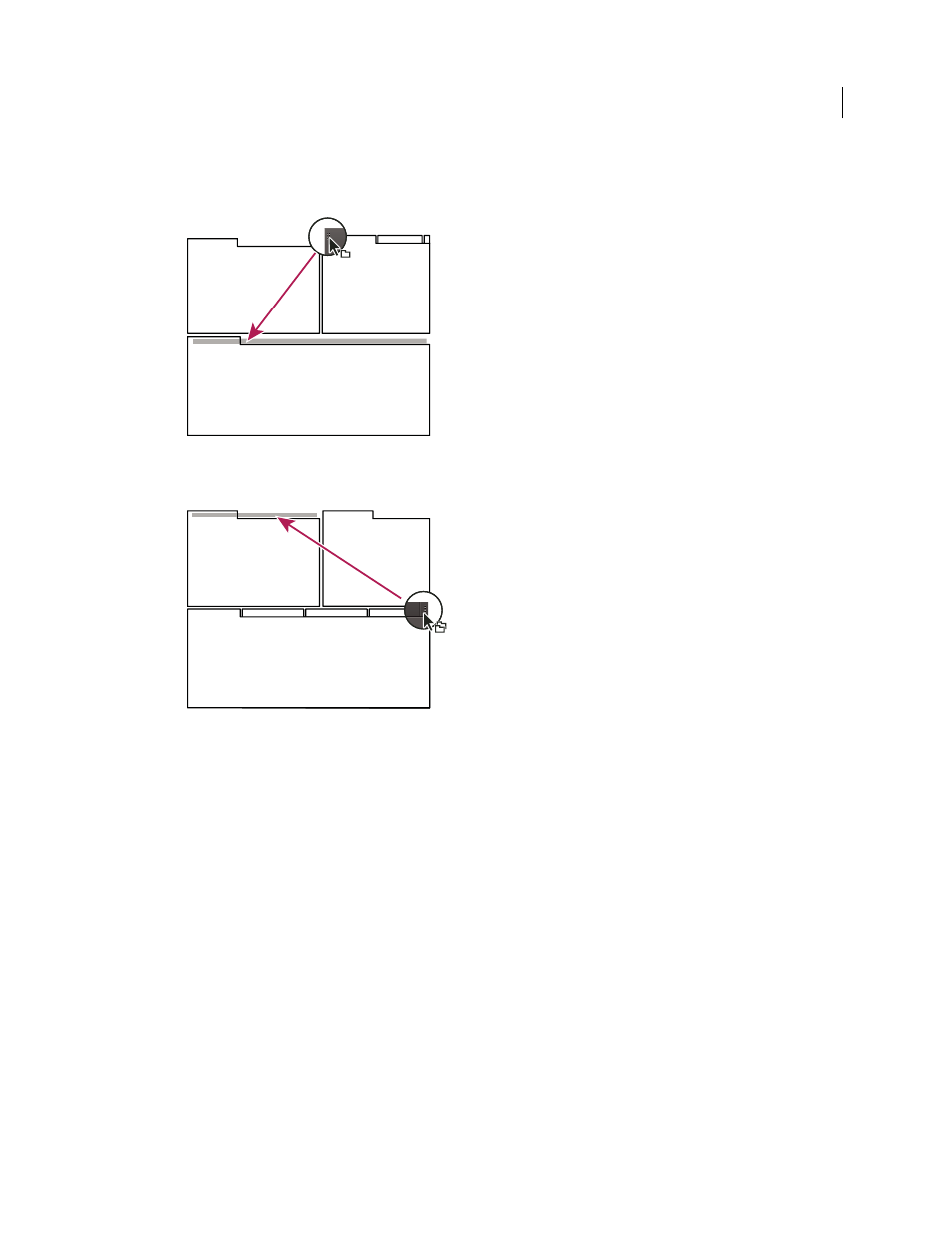
To move an individual panel, drag the gripper area in the upper-left corner of a panel’s tab onto the desired drop zone.
Drag panel gripper to move one panel
•
To move an entire group, drag the group gripper in the upper-right corner onto the desired drop zone.
Drag group gripper to move entire group
The application docks or groups the panel, according to the type of drop zone.
Undock a panel in a floating window
When you undock a panel in a floating window, you can add panels to the window and modify it similarly to the
application window. You can use floating windows to make use of a secondary monitor, or to create workspaces like
those in earlier versions of Adobe applications.
❖
Select the panel you want to undock (if it’s not visible, choose it from the Window menu), and then do one of the
following:
•
Choose Undock Panel or Undock Frame from the panel menu. Undock Frame undocks the panel group.
•
Hold down Ctrl (Windows®) or Command (Mac
OS®), and drag the panel or group from its current location.
When you release the mouse button, the panel or group appears in a new floating window.
•
Drag the panel or group outside the application window. (If the application window is maximized, drag the
panel to the Windows taskbar.)