Preview images in the dialog box, Navigate in the dialog box – Adobe Illustrator CS4 User Manual
Page 392
385
USING ADOBE ILLUSTRATOR CS4
Web graphics
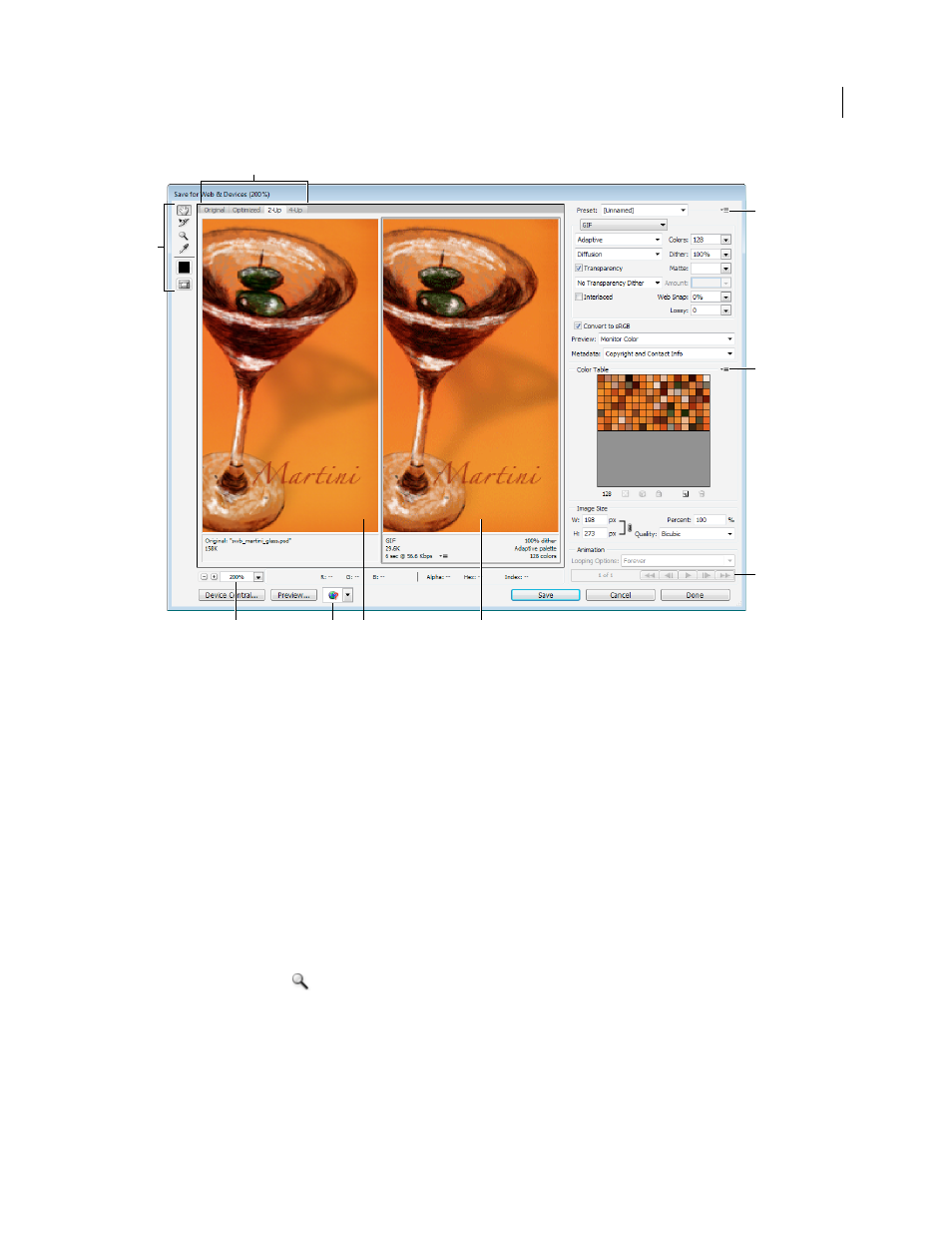
Save For Web & Devices dialog box
A. Display options B. Toolbox C. Optimize pop-up menu D. Color Table pop-up menu E. Animation controls (Photoshop only) F. Zoom text
box
G. Preview In Browser menu H. Original image I. Optimized image
Preview images in the dialog box
❖
Click a tab at the top of the image area to select a display option:
Original
Displays the image with no optimization.
Optimized
Displays image with the current optimization settings applied.
2-Up
Displays two versions of the image side by side.
4-Up
Displays four versions of the image side by side.
Navigate in the dialog box
If the entire artwork is not visible in the Save For Web & Devices dialog box, you can use the Hand tool to bring another
area into view. Use the Zoom tool to magnify or reduce the view.
•
Select the Hand tool (or hold down the spacebar), and drag in the view area to pan over the image.
•
Select the Zoom tool
, and click in a view to zoom in; hold
down Alt (Windows) or Option (Mac
OS), and click
in a view to zoom out.
You can also type a magnification percentage or choose one at the bottom of the dialog box.
H
I
F
D
C
E
G
A
B