Casio ClassPad Manager Version 3.0 User Manual
Page 60
E-58
20060301
Editing Figures
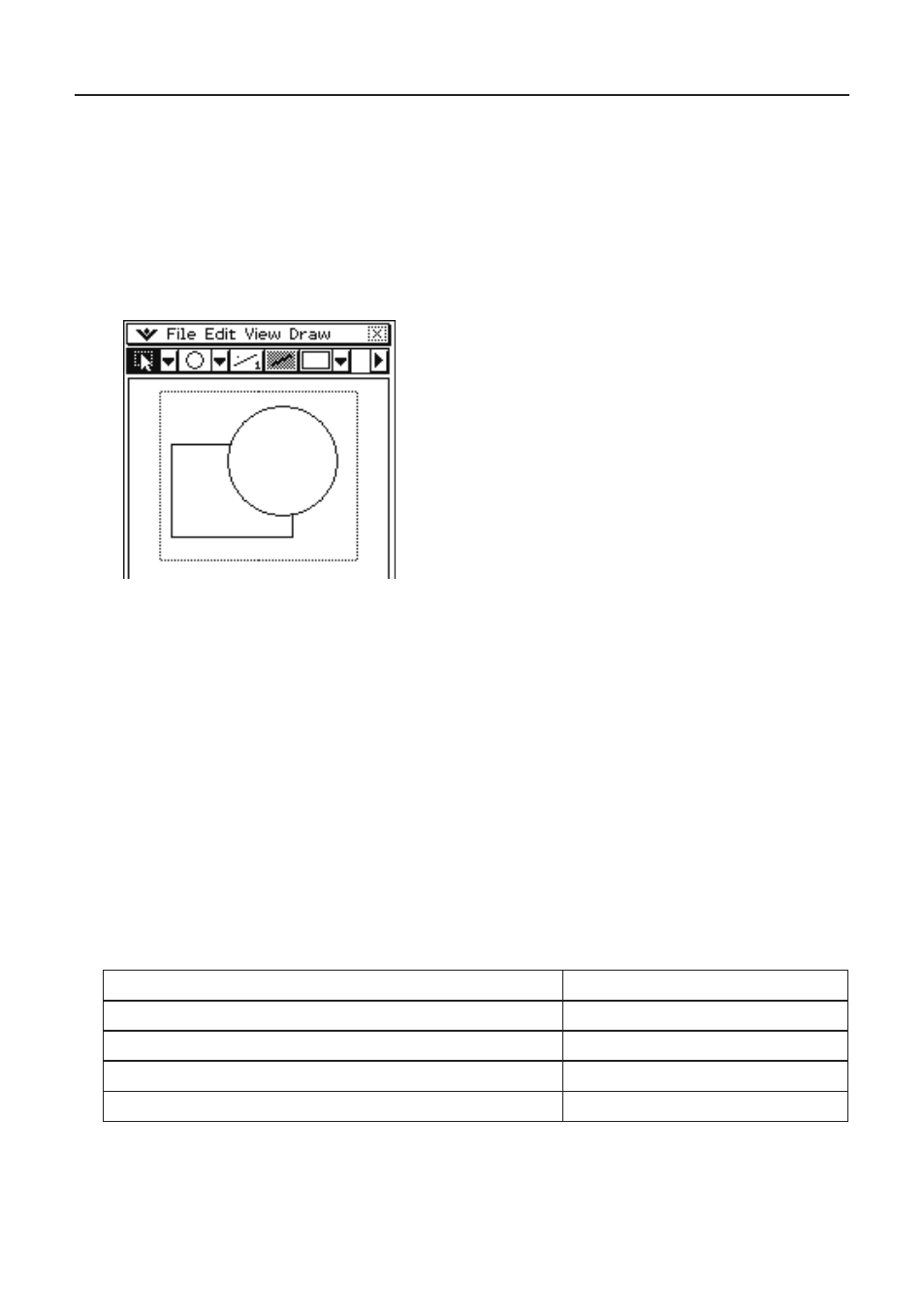
■ To select an area in the drawing area for editing
1.
On the toolbar, click
G.
2.
Drag the mouse pointer across the area you want to edit.
• This encloses the area in a selection boundary.
Note
To clear the selection boundary, click anywhere outside of it.
■ To select the entire bitmap
Click [Edit] - [Select All].
This selects the
G tool automatically, and selects the entire bitmap.
Note
To cancel a Select All operation, select any other tool besides
G.
■ To fl ip, rotate, or invert the selected image
1.
Select the image(s) you want to manipulate.
2.
Perform one of the following operations.
To do this:
Click this Edit menu command:
Flip the selected image(s) horizontally
Flip Horizontal
Flip the selected image(s) vertically
Flip Vertical
Rotate the selected image(s) 180 degrees
Rotate 180°
Invert the black and white areas of the image
Invert Colors