Epson Expression Home XP-342 User Manual
Page 53
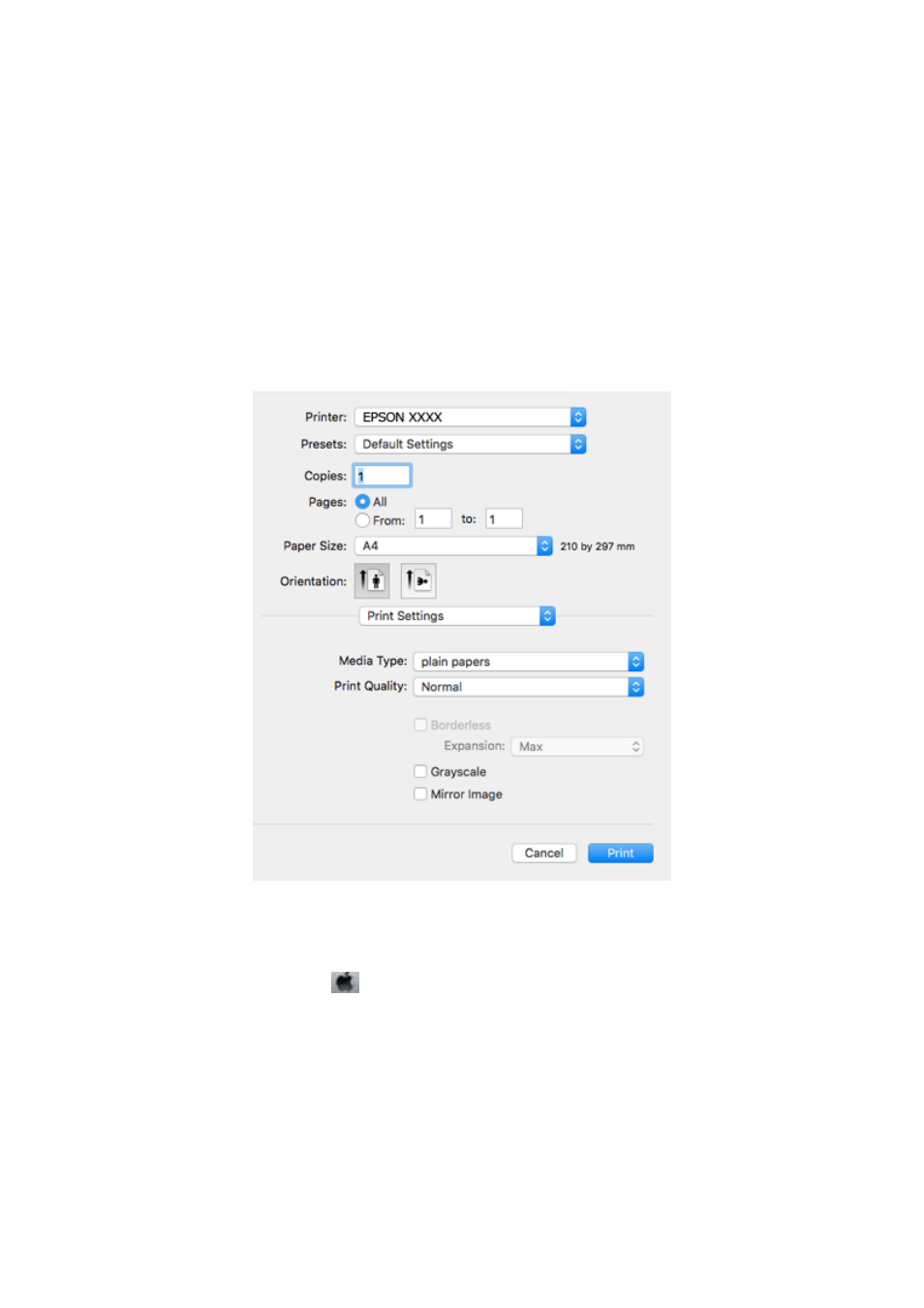
❏ Presets: Select when you want to use the registered settings.
❏ Paper Size: Select the paper size you loaded in the printer.
When printing with no margins, select a "borderless" paper size.
❏ Orientation: Select the orientation you set in the application.
Note:
❏ If the above setting menus are not displayed, close the print window, select Page Setup from the File menu, and then
make settings.
❏ When printing on envelopes, select landscape orientation.
5.
Select Print Settings from the pop-up menu.
Note:
On Mac OS X v10.8.x or later, if the Print Settings menu is not displayed, the Epson printer driver has not been
installed correctly.
Select System Preferences from the
menu > Printers & Scanners (or Print & Scan, Print & Fax), remove the
printer, and then add the printer again. See the following to add a printer.
6.
Make the following settings.
❏ Media Type: Select the type of paper you loaded.
❏ Print Quality: Select the print quality.
Selecting Fine provides higher quality printing, but the printing speed may be slower.
❏ Expansion: Available when selecting a borderless paper size.
User's Guide
Printing
53