Epson Expression Home XP-342 User Manual
Page 82
5.
Make other scan settings if necessary.
❏ You can preview the scanned image by clicking the Preview button. The preview window opens, and the
previewed image is displayed.
❏ On the Advanced Settings tab, you can make detailed image adjustment settings that are suitable for text
documents, such as the following.
❏ Unsharp Mask: You can enhance and sharpen the outlines of the image.
❏ Descreening: You can remove moiré patterns (web-like shadows) that appear when scanning printed
papers such as a magazine.
❏ Text Enhancement: You can make blurred letters in the original clear and sharp.
❏ Auto Area Segmentation: You can make letters clear and images smooth when performing black and
white scanning for a document that contains images.
Note:
The items may not be available depending on other settings you made.
6.
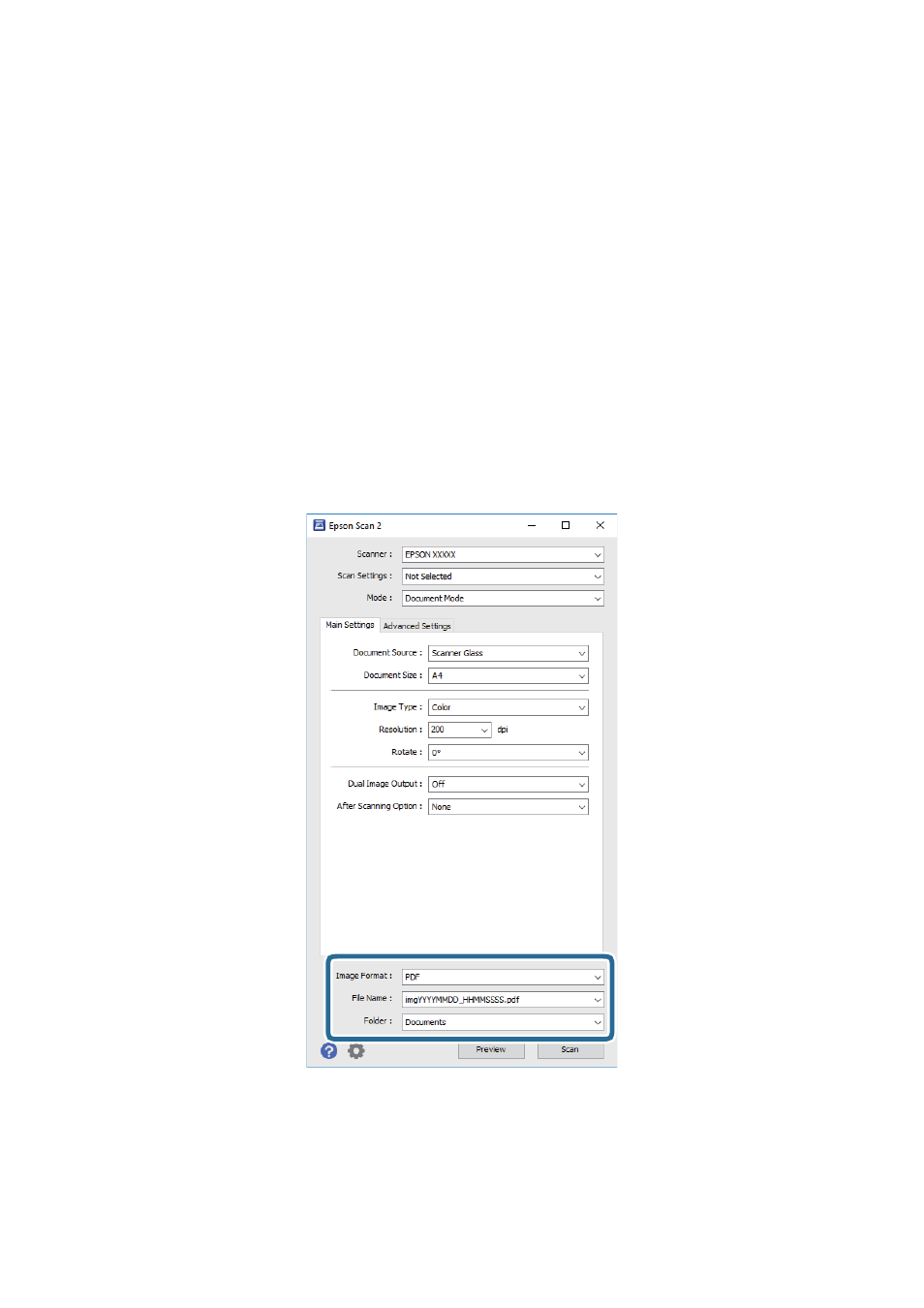
Set the file saving settings.
❏ Image Format: Select the save format from the list.
You can make detailed settings for each save format except BITMAP and PNG. Select Options from the list
after selecting the save format.
❏ File Name: Confirm the save file name displayed.
You can change settings for the file name by selecting Settings from the list.
User's Guide
Scanning
82