Basic operation, O “basic operation” (p. 29) – Roland OCTA-CAPTURE - High-Speed USB Audio Interface User Manual
Page 29
29
This section explains the basic connections and data flow for the OCTA-CAPTURE.
Refer also to the block diagram, which is provided as a separate leaflet.
You’ll need software in order to record on your computer
•
If you’re using Windows, use the included Cakewalk Production Plus Pack.
For details on settings and operation, refer to the installation guide included on the Cakewalk
Production Plus Pack DVD-ROM.
•
If you’re using Macintosh, you’ll need to have software such as Garage Band or Logic.
For details on using the software, refer to the owner’s manual for your software.
921 edit
*
To prevent malfunction and/or speaker damage, make sure to minimize the volume on all your
equipment before you make connections .
922 edit
*
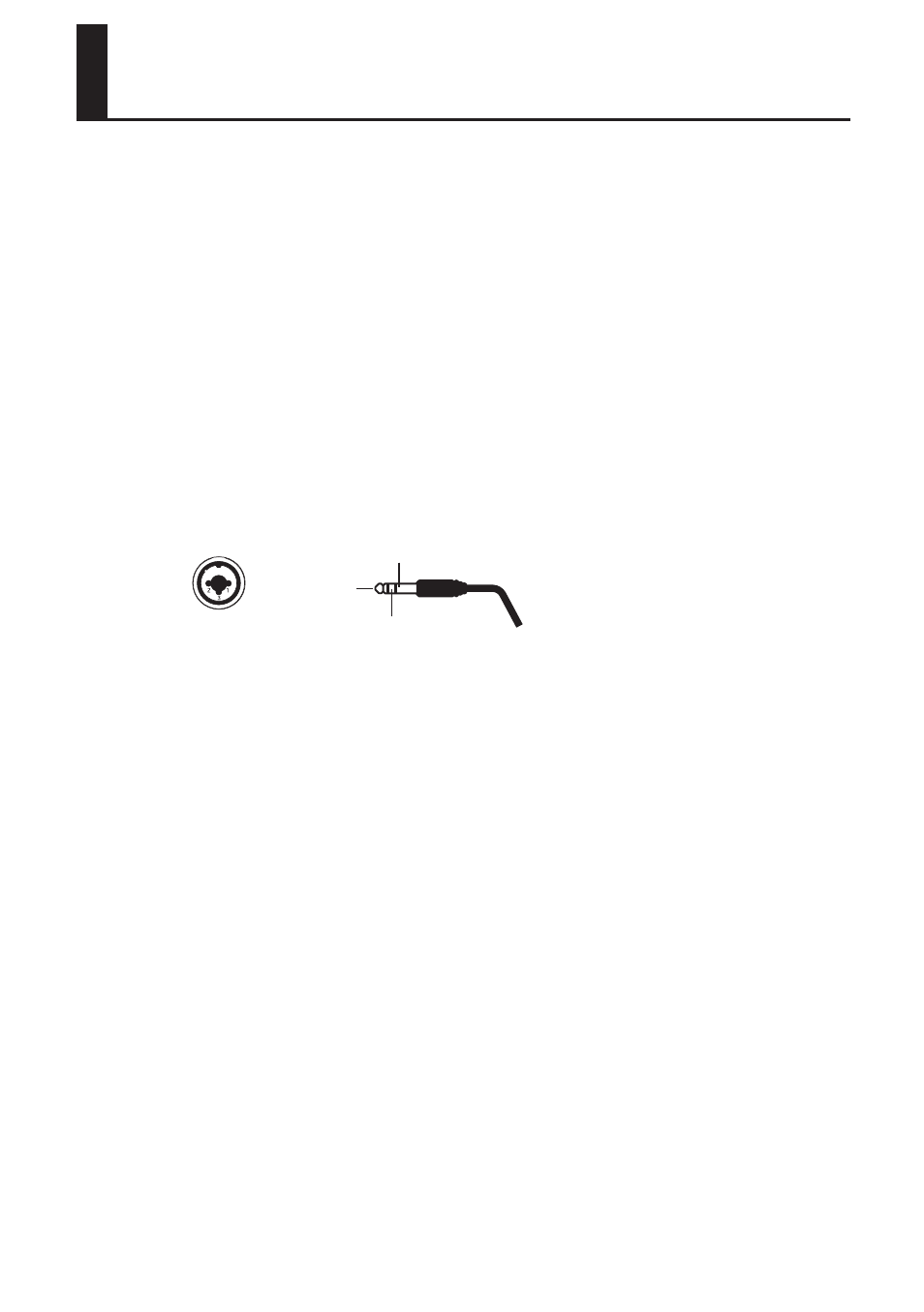
This device is equipped with balanced (XLR/TRS) type jacks . Wiring diagrams for these jacks are
shown below . Make connections after first checking the wiring diagrams of other equipment you
intend to connect .
1: GND
2: HOT
3: COLD
GND (SLEEVE)
HOT (TIP)
COLD (RING)
926a
*
When connection cables with resistors are used, the volume level of equipment connected to the
inputs 1–8 may be low . If this happens, use connection cables that do not contain resistors .
983
*
Howling could be produced depending on the location of microphones relative to speakers . This
can be remedied by:
1. Changing the orientation of the microphone(s).
2. Relocating microphone(s) at a greater distance from speakers.
3. Lowering volume levels.
*
When you connect the OCTA-CAPTURE to your computer, sound will no longer be output from
your computer’s speakers or headphone jack .
•
Connect your headphones or audio playback system (external monitors) to the OCTA-CAPTURE.
•
If you want to hear sound from your computer’s speakers, turn off the power of the OCTA-
CAPTURE.
Basic Operation