PreSonus Notion 6 - Notation Software (Boxed) User Manual
Page 282
15.10
Send to Notion: Score / Note data
Send to Notion from Studio One
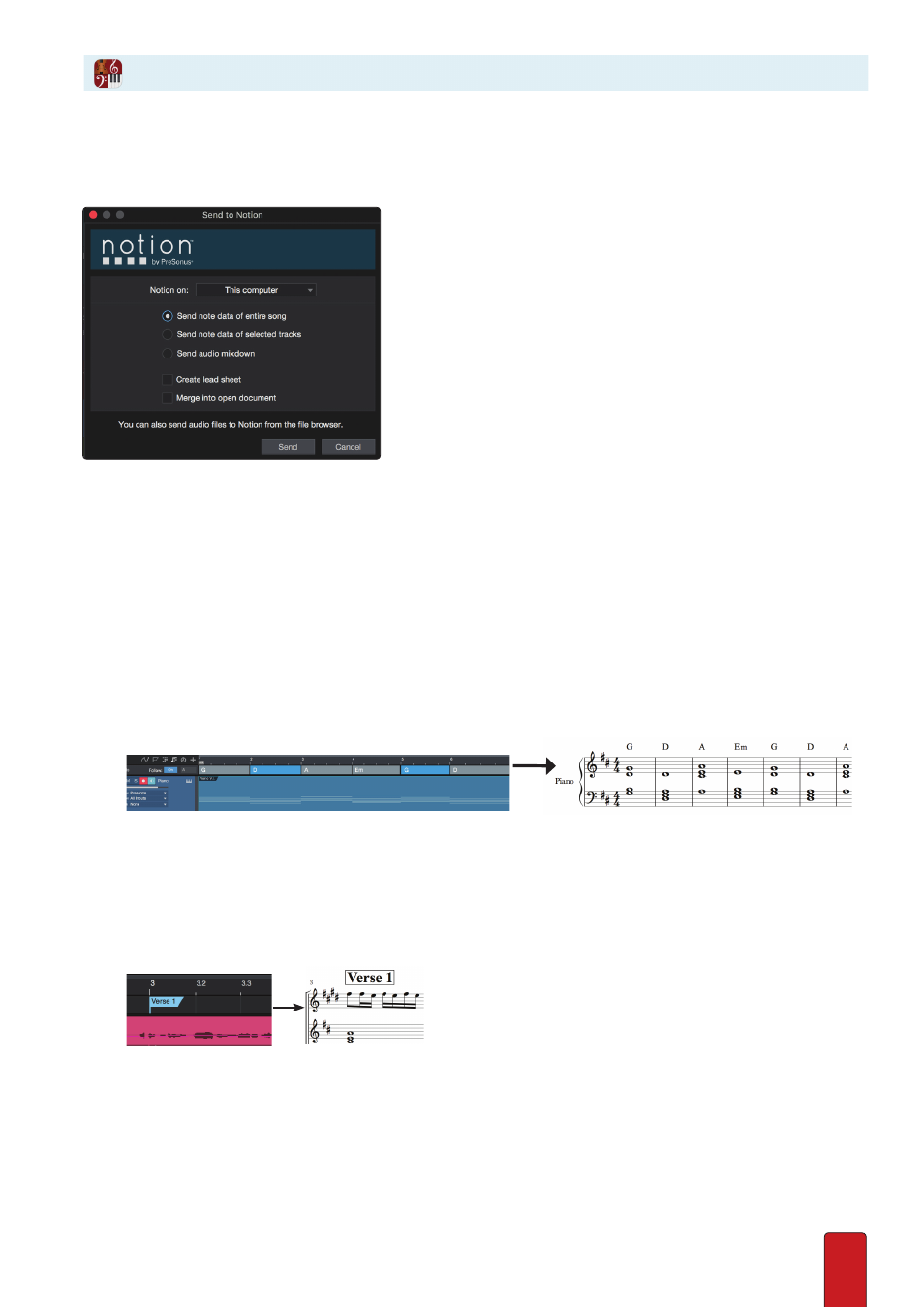
Song>Send to Notion dialog, in Studio One
Send note data to Notion
1 . In Studio One, go to Song>Send to Notion
2 . Send note data of entire song or selected tracks
3 . Select which running instance of Notion to send the data too (either on your computer, or anywwhere on the network)
4 . Select whether to merge into an existing score (overwriting a previous transfer) or to create a new document
5 . The data will then be sent to Notion, with all the Studio One song, retaining the following:
•
Score data (requires Studio One version 5 .0 or later) or Note data (Studio One versions 3 .3 to 4 .6)
•
Key signatures, including key changes
•
Chords from the Studio One Chord Track
•
File name
•
Instrument names - if Notion recognises the instrument name (and it’s not a VST) then Notion will set up the
correct clef and transposition, and load the Notion equivalent sound
•
If a Piano/Harp staff is recognised, you can elect to have a Grand staff show on import if it hasn’t already been set in
Studio One’s Score Editor (grand staff uses two staves to denote left and right hands) . Notes will be imported
around the set split point in Notion . Go to Notion>Preferences>MIDI Import>Use grand staff
•
Tempo track (on initial transfer)
•
Customised markers from Studio One marker track, will become Rehearsal marks
•
Drum tracks will be automatically converted to standard drumset notation if it hasn’t already been set up in the
Score Editor - make sure you are using a standard track name e .g . drums/kit/drumset/drumkit . Note that if you
have patterns in Studio One, you need to convert to a track first, before sending to Notion)
•
(contd...)