Dvd menu options, Setup, Press system menu on the remote control – Philips DVD760 User Manual
Page 31: Press 4 to select ‘setup
31
DVD Menu Options
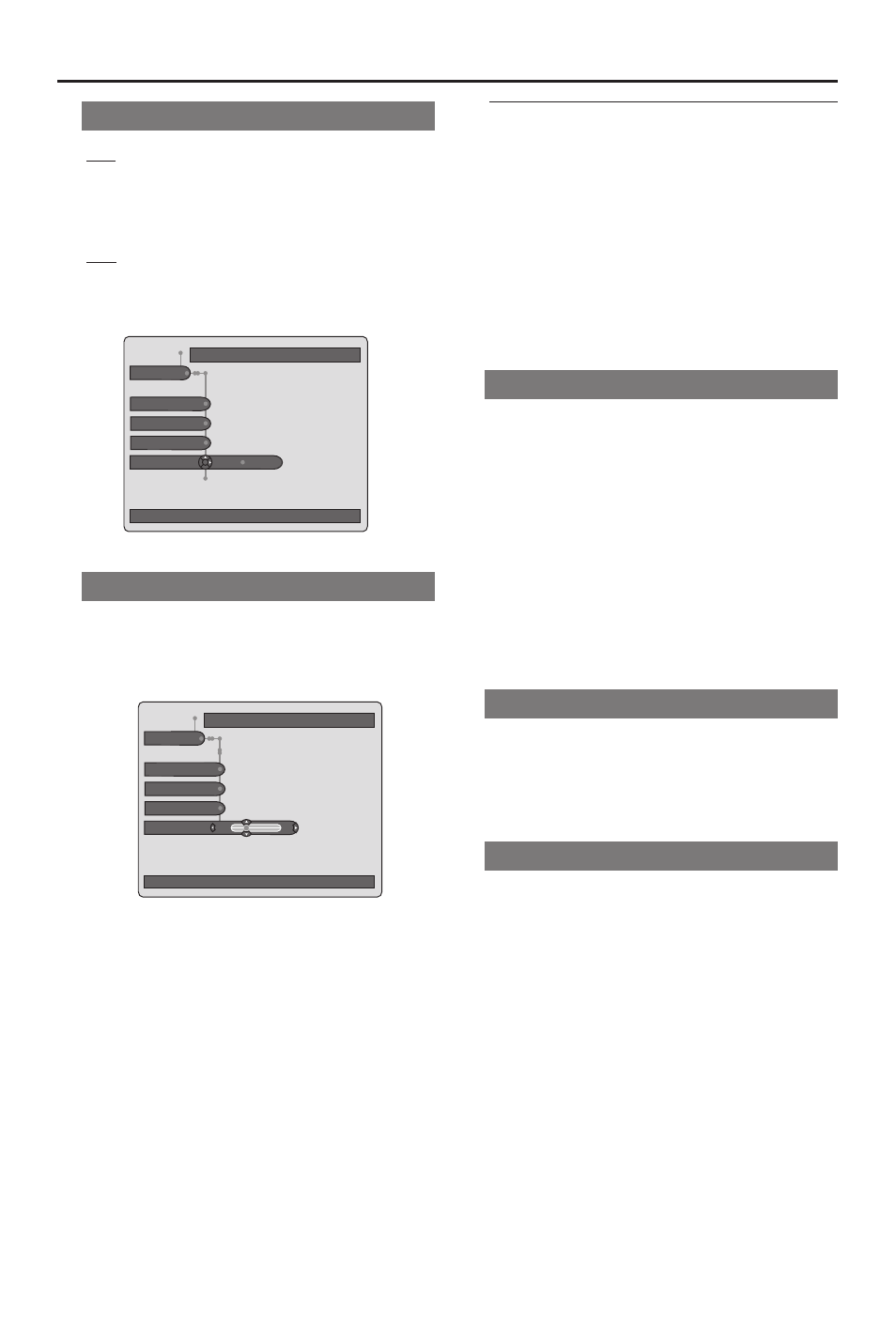
Features – Status Window
On
Displays the current play state and time
information and appears on the TV
screen.
Off
No more status updates are shown on
screen.
Use
→
to toggle the values
↓
or
↑
to move to other options..
Features
Wake-up Timer
Preference
Helpline
Beeper
Status Window
On Off
Features – Display DIM
This function is used to adjust the
brightness of display on the front panel of
the DVD Player.
Use
→
to toggle the values
↓
or
↑
to move to other options..
Features
Helpline
Preference
Beeper
Status Window
Display Dim
0
Setup
SETUP menu consists of settings which
are essential for selecting the appropriate
audio and video settings on your DVD
Player; to match your equipment like TV,
Receiver etc. It also allows you to choose
default viewing settings like language,
access control etc.
● Playback will stop when SETUP menu is
entered.
General operation
1
Press SYSTEM MENU on the Remote
Control.
2
Press 4 to select ‘Setup’.
3
Use 1 2 3 4 to navigate submenus and
select your preferred option.
4
To remove the menu, press SYSTEM
MENU.
➜ At any time, in the menu, you can press
RETURN key on your Remote Control
to go back one level in the system menu.
Language
●
Refer to Getting Started for Menu
Language, Default Audio and Default
Subtitle on section “
Setting Language
Preference” in page 18.
TV - TV System
●
Refer to Getting Started for TV System
on section “
Selecting the color system that
corresponds to your TV” in page 18.