Zilog S3F80QB User Manual
Page 27
UM026703-1014
Install the S3 Flash ISP Driver
S3F80QB Development Kit
User Manual
24
3. In the
Search programs and files
field in the Windows Start menu, enter
Device
Manager
. The Device Manager will appear in a list of search results.
4. From this list of results, click
Device Manager
to open the Device Manager dialog,
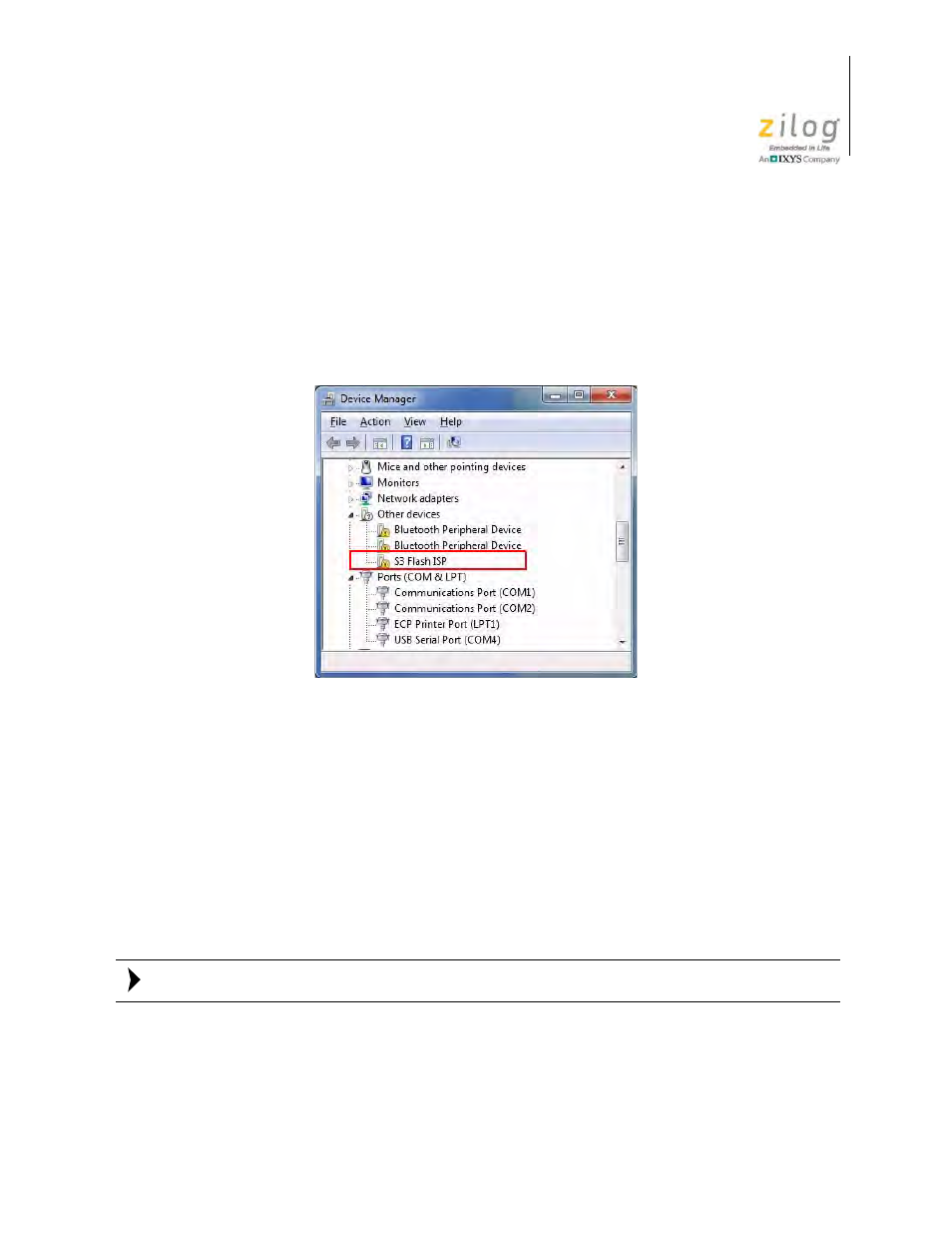
which presents a list of devices that operate on your PC. Find and toggle
Other
devices
to view a sub-list of additional devices. Right-click your mouse to select
S3
Flash ISP
, indicated in Figure 25.
5. In the sub-menu that appears, click
Update Driver Software
.
6. In the Update Driver Software
–
S3 Flash ISP dialog that appears, click the
Browse
my computer for driver software
option.
7. Click the
Browse...
button and navigate to the following driver directory:
<ZDS
II Installation Directory>\device drivers\USB
8. Click
Next
to install the driver. Depending on your computer settings, a Security dia-
log may appear; in this dialog, select
Install this driver software anyway
.
This step may take a few moments to complete.
9. After the Wizard finishes the installation, click
Close
.
Figure 25. Device Manager Dialog
Note: