Zoom in or out in time, Set the work area – Adobe After Effects CS3 User Manual
Page 117
AFTER EFFECTS CS3
User Guide
112
•
To hide the thumbnail images in the Project panel, choose Edit > Preferences > Display (Windows) or After
Effects > Preferences > Display (Mac OS) and select Disable Thumbnails In Project Panel.
Zoom in or out in time
•
In the Timeline panel, click the Zoom In button
or the Zoom Out button
, or drag the zoom slider between
the buttons.
•
On the main keyboard, press the = (equal sign) key to zoom in or press the – (hyphen) key to zoom out in time.
•
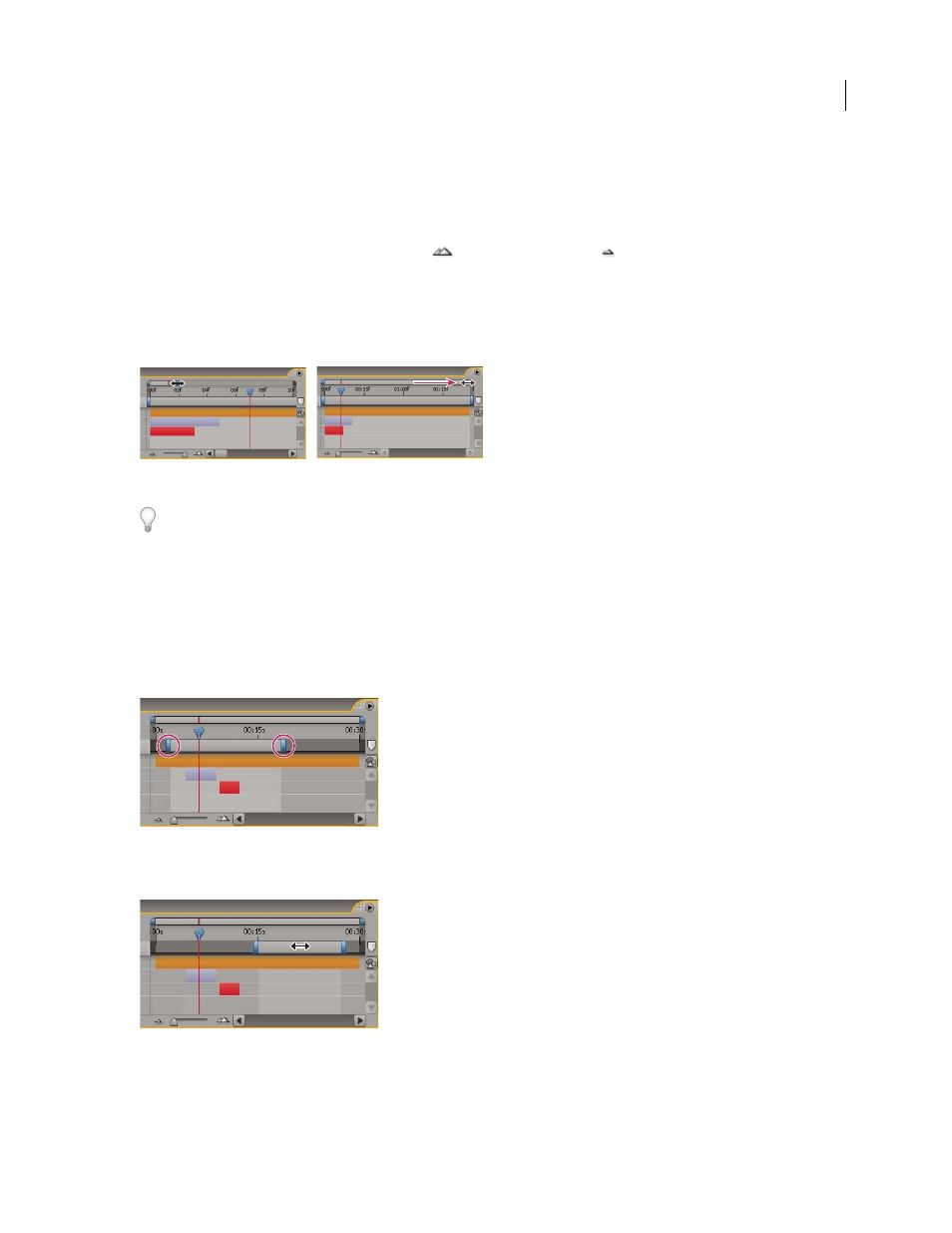
In the navigator view, drag the Time Navigator Start or Time Navigator End brackets to magnify or shrink a
section of the time ruler.
Dragging Time Navigator End bracket to show more of time ruler.
When zoomed in time, press D to center the time graph on the current time.
Set the work area
The work area is the part of the duration of a composition that is previewed or rendered. In the Timeline panel, the
work area appears in a lighter shade of gray.
•
To set the work area start time or end time to the current time, press B (begin) or N (end), respectively.
•
To set the work area, move the start and end work area markers in the time ruler.
Work-area markers indicate the composition duration rendered for previews or output.
•
To move the work area, drag the center of the work area bar left or right.
Dragging center of work area bar to move work area
•
To expand the work area to the size of the composition, double-click the center of the work area bar.