Preview a soundtrack – Adobe Premiere Elements 8 User Manual
Page 244
239
USING ADOBE PREMIERE ELEMENTS 8 EDITOR
Adding and mixing audio
Last updated 8/12/2010
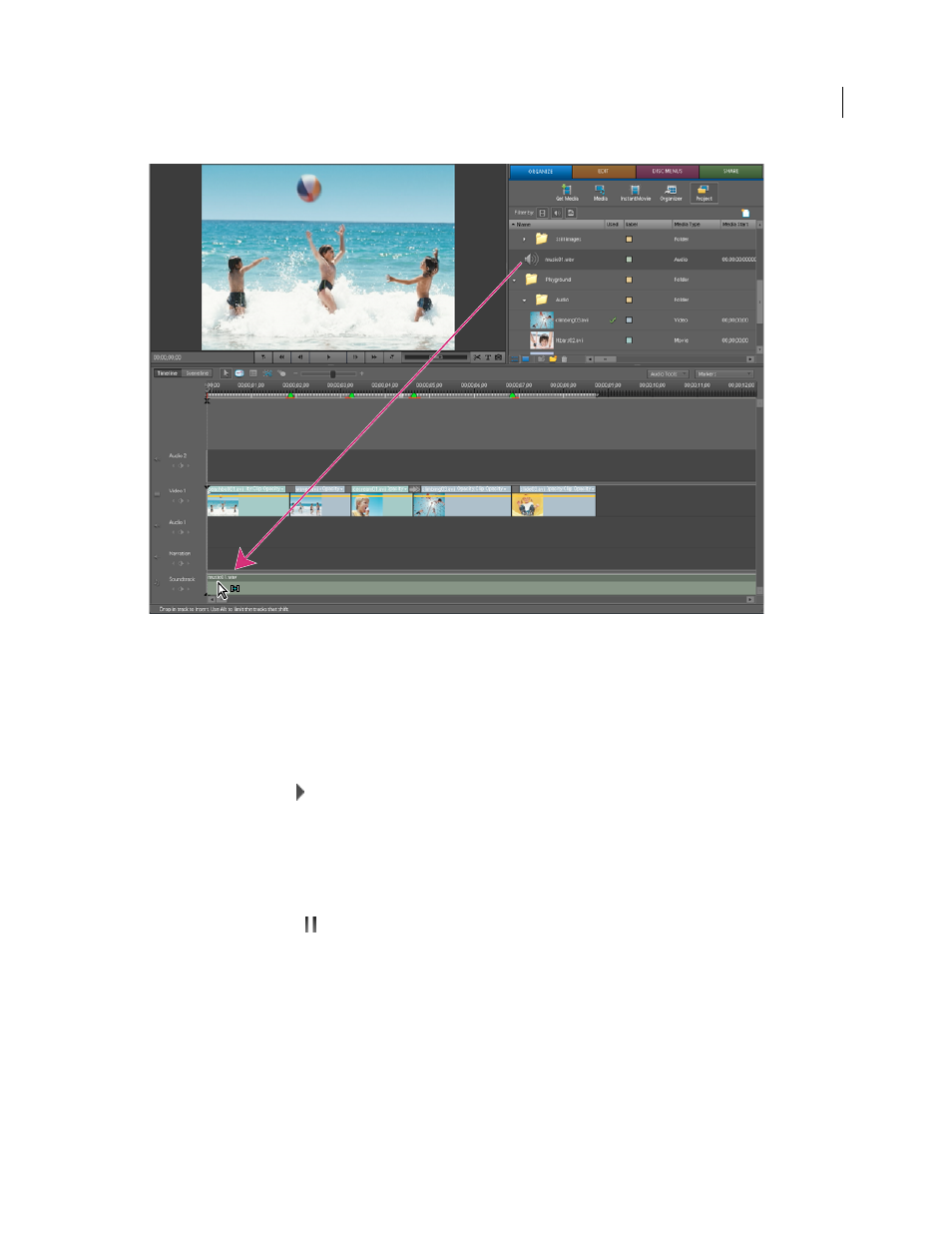
Adding an audio clip to the Soundtrack track of the Timeline
Preview a soundtrack
You can preview a soundtrack to make sure that it corresponds to your video the way you want it to.
1 In the Timeline or Sceneline, select an audio clip in the Soundtrack track. (You might need to scroll down through
the audio tracks to see the Soundtrack track.)
2 Do one of the following:
•
Click the Play button
in the Monitor panel.
•
Press the spacebar.
Adobe Premiere Elements previews the Soundtrack audio clip along with any audio and video clips above it in the
Timeline or Sceneline.
3 To stop the preview, do one of the following:
•
Click the Pause button
in the Monitor panel.
•
Press the spacebar.
More Help topics
Trim a clip from the Sceneline