Live setup – OpenEye Gen6 RADIUS-PC User Manual
Page 28
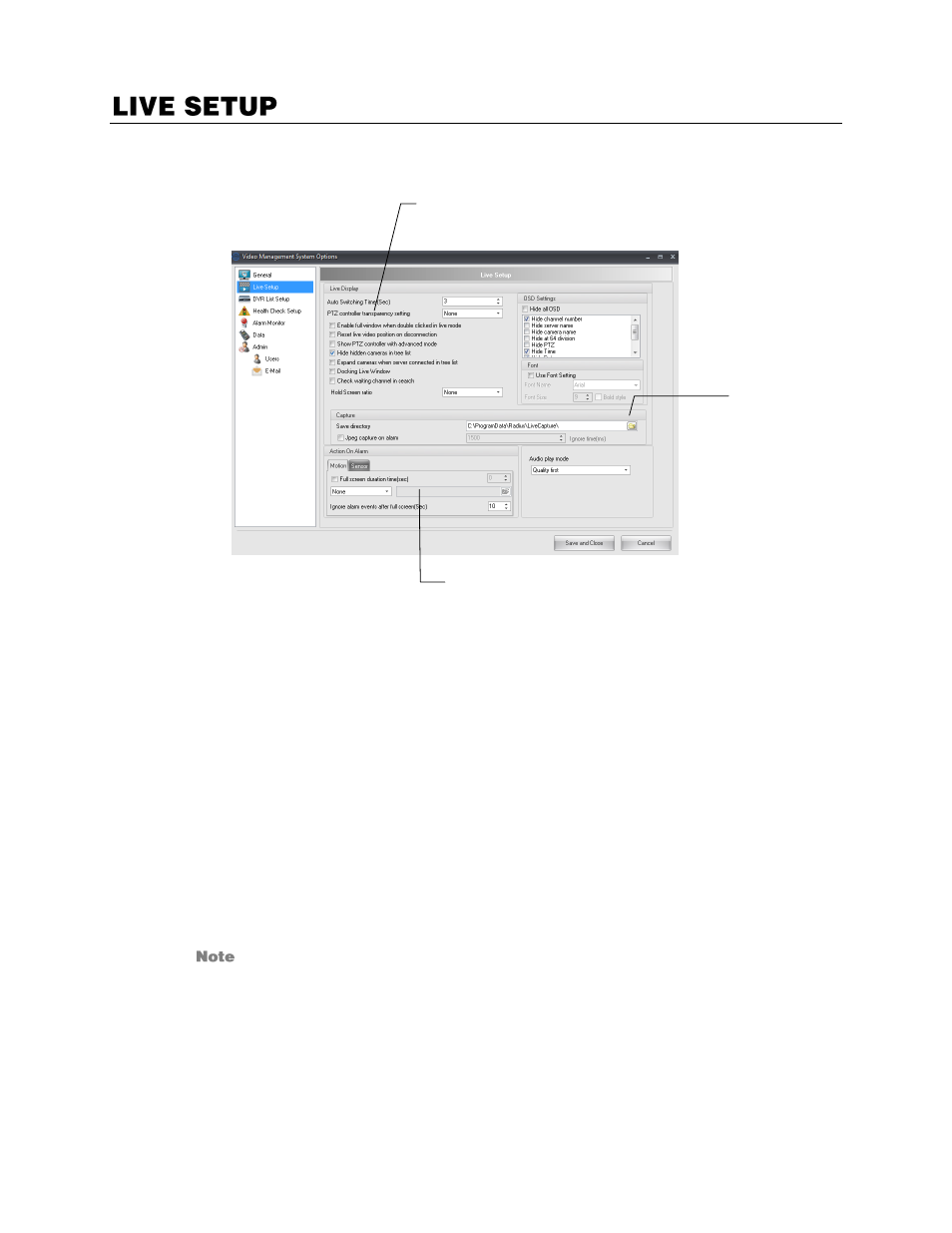
29
Use the Live Setup to configure on screen display options, full-screen on alarm settings, and JPEG
image capture on alarm.
Auto Switching Time (Sec)
–
Sets time between the camera view sequencing
PTZ controller transparency setting
–
Set the transparency level of the PTZ controller.
Enable full window when double clicked in live mode
–
Enable to show a channel full screen when
the live mode display is double-clicked.
Reset live video position on disconnection
–
Resets video positioning to display in sequential order.
Show PTZ controller with advanced mode
–
Show that advanced menu when the PTZ controller
opens.
Hide hidden cameras in tree list
–
Exclude cameras, which are set to be hidden from a user, from the
tree list of cameras.
Hold Screen Ratio
–
Preserves the native aspect ratio of the video.
Hide all OSD
–
Hide all on screen display text.
Use Font Setting
–
Change the font and font size of the on screen display text.
Save Directory
–
The location to which alarm images are saved.
Jpeg Capture on Alarm
–
Capture a JPEG image of the associated channel on an alarm event.
Full Screen Duration Time
–
Show alarm video full screen on motion or sensor alarm.
The duration defines the amount of time the video will display before a subsequent alarm
video can display. Single alarms will display full screen until closed by the user.
Audio play mode
–
Quality first
– Play best quality video /
Sync first
– Keep audio synced with video.
On-screen display options
Location to
save image
captures
Define action for alarms