Data manager, Configuring import / export – OpenEye Gen6 RADIUS-PC User Manual
Page 38
39
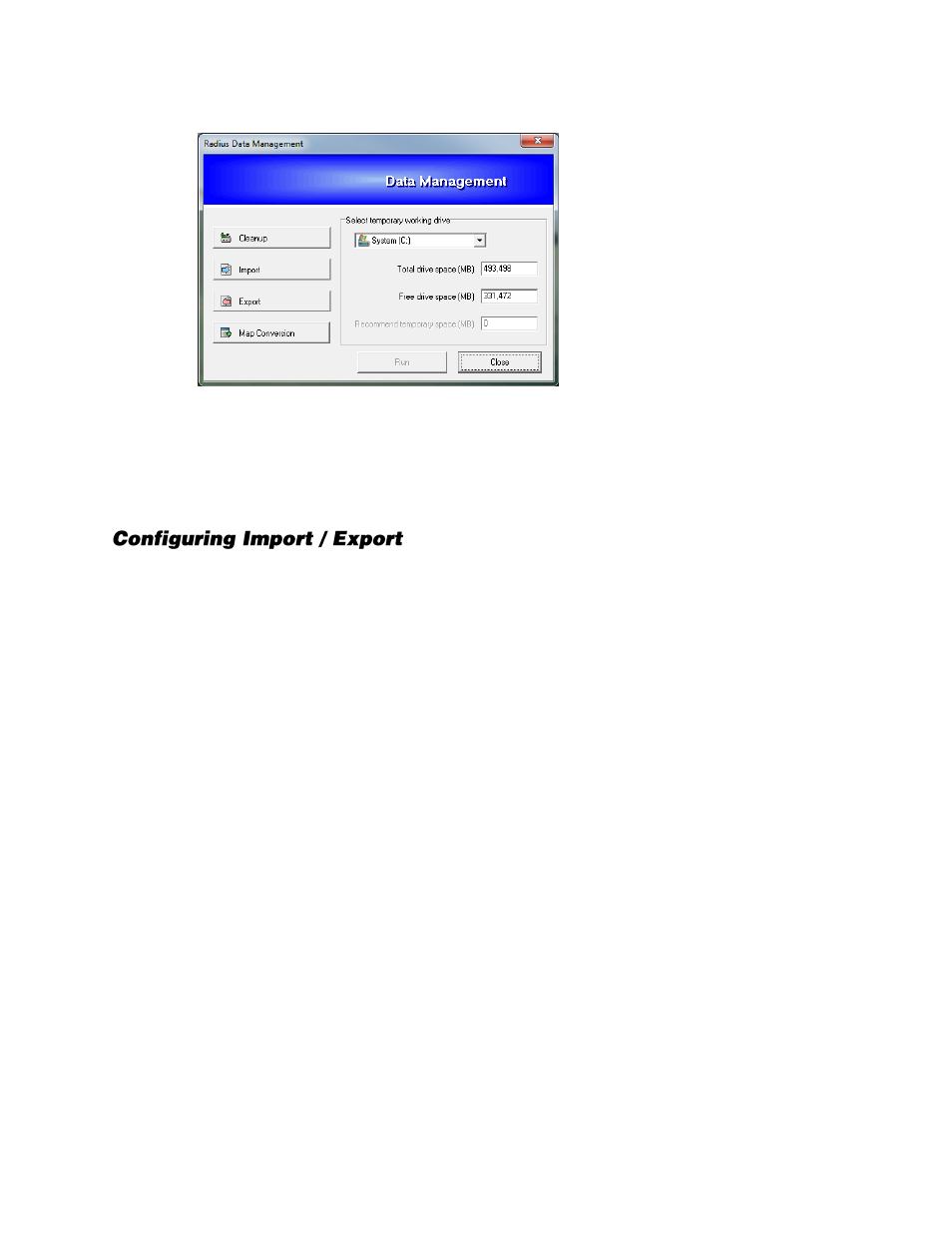
Data Manager
Cleanup
–
Schedule alarm clean up or restore alarm and recorder configuration to default settings
Import
–
Import system settings
Export
–
Export system settings
Map Conversion
–
Convert maps from legacy versions of RADIUS to use in versions 3.6+
Creating the custom settings for this application may take some time, depending on the number of
connected recorders, and the complexity of maps. The import/export features provide the option to
perform set up once and reuse the settings when desired. This option may need to be used when:
Using multiple stations
. It may be practical to import settings if more than one station is used.
Installing new software versions.
Upgrading to a newer software version sometimes forces the deletion
of settings.
Windows / Software Failure.
Windows may become unstable for a number of reasons (viruses,
incompatible software, etc).
Exporting Settings
1.
Click
Menu
, and then click
Settings
.
2.
Click
Admin
.
3.
Click
Run Data Manager
.
4.
You will be required to close RADIUS to set up Data Manager. Click
OK
.
5.
Click
Export
.
6.
Click the folder icon, and then browse to the location you want to save your settings. Click
Save
.
7.
Select the options you want to export, and then click
OK
.
8.
Click
Run
to complete the export.
Import Settings
1.
Click
Menu
, and then click
Settings
.
2.
Click
Admin
.
3.
Click
Run Data Manager
.
4.
Click
Import
.
5.
Click the folder icon to select a previously saved configuration file, and then click
Open.
6.
Click
OK
7.
Click
Run
to complete the import.