3 players – Grass Valley Channel Composer v.1.6.2 User Manual
Page 50
Channel Composer User Manual - Channel Composer User Manual- document version: 1.6.2 - 49
7.1.3 Players
Objects such as ‘Clip’, ‘Audio’ and ’Still’ use a Player to play out content. Players can be used to control
playout. Different actions can be defined. The default is: Play. Players can be modified in the
Object and
Objects window. Example Players:
•
Still Player
•
Ani Player
•
Plasma Player
•
Clip Player
•
Audio Player
•
Gradient Player
•
Live Player
•
Text Player
•
Ticker Player
•
Subtitle Player
•
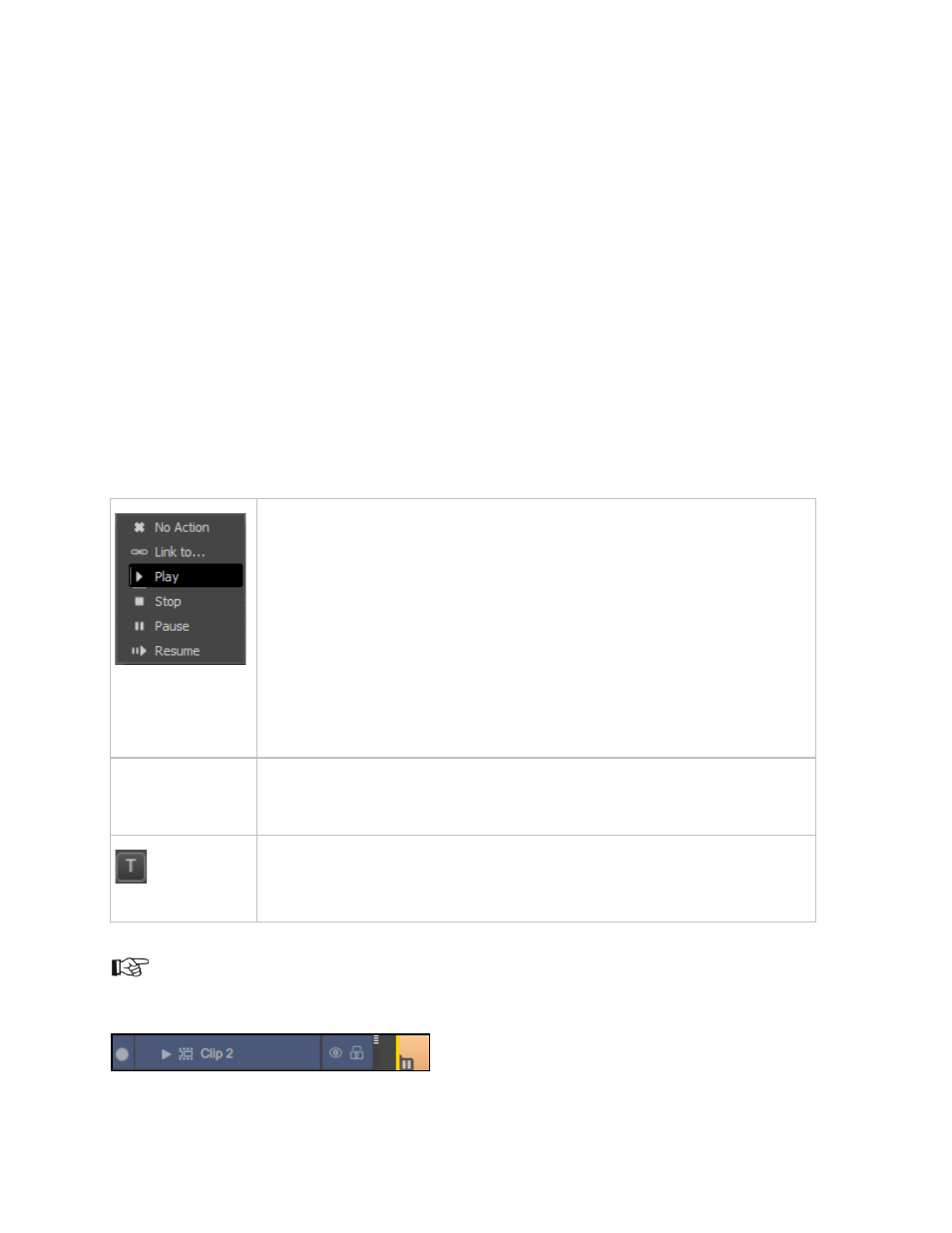
No Action: The Player's current action is continued.
•
Play: Start the Player.
•
Stop: Stop the Player.
•
Link to: Link this Player to another Player. The Object will now play out
the content from the Player you linked to. This option can be used to
save resources (only one stream will be used).
For clips, animations and tickers additional options are:
•
Pause: Pause the Player.
•
Resume: Resume the Player after a Pause.
Auto-stop at Out
Point
If this option is selected, a Stop Playback action is automatically inserted when
an Out Point is added to a Player on the Template Timeline. This will stop the
Player.
For some Objects, a test feed (procedurally generated video) can be used
during editing.
As a default, Player actions are defined from 00:00:00. To define an action at another point in time, work
with keyframes or move the Object’s In Point.
Example Pause player icon on the Timeline.