Downloading disk drive firmware – Grass Valley K2 Summit Storage Area Network Installation User Manual
Page 324
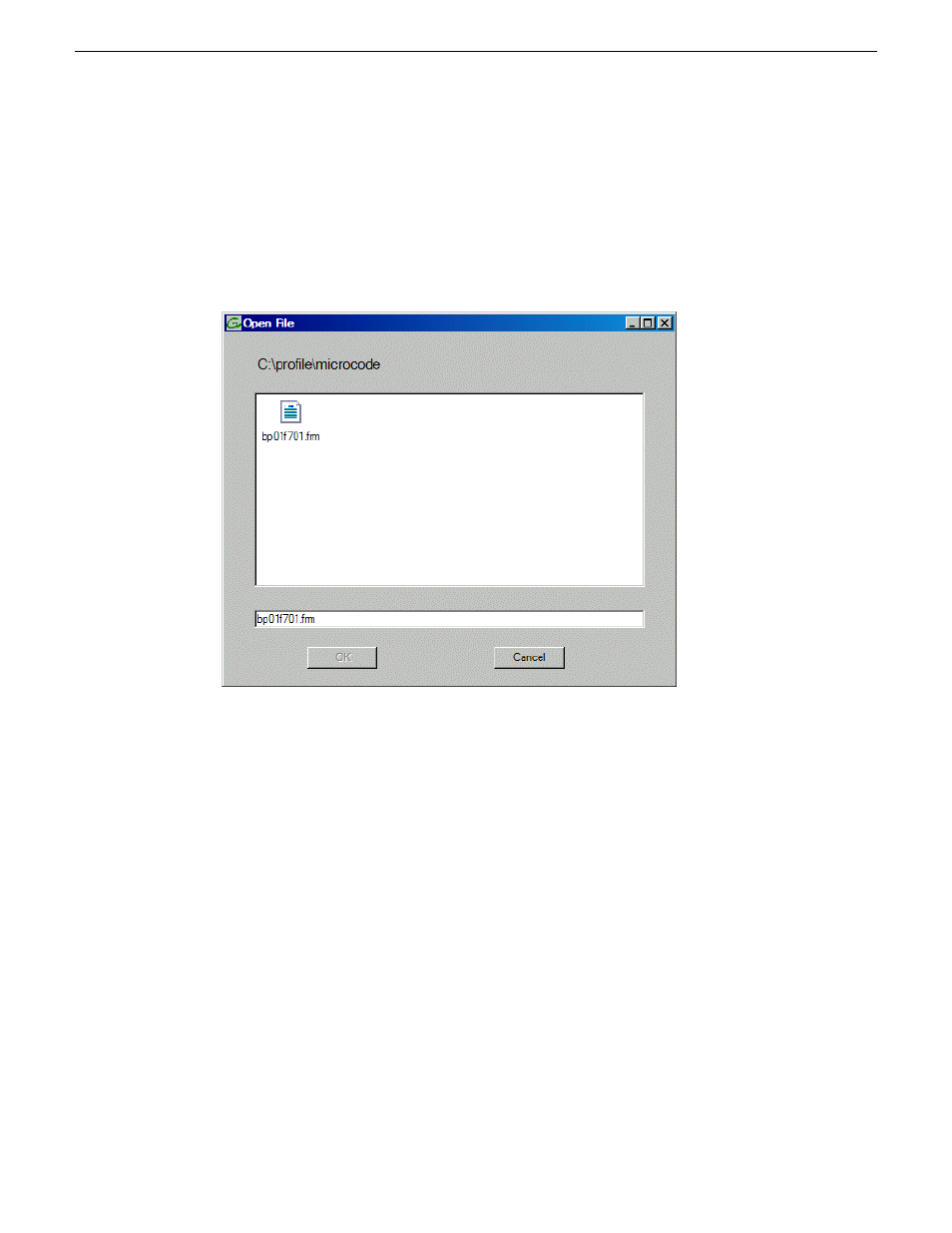
2. In Storage Utility, right-click a controller in the tree view, then do one of the following:
•
To load controller microcode select
Advanced | Load Controller Microcode
•
To load expansion chassis microcode select
Advanced | Load Disk Enclosure Microcode
Redundant controllers that share the same set of disks are automatically selected and upgraded
as a pair.
The Open File dialog box appears.
3. In the Open File dialog box, browse to the latest controller microcode file, select the file, and
click
OK
.
4. The Progress Report window appears showing the microcode upgrade task and the percentage
completion.
5. On 100% completion, proceed as follows:
•
If the RAID controller chassis has redundant controllers, no power cycle is required. The
firmware download is complete.
•
If the RAID controller chassis does not have redundant controllers, power cycle the RAID
controller chassis, then restart the K2 Media Server.
Downloading disk drive firmware
Prerequisites are as follows:
•
All K2 clients and other clients must be powered down, or in some other way disconnected from
the K2 SAN.
•
The K2 Media Server through which Storage Utility is connected to the RAID Storage must be
powered up.
•
All other K2 Media Servers must be powered down.
324
K2 SAN Installation and Service Manual
18 November 2010
Administering and maintaining the K2 SAN