Casio E-125 Mobile Picture & Video Player V.1.0 User Manual
Page 11
- 11 -
Mobile Picture & Video Player with Camera
Recording a Movie
Use
(page 7) for recording movies.
To record movies
1. Start up Mobile Picture & Video Player with Camera.
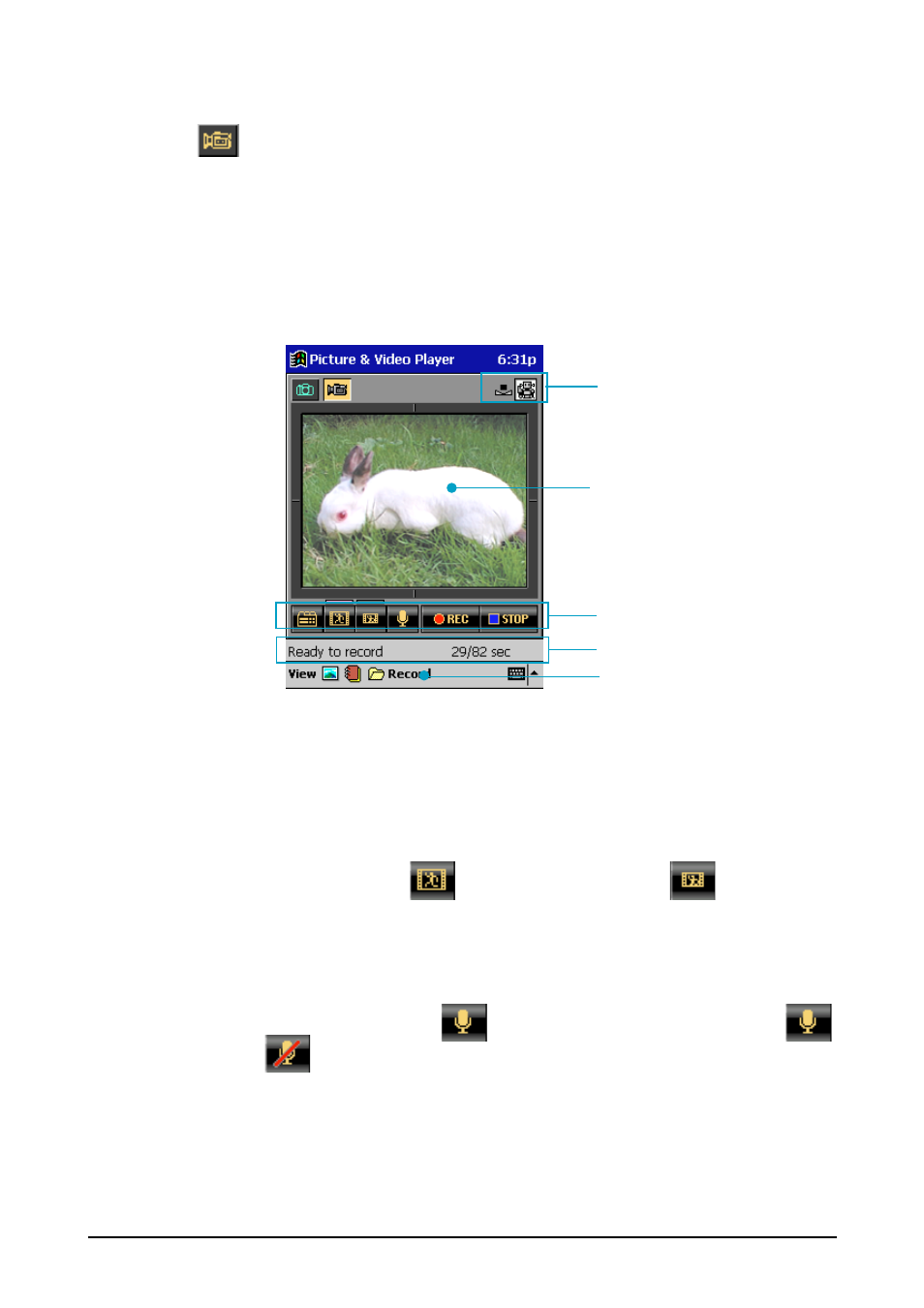
2. Display the movie camera screen.
•
Check to make sure that the message "Ready to record" is in the status bar.
See "Interpreting Status Bar Information" on page 13 for details.
•
Steps 3 through 7 cover other settings that are not essential and may be
skipped if you want.
3. Specify the image size.
•
On the control panel, tap
to select 1/9 VGA size or
to select 1/16
VGA size. A pink bar appears over the button whose size is currently se-
lected.
4. Specify whether or not you want to record audio along with the movie.
•
On the control panel, tap the
button to toggle audio recording on
and off
.
Icon bar
Status bar
Control panel
Viewfinder
Folder box