Scanning to a memory device – Epson Expression Premium XP-6100 All-in-One Printer User Manual
Page 135
135
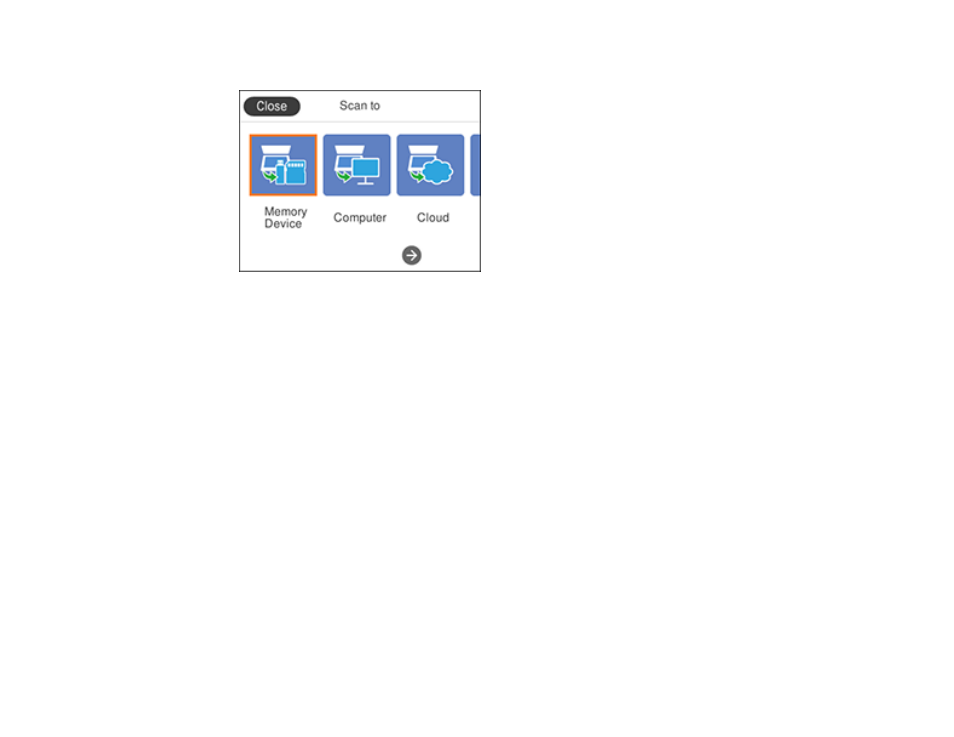
You see a screen like this:
5.
Select one of the following
Scan to
options:
•
Memory Device
saves your scan file on a USB device or memory card and lets you select the file
format, quality, and other settings.
•
Computer
lets you scan to a connected computer using your saved scan settings.
•
Cloud
sends your scanned files to a destination that you have registered with Epson Connect.
•
Computer (WSD)
lets you manage network scanning in Windows 10, Windows 8.x, Windows 7,
or Windows Vista (English only). To use this feature, you must first set up a WSD (Web Services
for Devices) port on your Windows 7 or Windows Vista computer (the port is set up automatically
on Windows 10 and Windows 8.x).
6.
Follow the instructions in the links below to complete your scan.
Scanning to a Memory Device
Scanning to a Connected Computer
Scanning to the Cloud
Setting Up a WSD Port (Windows 7/Windows Vista)
Control Panel Scanning Options
Changing Default Scan Job Settings
Parent topic:
Scanning to a Memory Device
You can scan an original and save the scanned image to a memory card or external USB device.