APC Power-Saving Back-UPS Pro 1500 International Version (230V) User Manual
Back-ups, Connect the battery install powerchute, Personal edition software
Advertising
Back-UPS
®
Pro 1200/1500 230V
Installation and Operation
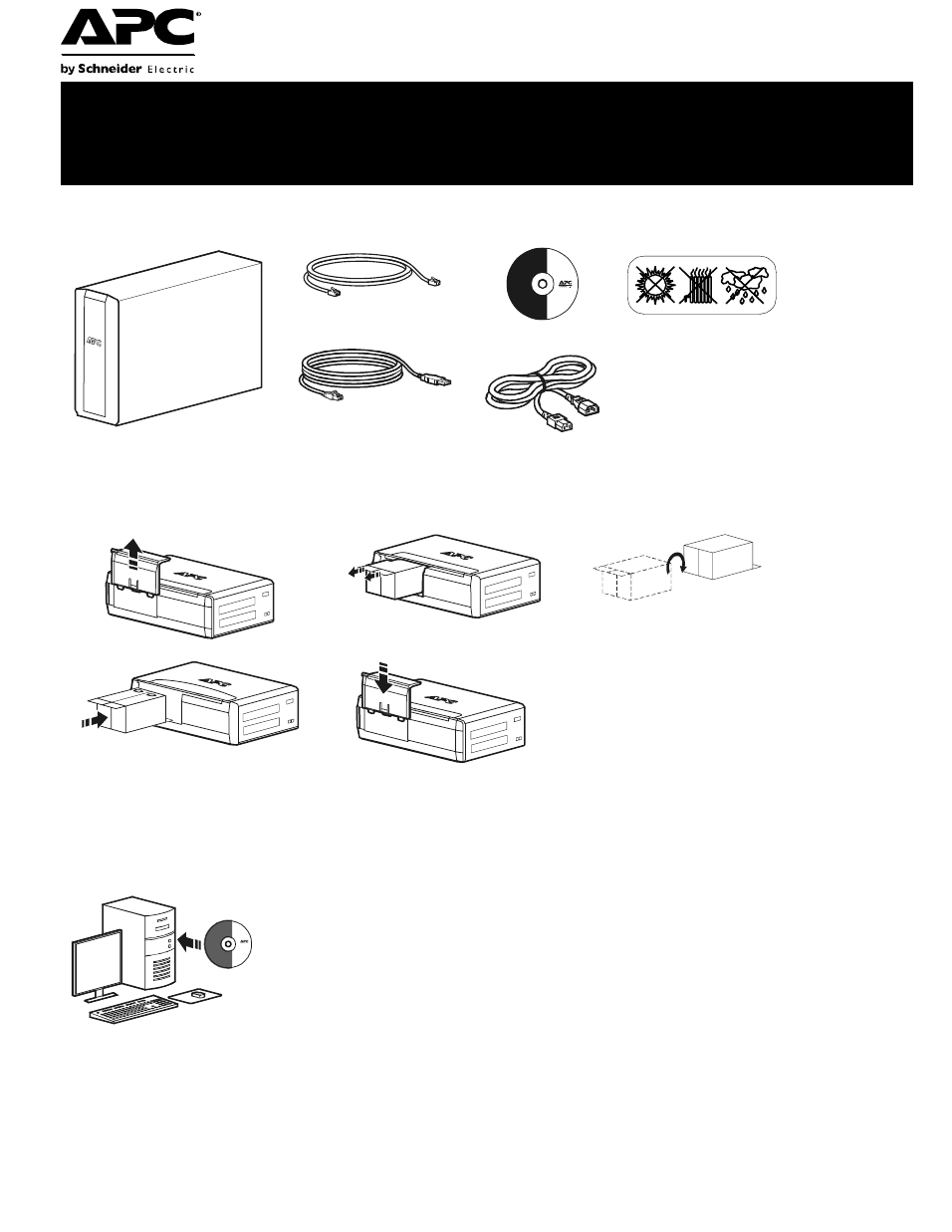
Connect the battery
Install PowerChute
®
Personal Edition Software
APC PowerChute Personal Edition software provides automatic file saving and shutdown of
your computer in the event of a power failure. Use the cable supplied with the Back-UPS to
connect the data port on the Back-UPS to the USB port on your computer. Place the CD into
your computer, and follow the on-screen instructions.
Inventory
Safety
Do not install the Back-UPS in direct
sunlight, in excessive heat, humidity, or
in contact with fluids.
bu
00
1
a
(2)
bu
055
a
bu0
57
a
bu
05
9a
bu0
58
a
bu
060
a
Advertising
Table of contents
Document Outline
- The battery cartridge typically lasts 3 to 6 years, a shorter period if subjected to frequent out...
- If the Back-UPS arrived damaged, notify the carrier.
- If the Back-UPS requires service, do not return it to the dealer.
- Have the Back-UPS model number, serial number and date of purchase available. Be prepared to trou...
- If this is not successful, APC will issue a Return Merchandise Authorization (RMA) number and a s...
- Inventory
- Safety
- Connect the battery
- Install PowerChute® Personal Edition Software
- Connect the equipment
- When the Back-UPS is receiving input power, the Battery Backup with Surge Protection outlets will...
- Connect equipment such as printers, fax machines, scanners, or other peripherals that do not need...
- To conserve electricity, when the device connected to Master Outlet goes into Sleep or Standby mo...
- Connect a master device, such as a desktop computer or audio/visual receiver to the Master outlet...
- USB and Serial Data port
- To use PowerChute Personal Edition, connect a serial cable or USB cable.
- Telephone cable surge- protected ports
- Connect a telephone cable to the In port, and connect a modem to the Out port.
- Ground screw
- Connect the ground lead of additional surge suppression devices such as network and data line sur...
- Surge Protected outlets, controlled by the Master outlet
- These outlets are protected from electrical surges, and will disconnect from utility power during...
- Surge Protected outlets
- These outlets provide full-time protection from surges, even if the Back-UPS is off. Connect equi...
- AC power outlet
- Connect the unit to utility power, use the supplied power cord.
- Battery Backup outlets with Surge Protection
- During a power outage or other utility problems, the Battery Backup outlets receive power for a l...
- Battery Backup outlet with Surge Protection, controlled by the Master outlet
- These outlets will supply battery power to the connected equipment during a power outage. Power w...
- Master outlet
- Connect the master device to this outlet, in most scenarios, this will be the main computer.
- External Battery Pack connector (BR1500GI only)
- Connect an external battery pack to provide additional battery backup runtime (Back-UPS Pro 1500 ...
- In & Out Ethernet surge- protected ports
- Use an ethernet cable to connect a cable modem to the In port, and connect a computer to the Out ...
- Operation
- To conserve electricity, configure the Back-UPS to recognize a Master device, such as a desktop c...
- Enable the Power-Saving function
- Disable the Power-Saving function.
- Setting the threshold
- The amount of power used by a device in Sleep or Standby mode varies between devices. It may be n...
- 1 . Ensure a master device is connected to the Master outlet. Put that device into Sleep or Stand...
- 2 . Press Display and Mute simultaneously and hold for six seconds, until the leaf icon flashes t...
- 3 . The Back-UPS will now recognize the threshold level of the Master device and save it as the n...
- The display interface can be configured to be continuously illuminated, or to save energy, it can...
- 1 . Full Time Mode: Press and hold DISPLAY for two seconds. The display will illuminate and the B...
- 2 . Power-Saving Mode: Press and hold DISPLAY for two seconds. The display will darken and the Ba...
- Adjust the sensitivity of the Back-UPS to control when it will switch to battery power; the highe...
- 1 . Ensure the Back-UPS is connected to utility power, but is OFF.
- 2 . Press and hold the Power button for six seconds. The Load Capacity bar will flash on and off,...
- 3 . Press Power again to rotate through the menu options. Stop at selected sensitivity. The Back-...
- Use the three buttons on the front panel of the Back-UPS and the display interface to configure t...
- Mute button
- Power On/Off button
- Display button
- Display interface
- On Line—The Back-UPS is supplying conditioned utility power to connected equipment
- Power-Saving—Master and Controlled outlets are enabled, saving power when the master device goes ...
- Load Capacity—The load is indicated by the number of sections illuminated, one to five. Each bar ...
- Battery Charge—The battery charge level is indicated by the number of sections illuminated. When ...
- Overload—The power demand from the load has exceeded the capacity of the Back-UPS.
- Event—The event counter shows the number of events that occurred that caused the Back-UPS to swit...
- Automatic Voltage Regulation—The Back-UPS can compensate for high or low input voltage.
- When illuminated, the Back-UPS is compensating for low input voltage.
- When illuminated, the Back-UPS is compensating for high input voltage.
- Input voltage.
- Output voltage.
- System Faults—The system has a fault. The fault number will illuminate on the display interface. ...
- Mute—If the line through the speaker icon is illuminated, the audible alarm has been turned off.
- Replace Battery—The battery is not connected or is nearing the end of its useful life. Replace th...
- On Battery—The Back-UPS is supplying battery backup power to the connected equipment, it will bee...
- Warnings and System Faults
- Four Beeps Every 30 Seconds
- Continuous Beeping
- Continuous tone
- Chirps for 1 Minute every 5 hours
- Battery fails the automatic diagnostic test and should be replaced.
- The Back-UPS is operating on utility power, but is overloaded. Disconnect one of the items connec...
- The Back-UPS is operating on battery power, but is overloaded. Disconnect one of the items connec...
- The Back-UPS is operating on utility power, but the battery is not functioning properly. Contact ...
- The Back-UPS is operating on battery power and the battery power is getting low. Shut down all co...
- The Back-UPS will display these fault messages. For faults F01 and F02, contact APC Technical Sup...
- F01
- F02
- F03
- F04
- F05
- F06
- F07
- F08
- F09
- Function Button Quick-Reference
- 0.2
- Off
- 2
- On
- 0.2
- On
- 2
- On
- 0.2
- On
- 2
- On
- 6
- Off
- 2
- On
- 6
- On
- 6
- On
- 0.2
- On
- 2
- Fault
- After a fault has been identified, press Power to remove the visual indication and return to stan...
- Troubleshooting
- Specifications
- Model
- BR1200GI
- BR1500GI
- VA
- 1200 VA
- 1500 VA
- Maximum Load
- 720 W
- 865 W
- Nominal Input Voltage
- 230 V
- Online Input Voltage Range
- 176 - 294 V
- Automatic Voltage Regulation
- (188-216) +11.2%
- (252-282) -11.2%
- Frequency Range
- 50/60 Hz ± 1 Hz
- On-battery Waveshape
- Step-approximated sine-wave
- Typical Recharge Time
- 8 hours
- Transfer Time
- 10 ms, maximum
- Operating Temperature
- 08 to 408C (328 to 1048F)
- Storage Temperature
- -158 to 458C (238 to 1138F)
- Unit Dimensions
- 30.1 ° 11.2 ° 38.2 cm (11.9 ° 4.4 ° 15.0 in)
- Unit Weight
- 12.8 kg (28.2 lbs)
- 13.4 kg (29.5 lbs)
- Interface
- Serial, USB
- On-Battery Runtime
- Go to: www.apc.com
- EMI Classification
- CE, C-Tick, KETI
- Approvals
- CE, TUV-GS, GOST, A-Tick, KETI, TISI
- The standard warranty is three (3) years from the date of purchase, valid in European Community. ...