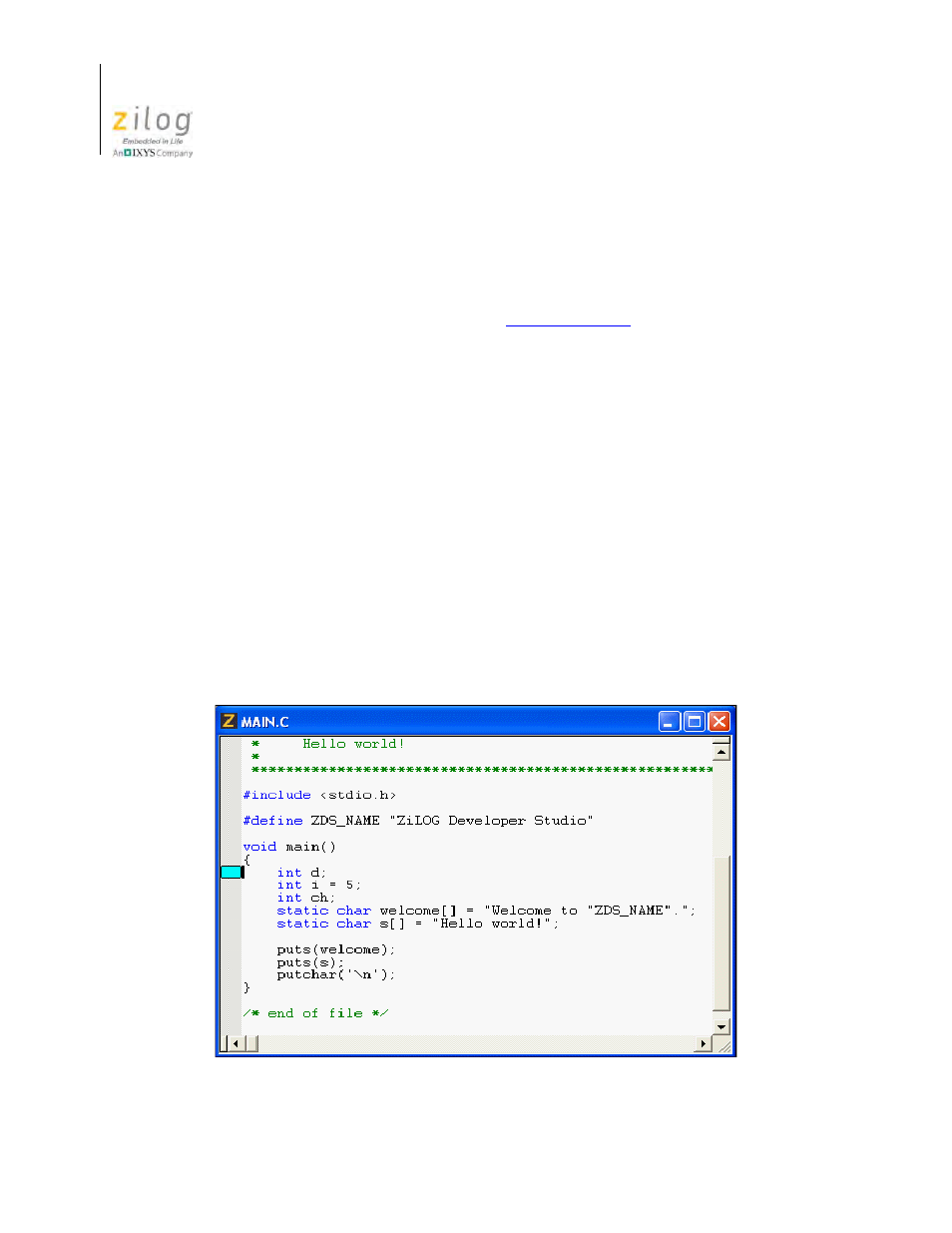
Figure 26. bookmark example, Using bookmarks – Zilog Z8F0130 User Manual
Page 66
Using the Integrated Development Environment
UM013037-1212
42
Zilog Developer Studio II – Z8 Encore!
User Manual
•
Pause the debugging (Break)
•
Step into, over, or out of program instructions
•
Set the next instruction at the current line
•
Insert or remove bookmarks (see the
When you right-click outside of all files, the context menu allows you to perform the fol-
lowing tasks:
•
Show or hide the output windows,
Project Workspace
window, status bar,
File
tool-
bar,
Build
toolbar,
Find
toolbar,
Command Processor
toolbar,
Debug
toolbar,
Debug Windows
toolbar
•
Toggle Workbook Mode
When in
Workbook
mode, each open file has an associated tab along the bottom of
the
Edit
windows area.
•
Customize the buttons and toolbars
Using Bookmarks
A bookmark is a marker that identifies a position within a file. Bookmarks appear as cyan
boxes in the gutter portion (left) of the file window. The cursor can be quickly positioned
on a lines containing bookmarks.
Figure 26. Bookmark Example
- Z8F0131 Z8F0230 Z8F0231 Z8F0430 Z8F0431 Z8F043A Z8F0830 Z8F0831 Z8F083A Z8F1232 Z8F1233 Z8F0113 Z8F011A Z8F0123 Z8F012A Z8F0213 Z8F021A Z8F0223 Z8F022A Z8F0411 Z8F0412 Z8F0413 Z8F041A Z8F0421 Z8F0422 Z8F0423 Z8F042A Z8F0811 Z8F0812 Z8F0813 Z8F081A Z8F0821 Z8F0822 Z8F0823 Z8F082A Z8F0880 Z8F1621 Z8F1622 Z8F1680 Z8F1681 Z8F1682 Z8F2421 Z8F2422 Z8F2480 Z8F3221 Z8F3222 Z8F3281 Z8F3282 Z8F4821 Z8F4822 Z8F4823 Z8F6081 Z8F6082 Z8F6421 Z8F6422 Z8F6423 Z8F6481 Z8F6482 Z8FS021A ZMOT1AHH Z8FS040B ZMOT0BHH ZMOT0BSB Z8FMC04 Z8FMC08 Z8FMC16