Configuring system settings – ARRIS WTM552 User Guide User Manual
Page 30
Touchstone® WTM552 Telephony Modem User’s Guide
30
Getting
Battery
Wireless
Ethernet
Configuring System Settings
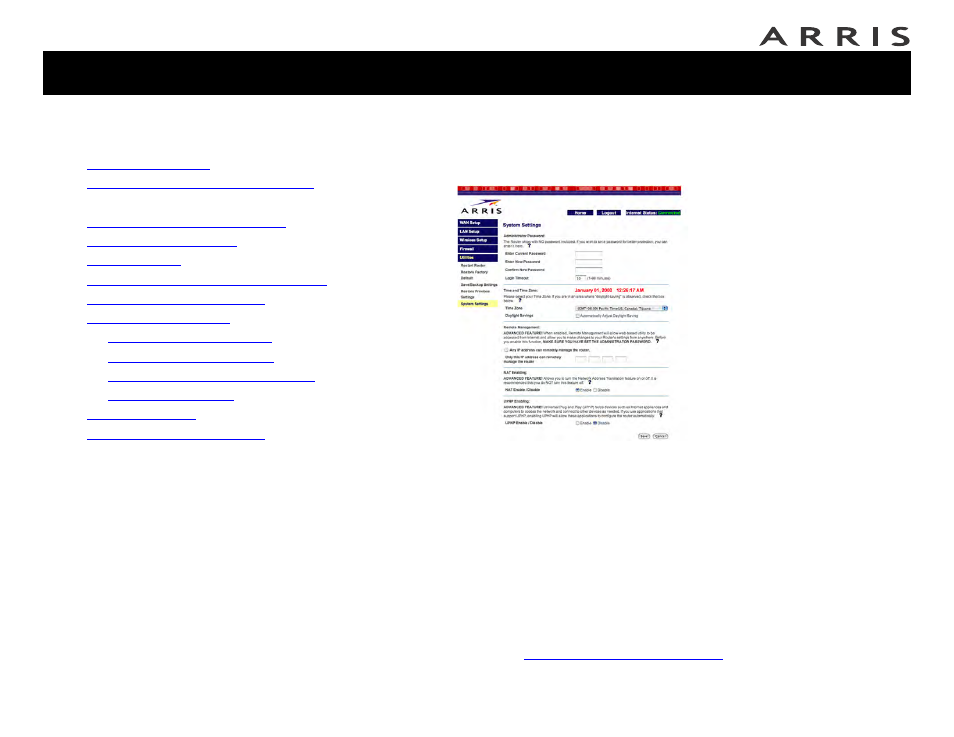
1 Click the Utilities link (at the bottom of the Navigation menu) to open the
Utilities menu, then click System Settings to access the System Settings
screen:
2 Make changes as follows:
— Enter Current Password: If you have already created a password, and
you want to change settings on this screen, enter the password here.
— Enter New Password: Enter a password that you will remember but is not
easy to guess.
— Confirm new Password: Enter the same password again.
— Time Zone: Select the proper time zone for your location. The Telephony
Modem uses an Internet time server to set its internal clock.
3 Scroll down to the bottom of the page and click the Save button. If you are
prompted to log in again, type your new password and click the Submit but-
ton.
4 Proceed to
Setting Up Your WAN Connection
.
Jump directly to one of the following topics:
•
•
Accessing the Configuration Interface
•
Configuring System Settings
•
Setting Up Your WAN Connection
•
•
•
Configuring the LAN Channel and Name
•
•
—
—
—
Configuring MAC Address Filtering
—
•
•