Configuring the lan channel and name – ARRIS WTM552 User Guide User Manual
Page 37
Touchstone® WTM552 Telephony Modem User’s Guide
37
Getting
Battery
Wireless
Ethernet
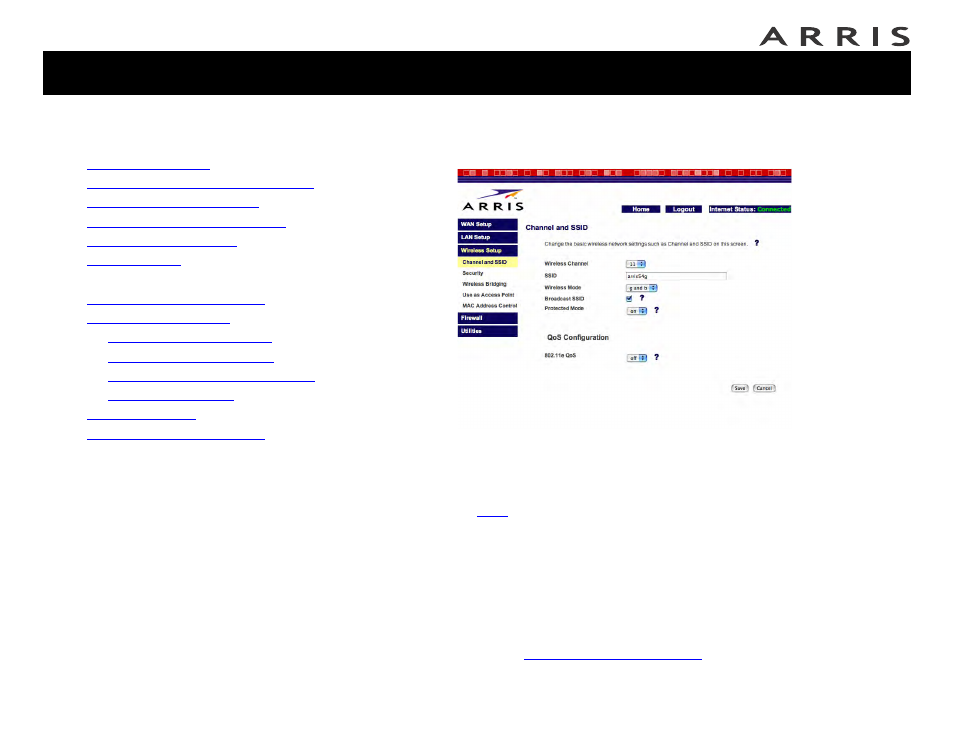
Configuring the LAN Channel and Name
1 Click the Wireless Setup link to open the Wireless menu, then click the
Channel and SSID link to open the Channel and SSID screen:
2 Make the following changes to this screen as desired:
— Wireless Channel: Use the default shown in most cases. You may need
to change the channel if neighbors have wireless routers, or if you lose
your connection while using certain remote telephones.
—
: Give your wireless LAN any name you desire. For best security, do
not use your name or address. The default SSID is arris54g.
— Broadcast SSID: Uncheck to prevent passers-by from seeing your
wireless LAN name in their connection utility. This provides only a small
amount of extra security, since many wireless utilities can learn an SSID
by listening to wireless traffic.
— Protected Mode: Set to On only if needed to overcome interference.
3 Click the Save button.
4 Proceed to
Jump directly to one of the following topics:
•
•
Accessing the Configuration Interface
•
•
Setting Up Your WAN Connection
•
•
•
Configuring the LAN Channel and Name
•
•
—
—
—
Configuring MAC Address Filtering
—
•
•