Setting up your wan connection – ARRIS WTM552 User Guide User Manual
Page 31
Touchstone® WTM552 Telephony Modem User’s Guide
31
Getting
Battery
Wireless
Ethernet
Setting Up Your WAN Connection
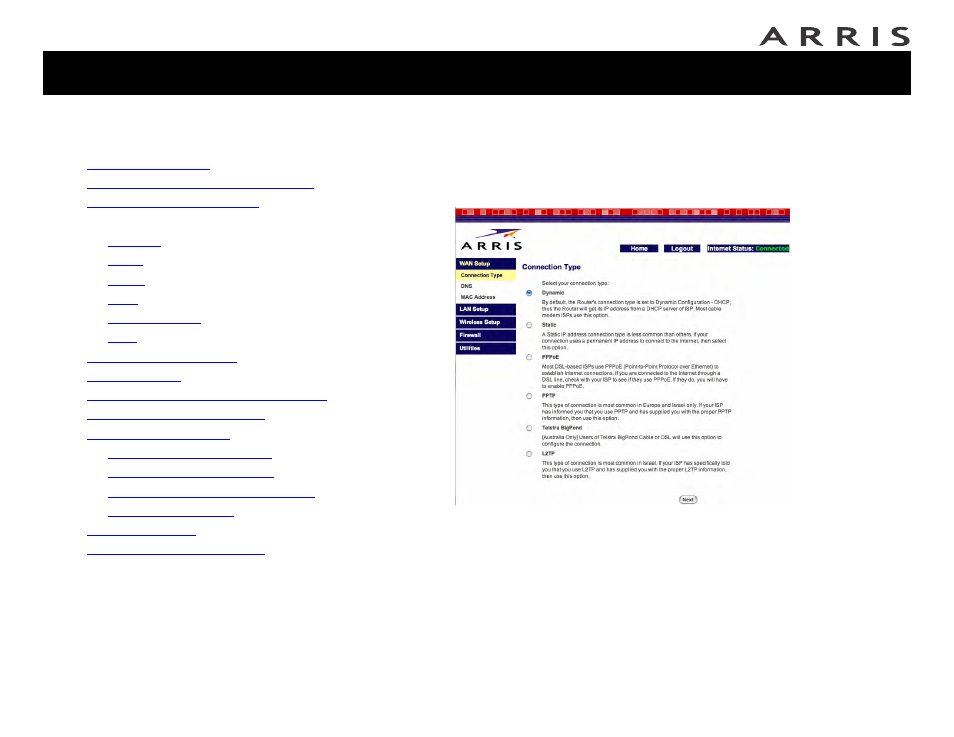
Follow these steps to set up your WAN connection.
1 Click the WAN Setup link in the navigation menu, then click Connection
Type.
The Connection Type screen appears:
2 Choose the correct connection type in the Connection Type screen. Most ca-
ble companies require the Dynamic connection type. If your cable company
requires a different connection type, you should have an information sheet
that shows the proper connection type to select and other information need-
ed to set up the connection.
3 Click the Next button at the bottom of the screen (you may have to scroll
down in the browser to see the Next button). The Telephony Modem displays
a screen showing further settings for your connection type. Follow the ap-
propriate link for your connection type:
Jump directly to one of the following topics:
•
•
Accessing the Configuration Interface
•
•
Setting Up Your WAN Connection
—
—
—
—
—
—
•
•
•
Configuring the LAN Channel and Name
•
•
—
—
—
Configuring MAC Address Filtering
—
•
•