Installing vload, Copying the vload file set, Installing vload -2 – Comtech EF Data Vipersat Load Utility v3.5.x User Manual
Page 18: Copying the vload file set -2, Figure 2-1 vload file set example -2
Installing VLoad
2-2
VLoad User Guide
Installing VLoad
The VLoad program can be installed in one of two ways:
• Copy the VLoad file set to the local C: drive.
This method is acceptable for Vipersat users.
• Copy the VLoad Installation file to the local C: drive and launch the
VLoad Setup Installation Wizard. The wizard guides the user in creating a
program folder accessible from the Start menu, as well as the option of
creating a shortcut for the desktop.
This method creates an xml data file and registry entries for application
data that are used by Digicast. Therefore, Digicast users should use this
installation method.
Copying the VLoad File Set
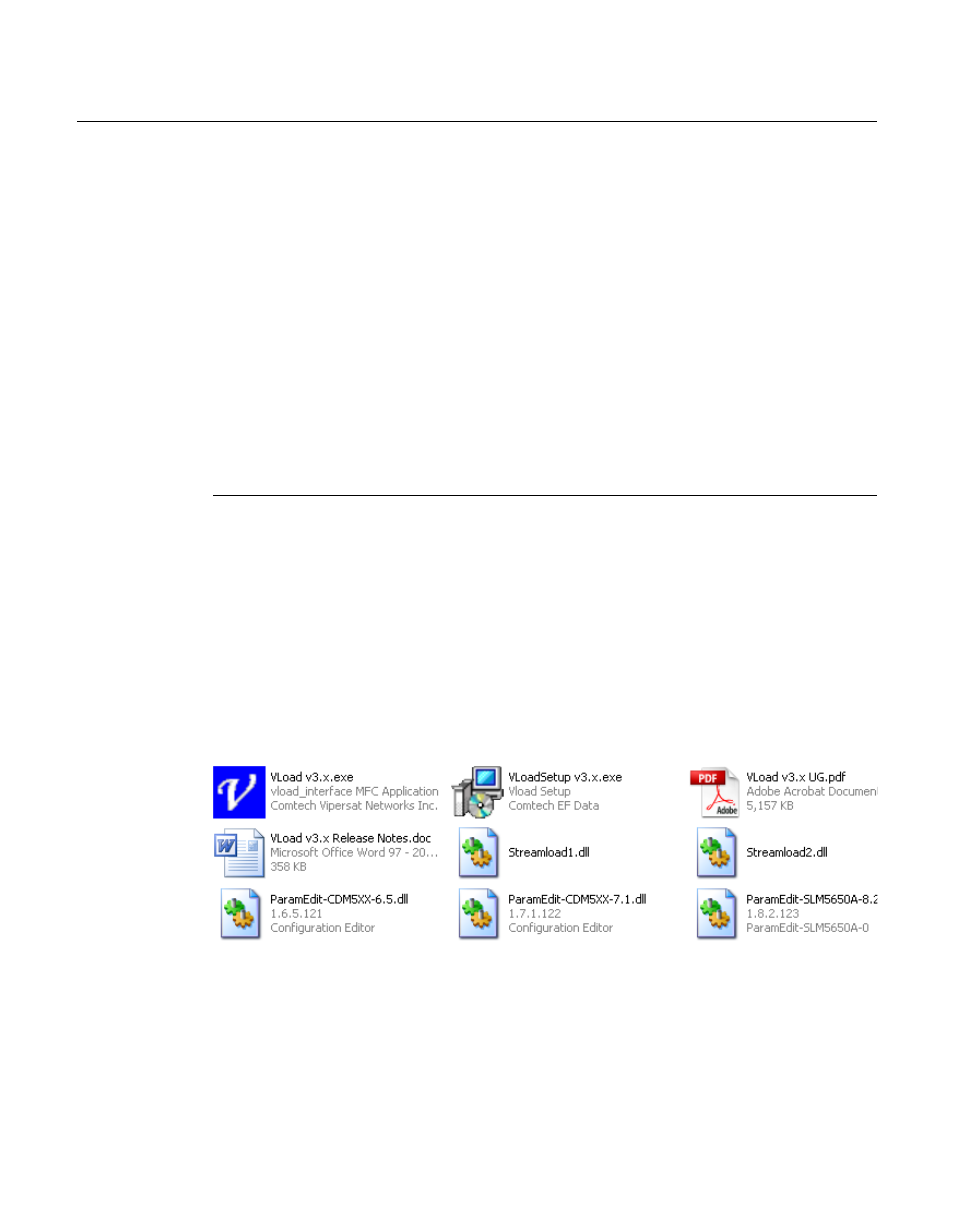
The VLoad application is distributed on a program CD with the following files:
• VLoad v3.x.exe – Application program
• VLoadSetup v3.x.exe – Program Installer
• Streamload1.dll – Streamload protocol library for CDM-570/L, CDD-56X
• Streamload2.dll – Streamload protocol library for SLM-5650A
• ParamEdit.dll – Parameter Editor library files (multiple)
• VLoad v3.x UG.pdf – Program User Guide
• VLoad v3.x Release Notes.doc
Figure 2-1 VLoad File Set example
Create a new VLoad directory on the workstation that will be used to run the
VLoad utility, then copy the VLoad file set to this directory.
The VLoad.exe file runs the VLoad program and displays the graphical user
interface. The ParamEdit.dll files are utilized when editing a Vipersat modem’s