Radio communication, Figure 14: radio communication layout, 4 radio communication – Daktronics AF-3400-12-RGB User Manual
Page 25
4.4 Radio
Communication
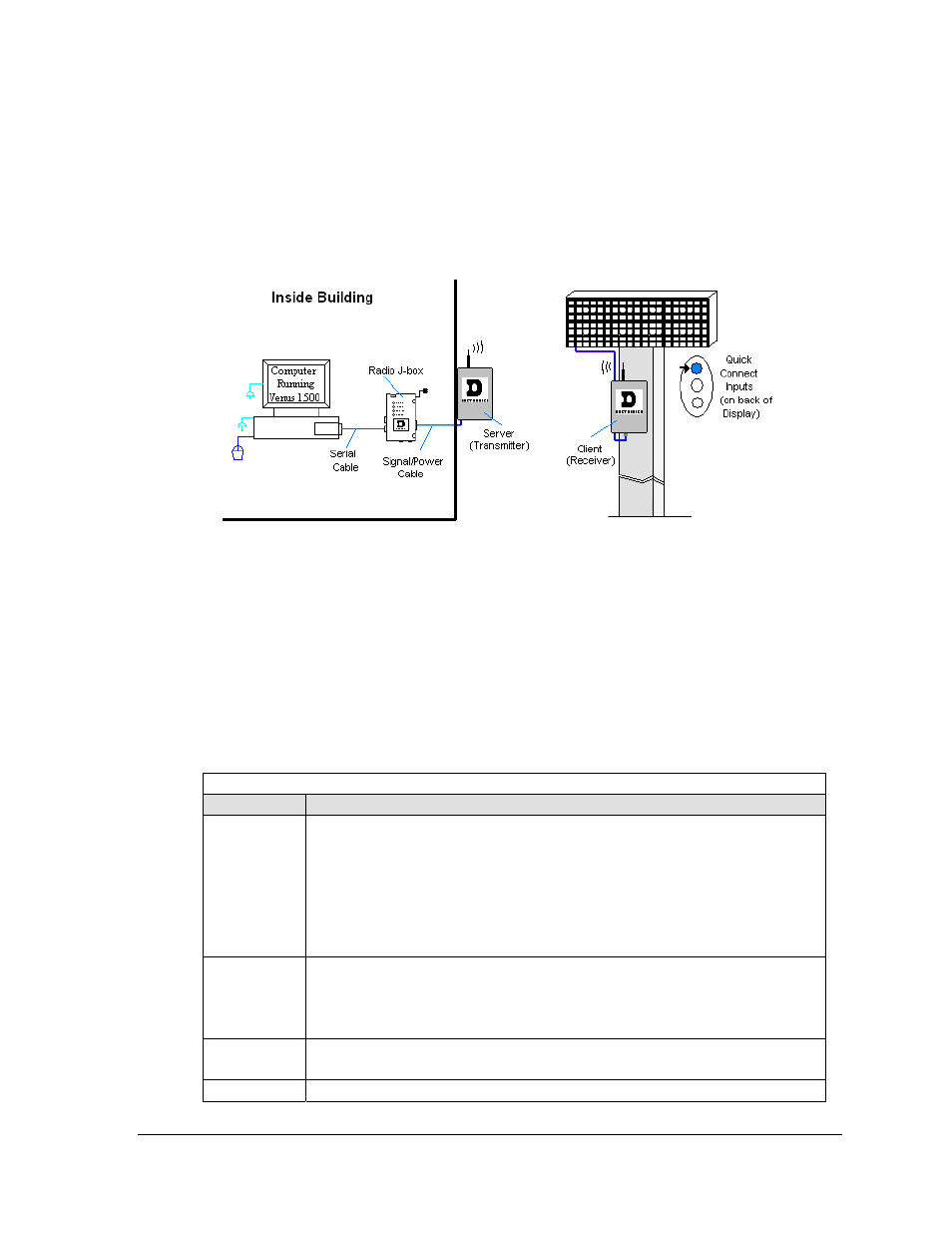
If the communication system is radio, look for:
• a radio j-box near the computer.
• a server radio outside the building and a second radio at the display.
Figure 14: Radio Communication Layout
Connections
• Computer to radio j-box − six-foot serial cable with 9-pin plugs on both ends, one
connecting to computer or USB adaptor and the other plug connecting to radio j-box at
“DB9 Female V1500 PC Connect”.
• Radio j-box 12 volt power pack plugged into outlet.
• Radio j-box to radio transmitter on building − Phoenix plug on side of j-box to Phoenix
plug inside radio transmitter.
• Radio signal between transmitter and receiver.
• Radio receiver to display − quick-connect cable from receiver to top jack on display back.
Troubleshooting
Component Check
Cable
Connections
•
The serial cable connects the computer to the radio j-box.
•
All the wires are connected at the radio j-box and at the “server” radio; the
wires make good electrical contact with the metal, no interference.
•
The color sequence of the wires should be the same to both the radio j-box
and the server (e.g. black, white, red and black, white, red).
•
The cable is connected from the radio client to the top jack on back of
display.
Diagnostic
LEDs
•
The green LED will be on when the radio j-box has power.
•
The amber LED is on when the computer is connected to the radio j-box.
•
The red and amber transmit and receive LEDs will flash when sending and
receiving signal from the display; otherwise they are off.
Display
Power
•
The display is either running a message or showing a single pixel flashing in
the bottom right corner of the display when power is on.
Software
•
The software and the display are set for the same network address.
Signal Overview
19