Save custom stroke styles – Adobe InDesign CS3 User Manual
Page 327
INDESIGN CS3
User Guide
320
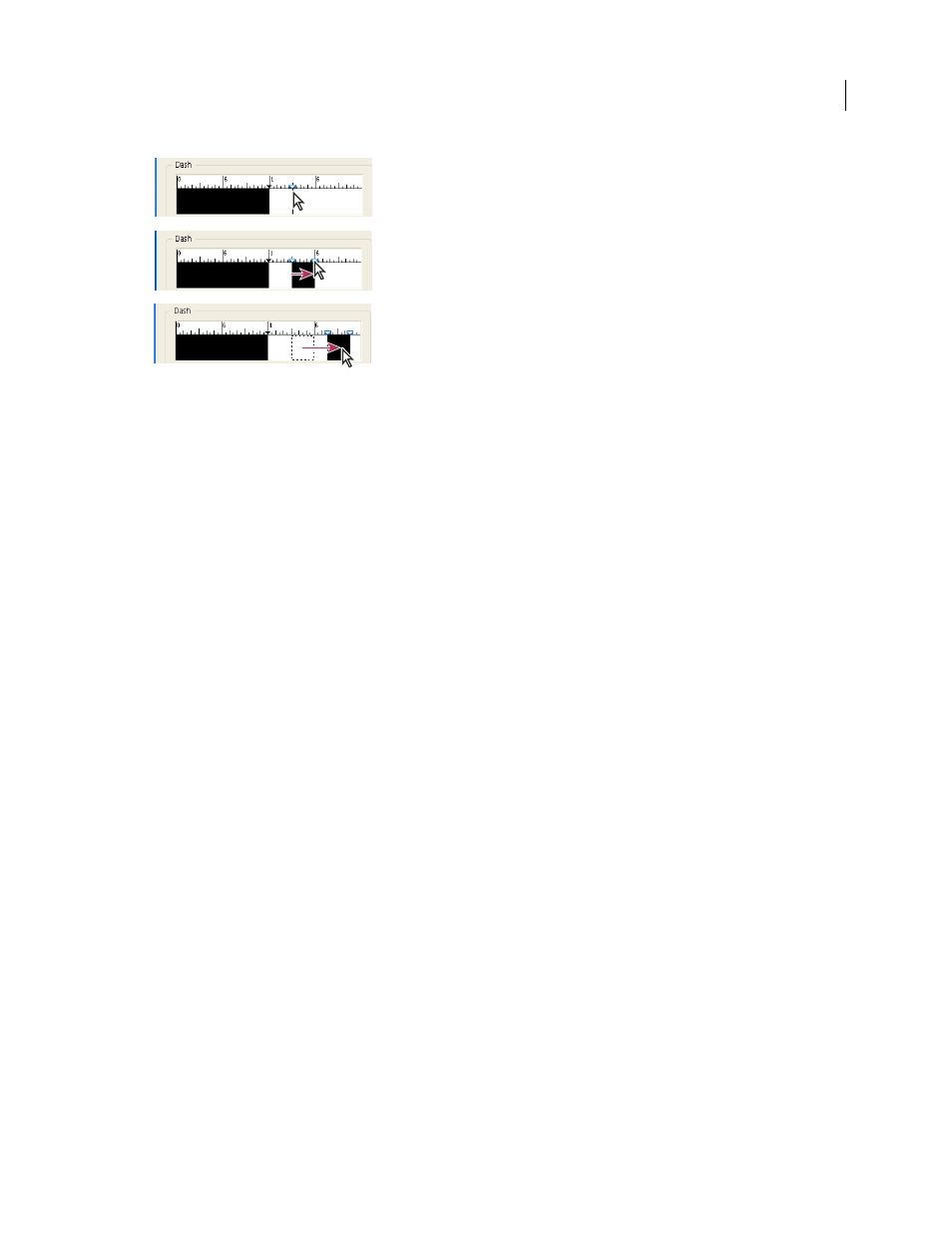
Creating a dashed line in New Stroke Style dialog box
A. Clicking to add a dash to the pattern B. Dragging a marker to make the dash wider C. Dragging the dash to adjust the white space between
dashes
8
To preview the stroke at different line weights, specify a line weight using the Preview Weight option.
9
For dashed and dotted patterns, use the Corners option to determine how dashes or dots are positioned to keep a
pattern regular around a corner.
10
For dashed patterns, select a style for Cap to determine the shape of the dashes. This setting overrides the Cap
setting in the Stroke panel.
11
Do one of the following:
•
Click Add to save the stroke style and define another one. Click Done to exit the dialog box.
•
Click OK to save the stroke style and exit the dialog box.
Save custom stroke styles
You can save custom stroke styles for use in other InDesign documents.
Save a custom stroke style
1
In the Stroke panel menu, choose Stroke Styles.
2
Select a custom stroke style and click Save.
Note: You cannot save or edit the default stroke styles (enclosed in square brackets).
3
Specify a name and location for the stroke style (.inst) file, and click OK.
To load a custom stroke style
1
In the Stroke panel menu, choose Stroke Styles.
2
Click Load.
3
Select stroke style (.inst) file that contains the custom stroke style you want to import, and click OK.
To apply a custom stroke style
❖
With a path or frame selected, choose a custom stroke style from the Type menu in the Stroke panel.
A
B
C