Comtech EF Data CPA User Manual
Page 49
CPA C-Band Indoor Solid State Power Amplifier
Revision 1
Updating Firmware
MN/CPA-IN.IOM
4–3
E. Obtain the firmware information via one of the following methods:
•
If using the CPA front panel, view the UTILITY: Firmware Boot screen:
Boot: FW-0000085
X.X.X MM/DD/YY
See Chapter 5. FRONT PANEL OPERATION for more information on using this
interface.
•
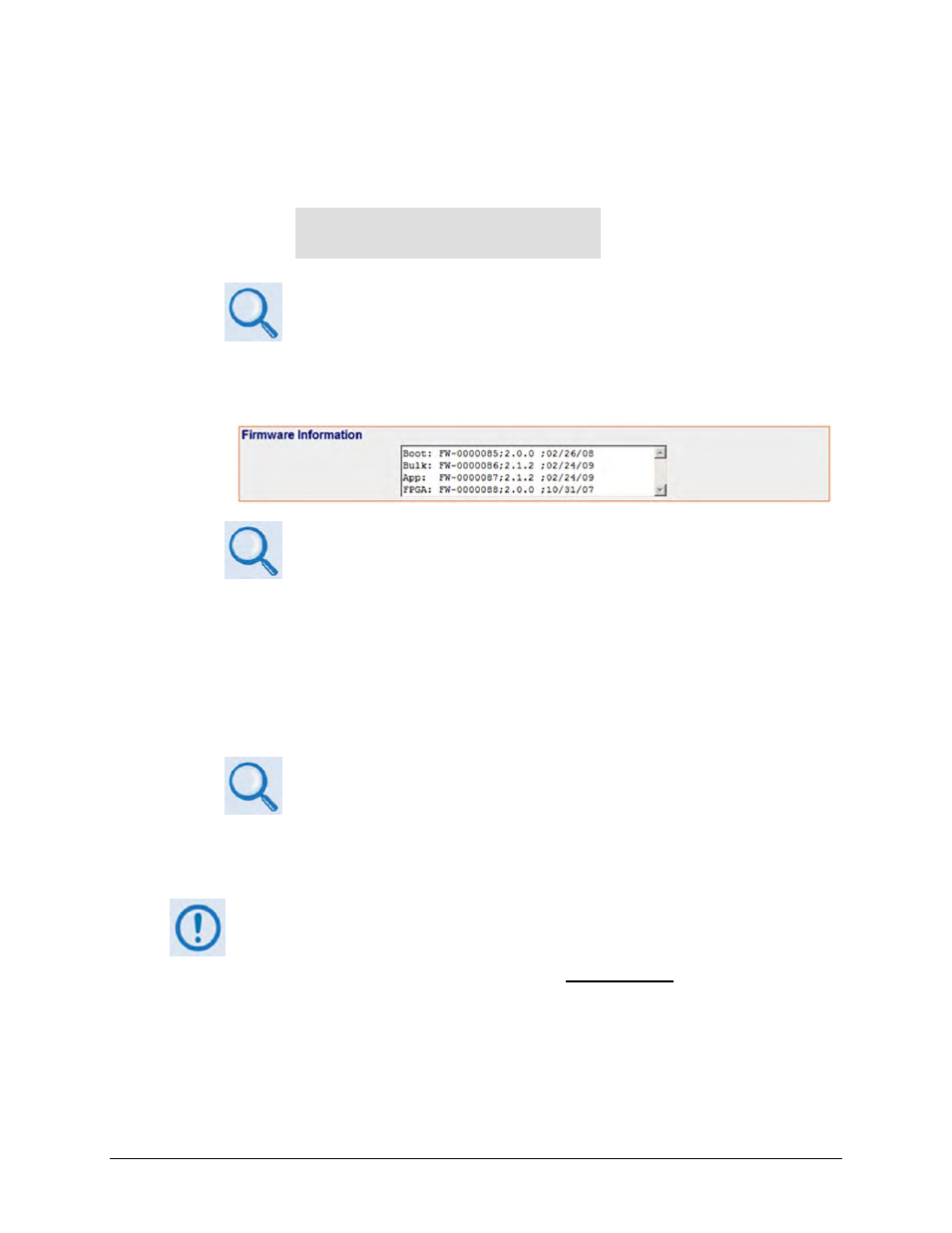
If using the Web Server Interface, the Bootrom, Image1 and Image2 firmware loads
may be viewed using the Firmware Information section of the ‘Status | Status’ page.
See Chapter 6. ETHERNET-BASED REMOTE PRODUCT MANAGEMENT for more
information on using the ISSPA Web Server Interface.
•
If using serial remote control, use the terminal emulator program to execute remote
commands and queries with the CPA. The firmware revision levels can be obtained
with the following remote queries:
o Abbreviated: <0/SWR? (returns basic Boot, Bulk1 and Bulk2 information)
-OR-
o Detailed: <0/FRW? (returns complete Boot, Bulk1 and Bulk2 information)
See Chapter 7. SERIAL-BASED REMOTE PRODUCT MANAGEMENT for more
information on remote commands/queries.
2. Next, create a temporary folder (subdirectory) on the user PC for the firmware archive
download.
•
Drive letter ‘c:’ is used in these examples. Any valid, writable drive letter can be
used.
•
Typical for all tasks: Type the command without quotes, and then press Enter to
execute.
There are several ways the user may use create a temporary folder on a Windows-based PC:
A. Use the Windows Desktop to create and rename the temporary folder.