Changing the subtitles and subtitle style – Marantz UD9004 User Manual
Page 52
48
Troubl
eshooting
Information
HDMI
Control
Function
Pl
ayback
Setup
Connections
Getting Started
Specifications
ENGLISH
Pl
ayback
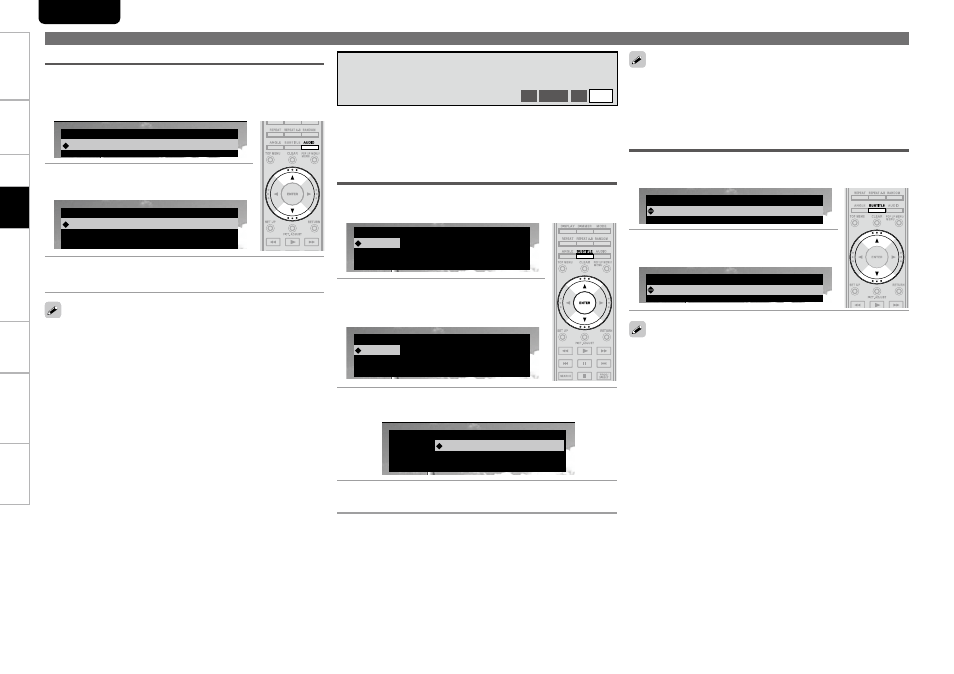
Switching a BD’s Primary Subtitle/Secondary Subtitle
and Subtitle Style
If a disc does not include subtitles and subtitle style, “Not Available”
•
is displayed.
Depending on the disc, subtitle switching may be restricted to
•
operation of the disc menu. In this case, switch the subtitles on
the disc menu.
During playback of a disc or file with recorded subtitles, you can
switch subtitle on/off as well as subtitle language.
With BD, you can change the style of displayed subtitles.
Operations Enabled During Playback
Changing the Subtitles and Subtitle
Style
BD
DVD-V
SD
DivX
1
Press SUBTITLE button during playback.
The subtitle number currently being played is displayed.
Subtitle
Primary
1/5 :
English
Off
Secondary
Style
–/1 :
1 :
2
With d, f buttons, select “Primary”,
“Secondary” and “Style”, and then
press ENTER button.
Subtitle
Primary
1/5 :
English
Off
Secondary
Style
–/1 :
1 :
3
Use d, f buttons to select your desired subtitle
language and subtitle style.
Subtitle
Primary
Off
Secondary
Style
–/1 :
1 :
1/5 :
English
4
Press SUBTITLE button.
The setup screen disappears.
Selecting DVD-Video and DivX® file Subtitle
With a DivX® file, the currently playing subtitle number and number
of recorded subtitles are displayed, the language option is not
displayed.
1
Press SUBTITLE button during playback.
The subtitle number currently being played is displayed.
Subtitle
–/5
: Off
2
Use d, f buttons to select subtitle.
Subtitle
1
/
5
: English
With DVD-R/-RW with bilingual soundtrack recording, you can
•
switch between “Main” (main audio) and “Sub” (secondary audio) or
“Main/Sub” (main audio + secondary audio).
In CD audio mode, you can switch “Stereo”, “L-ch” (left channel) or
•
“R-ch” (right channel).
With a DivX
•
® file, “MP3” or “Dolby Digital” audio formats and the
number of recorded audio modes are displayed. “– – –“ appears for
audio other than these.
With DTS-CD (5.1 music disc), you cannot switch audio modes.
•
Audio Switching (Media Other than BD)
1
Press AUDIO button during playback.
The audio number currently being played is displayed.
G
ExampleH DVD
Audio
: Dolby Digital
1/5
3/2.1 English
2
Use d, f buttons to select audio
G
ExampleH DVD-Video
Audio
: Dolby Digital
2/5
3/2.1 Japanese
3
Press AUDIO button.
The setup screen disappears.