SIGMA SD1 User Manual
Page 67
66
It is possible to select the white balance options from the Quick Set Menu (P.37)
or the Function Display (P.35).
z
If Custom White Balance (
) is selected, the white balance data which you
captured from [Custom WB] in [
Capture Settings] (P.28) last time will be
applied.
SETTING A CUSTOM WHITE BALANCE
For more precise control of the white balance setting or when
photographing under unusual lighting conditions, the [Custom WB] option
can be used to capture a sample of neutral object in a scene to be used for
color correction.
1
[
Capture Settings] (P.28) → [Custom WB] → Open the confirmation dialog.
2
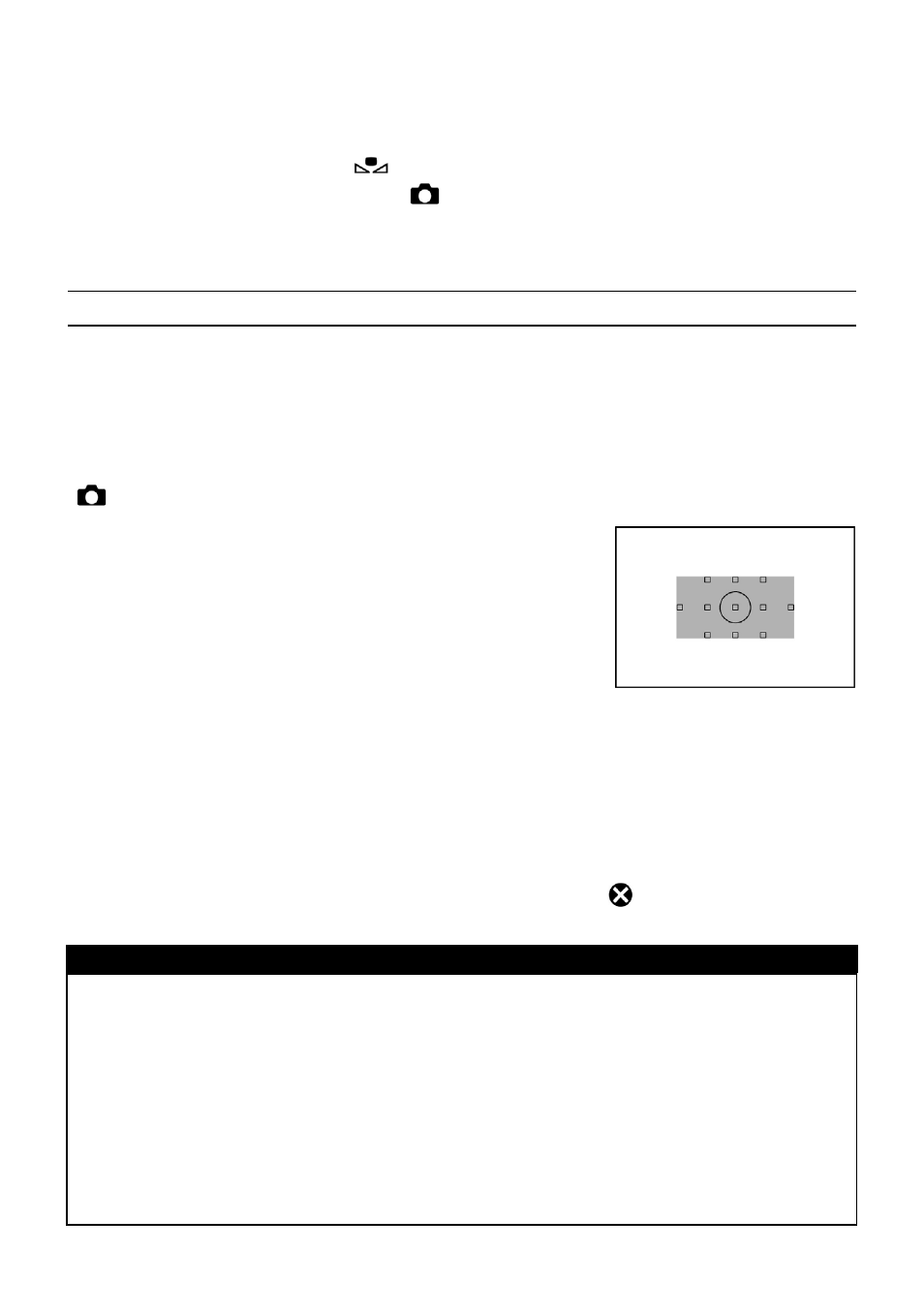
Under the lighting conditions that will be used for the
final photograph, frame a white or neutral color object,
such as a sheet of white paper or a white wall, so that
it fills the area inside the viewfinder highlighted with
gray color in the illustration.
3
Press the shutter button to release the shutter and capture a custom white
balance setting.
4
If a valid white balance setting was captured, a message will appear indicating
that the white balance image was captured successfully. If the capture was not
successful, "Failed!" will be displayed on the color LCD monitor. Repeat steps 2
and 3 to capture a valid white balance setting or press
to dismiss the dialog.
CAUTION !!
•
When a custom white balance setting is successfully captured, "Custom" will
automatically become the selected item in the White Balance menu.
•
It is recommended that an automatic exposure mode such as P, A, or S be
used when capturing a custom white balance setting to ensure proper
exposure.
•
It may be necessary to set the lens to manual focus (P.59) when capturing a
custom white balance setting since auto focus may not work properly when
photographing low contrast subjects.