Printing multiple images – Nikon Coolpix A300 User Manual
Page 96
Advertising
81
Connecting the Camera to a TV, Printer, or Computer
Printing Images Without a Computer
Printing Multiple Images
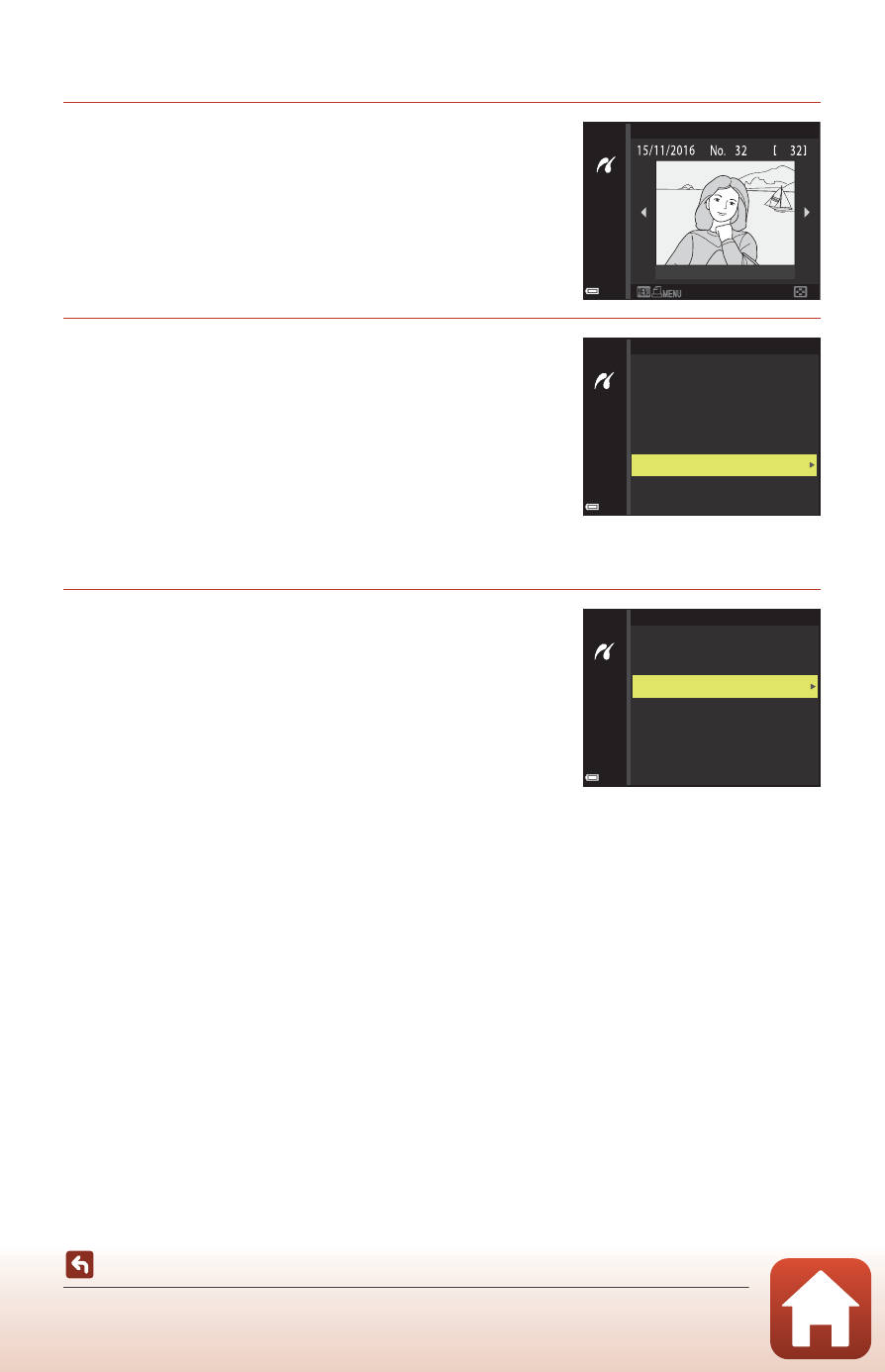
1
When the Print selection screen is
displayed, press the
d (menu)
button.
2
Use the multi selector
HI to select
Paper size and press the
k button.
• Select the desired paper size and press the k
button.
• To print with the paper size setting configured on
the printer, select Default.
• The paper size options available on the camera
vary depending on the printer that you use.
• To exit the print menu, press the d button.
3
Select Print selection or Print all
images and press the
k button.
Print selection
Print menu
Print selection
Print all images
Paper size
Print menu
Print selection
Print all images
Paper size
Advertising