Adding a smartphone – Canon PowerShot SX720 HS User Manual
Page 116
116
Before Use
Basic Guide
Advanced Guide
Index
Camera Basics
Auto Mode /
Hybrid Auto Mode
Other Shooting Modes
P Mode
Tv, Av, and M Mode
Playback Mode
Wi-Fi Functions
Setting Menu
Accessories
Appendix
●
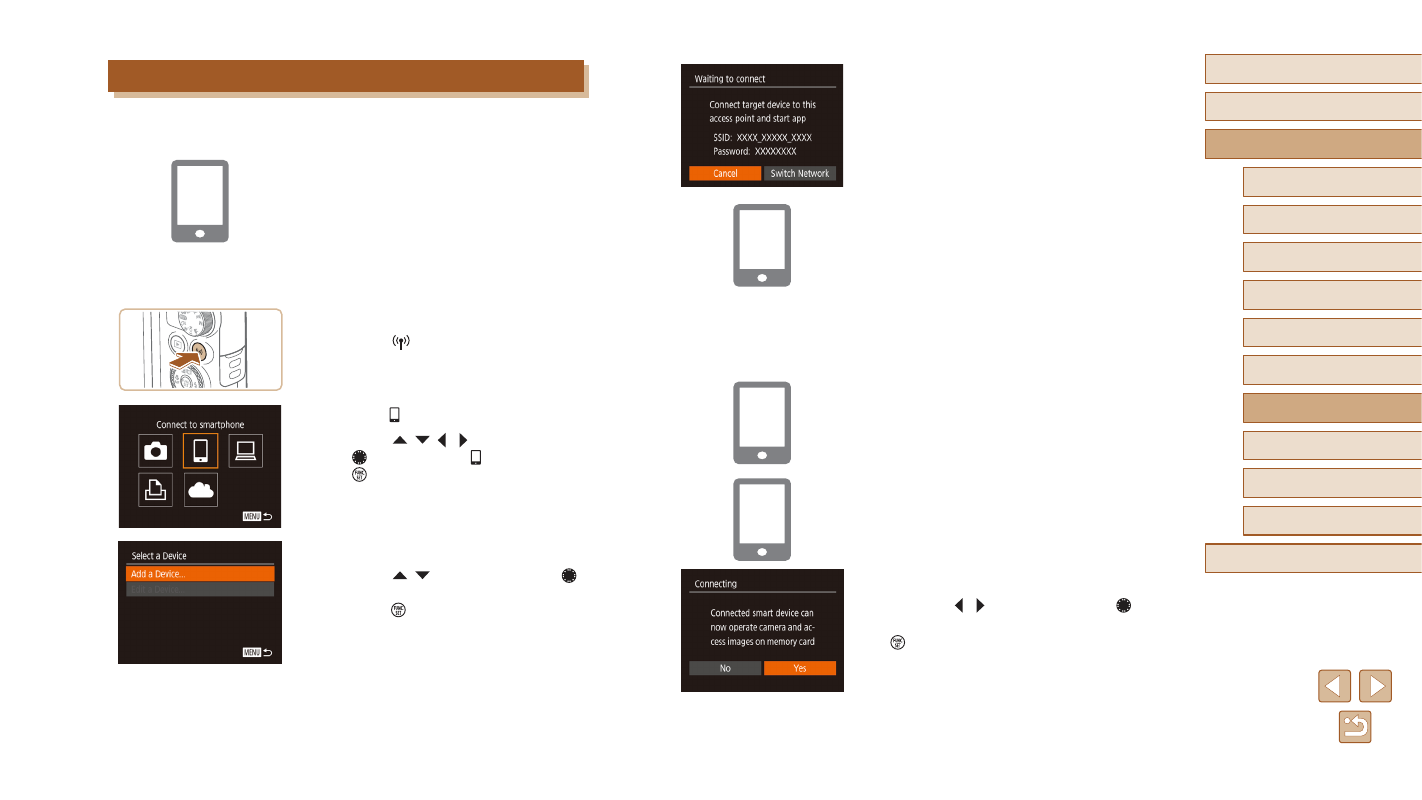
The camera’s SSID and password are
displayed.
5
Connect the smartphone to the
network.
●
In the smartphone’s Wi-Fi setting menu,
choose the SSID (network name)
displayed on the camera to establish a
connection.
●
In the password field, enter the password
displayed on the camera.
6
Start Camera Connect.
●
Start Camera Connect on the
smartphone.
7
Choose the camera to connect.
●
When the screen for choosing the target
camera is displayed on your smartphone,
choose the camera to pair them.
8
Adjust the privacy setting.
●
Press the [ ][ ] buttons or turn the [ ]
dial to choose [Yes], and then press the
[ ] button.
●
You can now use the smartphone to
browse, import, or geotag images on the
camera or shoot remotely.
Adding a Smartphone
These steps show how to use the camera as an access point, but you can
also use an existing access point (= 118).
1
Install Camera Connect.
●
For an iPhone and iPad, find Camera
Connect in the App Store and download
and install the app.
●
For Android smartphones, find Camera
Connect in Google Play and download
and install the app.
2
Access the Wi-Fi menu.
●
Press the [ ] button.
●
If the [Device Nickname] screen is
displayed, choose [OK] (= 114).
3
Choose [ ].
●
Press the [ ][ ][ ][ ] buttons or turn
the [ ] dial to choose [ ], and then press
the [ ] button.
4
Choose [Add a Device].
●
Press the [ ][ ] buttons or turn the [ ]
dial to choose [Add a Device], and then
press the [ ] button.