Registering other web services – Canon PowerShot SX720 HS User Manual
Page 126
126
Before Use
Basic Guide
Advanced Guide
Index
Camera Basics
Auto Mode /
Hybrid Auto Mode
Other Shooting Modes
P Mode
Tv, Av, and M Mode
Playback Mode
Wi-Fi Functions
Setting Menu
Accessories
Appendix
●
Depending on your e-mail settings on your computer or
smartphone, e-mail from specific domains may be rejected, and
you may not be able to receive the e-mail notification. Please
check your settings ahead of time.
●
You can change the nickname of the camera displayed on the
screen of step 1 (= 125).
●
Once you have connected to devices via the Wi-Fi menu, recent
destinations will be listed first when you access the menu. Press
the [ ][ ] buttons to access the device selection screen and then
configure the setting.
Registering Other Web Services
You can also add Web services besides CANON iMAGE GATEWAY to
the camera.
1
Log in to CANON iMAGE GATEWAY
and access the Camera Web Link
Settings page.
●
From a computer or smartphone, access
http://www.canon.com/cig/ to visit
CANON iMAGE GATEWAY.
2
Configure the Web service you want
to use.
●
Using your computer or smartphone,
display the Web service settings screen.
●
Follow the instructions displayed on the
screen to set up the Web service.
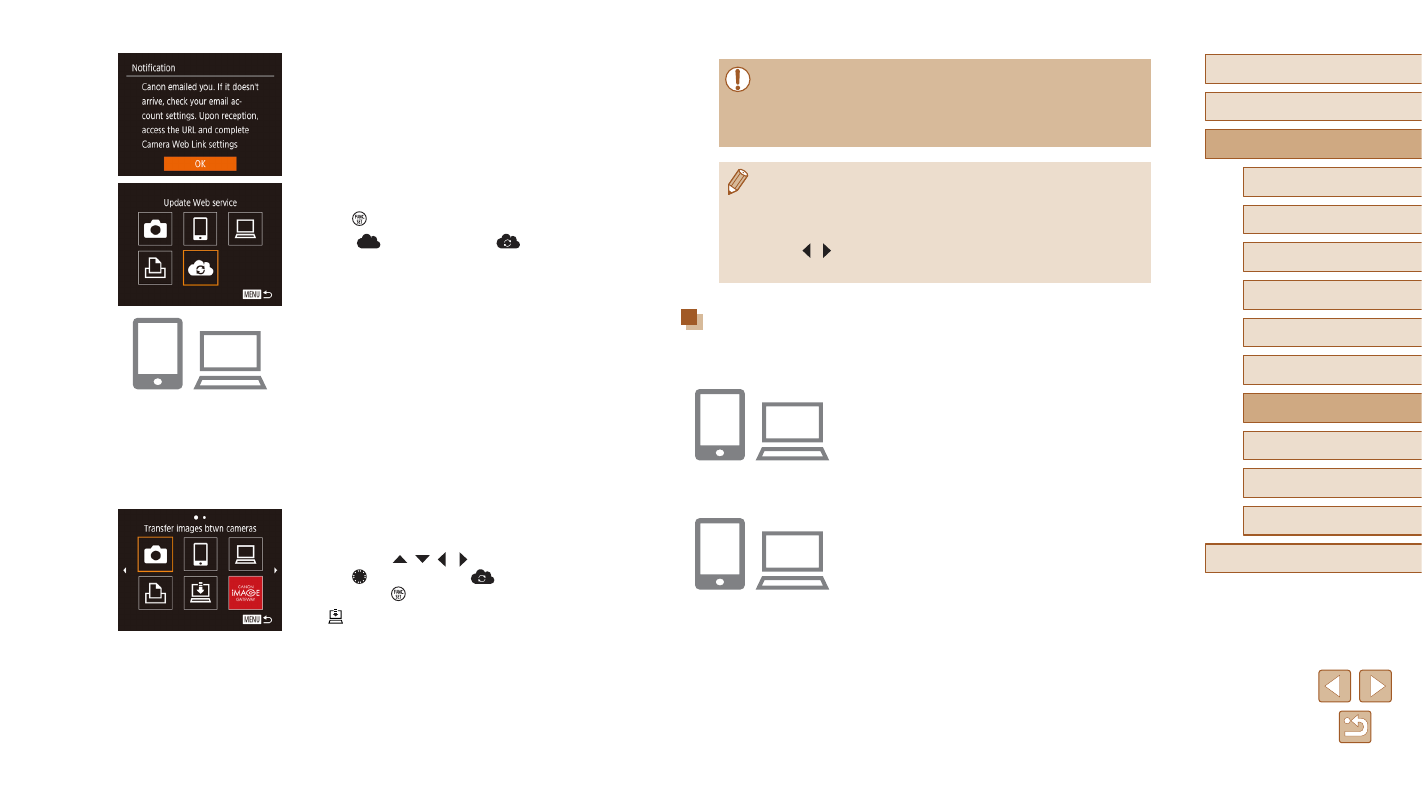
7
Confirm the e-mail notification was
sent.
●
When information is sent from CANON
iMAGE GATEWAY, an e-mail notification
is sent to the e-mail address you entered
in step 5.
●
The screen notifying you that the e-mail
notification was sent is displayed. Press
the [ ] button.
●
The [
] icon changes to [
].
8
Access the URL in the received
e-mail notification and set the
camera web link.
●
From a computer or smartphone,
access the page linked in the notification
message.
●
Follow the directions on the Camera
Web Link Settings page to configure the
settings.
9
Set CANON iMAGE GATEWAY on
the camera.
●
Press the [ ][ ][ ][ ] buttons or turn
the [ ] dial to choose [
], and then
press the [ ] button.
●
GATEWAY are now added as
destinations.
●
You can also add other Web services.
To add other Web services, follow the