Browser on the keyboard, 4 browser on the keyboard – Native Instruments KOMPLETE KONTROL S88 MK2 88-Key Controller for KOMPLETE User Manual
Page 50
(2) Favorite bar: Displays all your favorite folders. A click on any favorite folder lets you jump
directly to that particular path and display its content in the Result list (5). For more informa-
tion, refer to
13.4.4, Working with File Location Favorites
(3) Location bar: Displays the selected path. The Location bar provides various tools to quickly
navigate your file system. For more information, refer to
13.4.2, Navigating to File Locations
.
(4) Recent Locations button: Opens a list of the last visited locations for quickly jumping to any
of them. For more information, refer to
13.4.3, Navigating to Recent File Locations
.
(5) Results list: Displays the content (files and folders) of the folder shown in the Location bar.
Only files compatible with KOMPLETE KONTROL are displayed. For more information, refer to
13.4.1, Additional Results List Features List in the Files Pane
.
(6) Control bar: Provides useful tools when browsing your file system:
▪
The Information button (
i
) displays additional information for the selected files.
▪
The
IMPORT
button lets you import the content of the selected folder to the KOM-
PLETE KONTROL Library. Before any files are imported, you can choose which tags will be
assigned to the files in the Attribute editor.
For more information, refer to
13.3, Editing the Tags and Properties of User Preset Files
13.7, Importing KOMPLETE KONTROL-Compatible User Files
5.2.4
Browser on the Keyboard
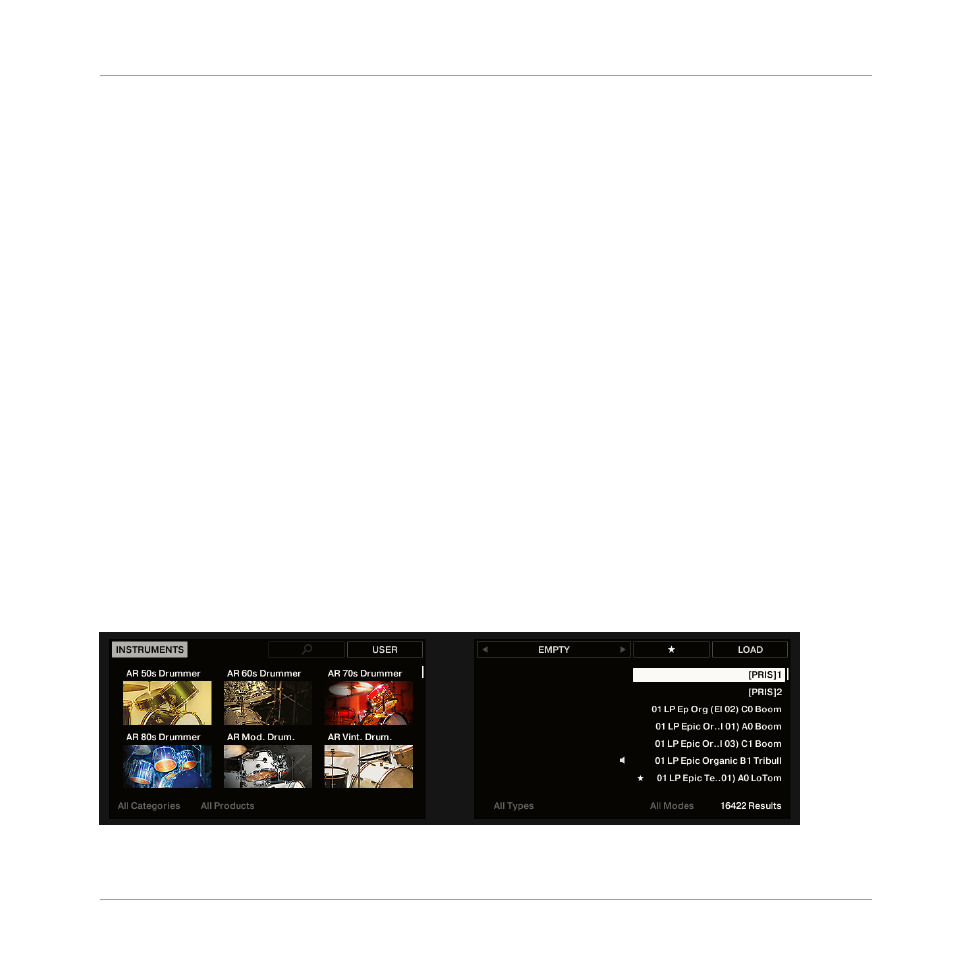
On the keyboard displays, the Browser is organized as follows:
The Browser on the keyboard´s displays.
Software Overview
Browser
KOMPLETE KONTROL S-Series - Manual - 50