Web user interface, Web ui – Key Digital 4x4 UHD 4K Multiview Presentation Matrix Switcher User Manual
Page 20
521 East 3
rd
Street Mt. Vernon, NY 10553 • www.keydigital.com
Rev 1.2
– Apr, 2022
20
Set EDID via IR remote control:
A unique EDID handshake can be chosen for each HDMI input
•
To apply EDID handshake from built-in EDID file
library:
1. R2 button (section E)
2. R1 button (section E)
3. R3 button (section E)
4. Input button 1-4 (section D)
5. EDID handshake 1-9 (section F),
according to EDID table:
•
To apply EDID handshake copied from a display/projector connected to an HDMI output:
1. R2 button (section E)
2. R1 button (section E)
3. R3 button (section E)
4. Input button 1-4 (section D)
5. Output button 1-4 (section B)
Web UI
Use the web UI to control AV routing and other basic functionality, as well as set custom multi-view layouts and
adjust IP settings from any web browser.
•
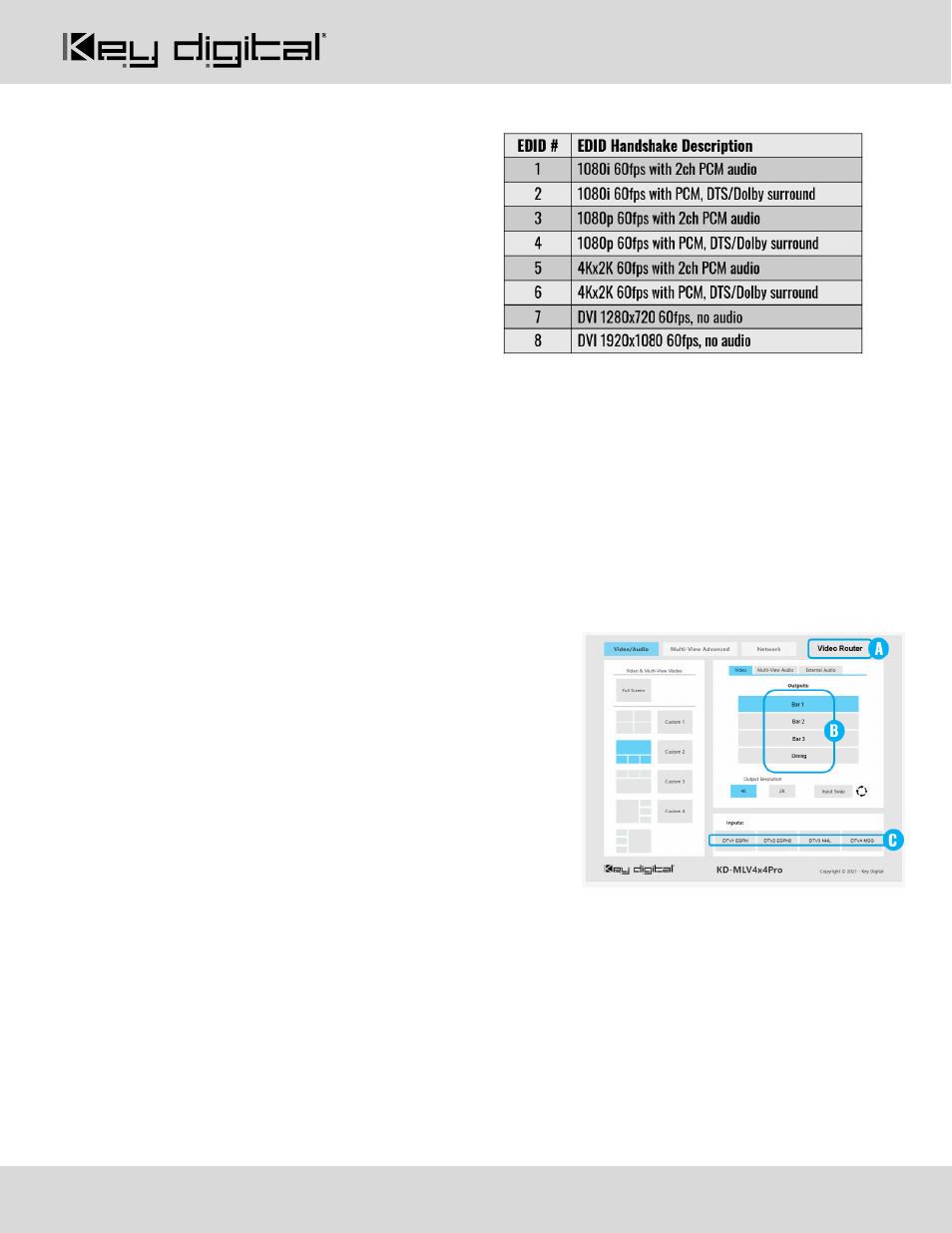
The Web UI displays the names of the unit (A), and of each
output (B) and input (C).
o
Names may be updated using KDMS Pro software,
as instructed in the Configure section of the Quick
Setup Guide.
1. Open web browser and enter KD-
MLV4x4Pro’s IP address.
o
The Default IP address is 192.168.1.239
2. Enter password. The default password is
admin
and may be adjusted in the network settings.
•
For
HDMI AV
switching control:
1. Enter Video tab
2. Select desired output
3. Select Full Screen or desired MultiView layout
4. If Full Screen, choose the desired Input
•
For
Multi-View Audio selection
, the selected Input source apples to all MultiView zones
•
For
External Audio switching control
, first select the desired Output, then choose the desired Input