Multi-view advanced tab – Key Digital 4x4 UHD 4K Multiview Presentation Matrix Switcher User Manual
Page 21
521 East 3
rd
Street Mt. Vernon, NY 10553 • www.keydigital.com
Rev 1.2
– Apr, 2022
21
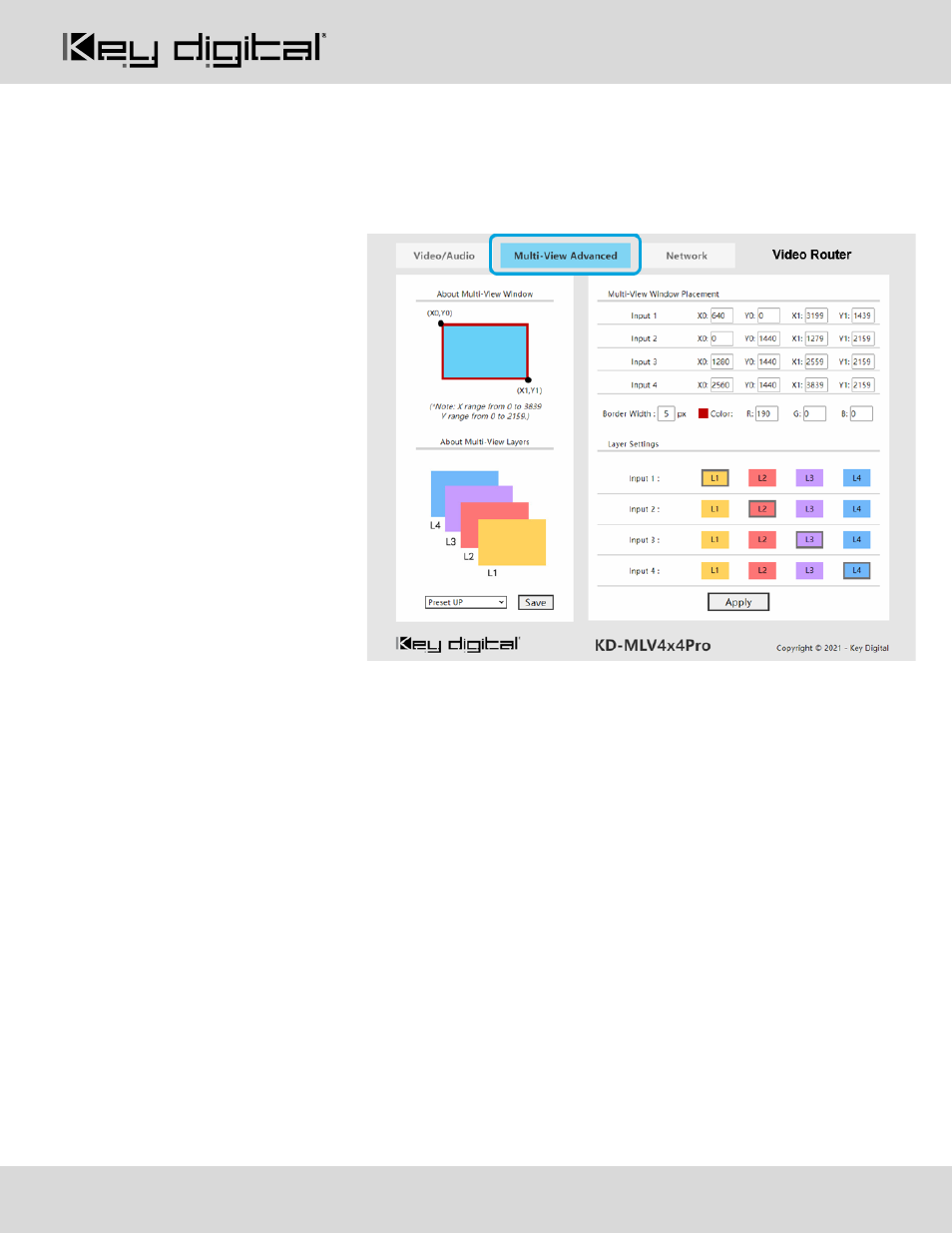
Multi-View Advanced Tab
Create and save custom multi-view layouts using the following tools:
Multi-View Window Placement:
•
An X/Y axis is used, enabling
control of each pixel of
3840x2160 screen
•
The pixel count begins at 0
o
X0/X1 range = 0
–3839
o
Y0/Y1 range = 0-2159
•
X0 = Desired location of the
Top-Left handle of the window,
from Left to Right horizontally
across the screen
•
Y0= Desired location of the
Top-Left handle of the window,
from Top to Bottom vertically
across the screen
•
X1 = Desired location of the
Bottom-Right handle of the
window, from Left to Right
horizontally across the screen
•
Y1= Desired location of the Bottom-Right handle of the window, from Top to Bottom vertically across the
screen
Layer Settings:
•
1 = Top / front layer
•
4 = Bottom / back layer
Apply Button
sends the layout to the HDMI output that is currently selected in the Video/Audio tab, Video sub-
section
Save Button
saves the specified layout to the preset currently selected in the dropdown menu
Note about Layering:
Each
HDMI output may have unique layering settings. You may set for each by entering
the Video/Audio tab, Video sub-section and selecting an HDMI output, then applying the layering as desired.