Canon imageCLASS MF753Cdw Multifunction Wireless Color Laser Printer User Manual
Page 297
6
Set whether to print faxes or save them in memory.
When Printing Faxes on the Machine
In [Print Images], select [On]. To print only when forwarding fails, select [Print Only When Error Occurs].
When Saving Faxes that Cannot Be Forwarded to the Memory of the Machine
In [Store Images in Memory], select [Store Only When Error Occurs].
Faxes saved to the memory can be viewed in [Status Monitor]. Checking Faxes that Failed to Be
7
Enter any string in [File Name], as needed.
●
If you selected a fax number as the destination, this step is not required. Proceed to Step 8.
●
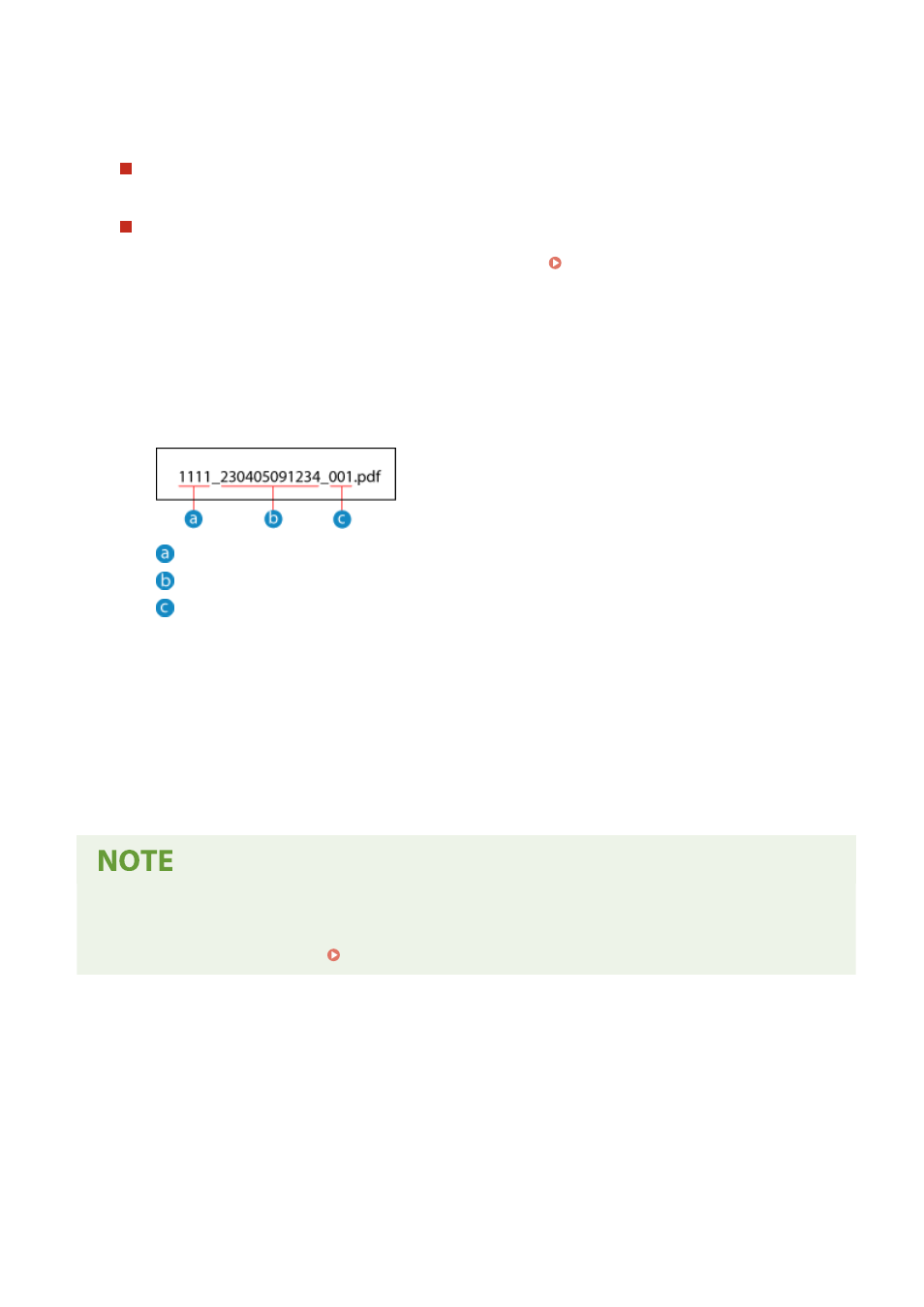
If you selected a destination other than a fax number, a PDF file is forwarded or saved with the following file
name.
Communications management number
Date sent (in this example, "April 5, 2023, 9:12:34 AM")
File sequence number (if one file, then "001")
When you enter a string in [File Name], the specified string is appended to the start of the above file name.
8
Click [OK].
➠
The settings are applied.
9
Log out from Remote UI.
Backing Up Sent Faxes
●
The above section describes the settings for forwarding and saving received faxes. To back up sent faxes,
separate settings are required. Backing Up Sent Faxes(P. 284)
Faxing
287