NewTek TriCaster TC1 (2 RU) User Manual
Page 26
P a g e | 10
For less complex productions, the
Switcher
’s
convenient
Express
mode
simplifies the process (Figure 6). This
one-button operating mode will be especially welcome in environments where volunteers or less
experienced operators are involved.
FIGURE 5 (TC1 SHOWN)
Additionally, support for switching using a touchscreen has been provided. See something interesting on a
viewport in the monitoring section? Just
tap
the corresponding viewport to instantly send that source to
Program
output, using the current
background transition
(if any).
V
IDEO
L
AYERS AND
T
RANSITIONS
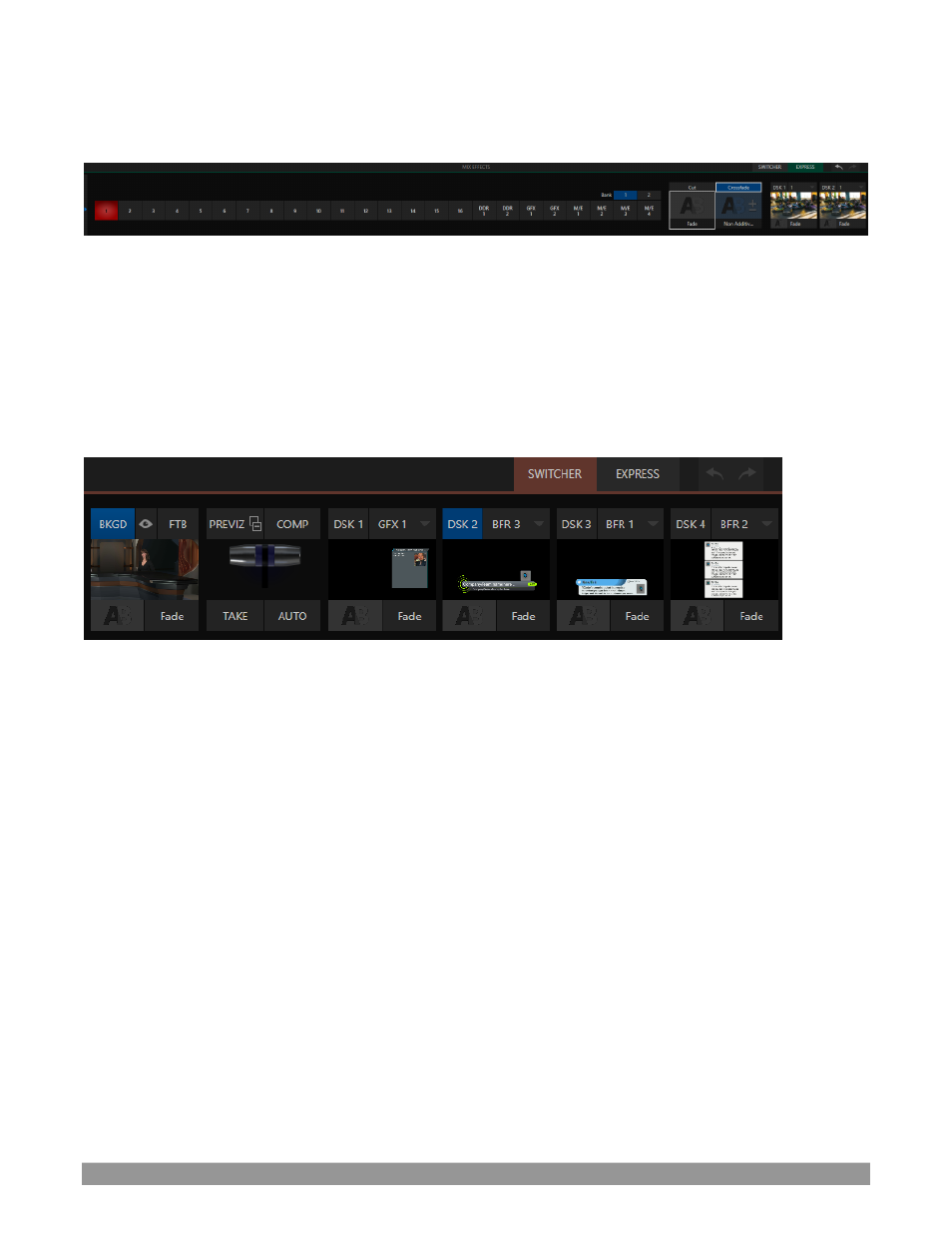
The
Transition
section of the
Live Desktop
provides powerful tools for arranging and displaying the numerous
video and graphic layers contributing to your ultimate program output.
FIGURE 6 (TC1 SHOWN)
•
Freely
hot-punch
or
transition
between external sources, internal
Media Players
) and
M/E effects
.
•
Latch selected
Switcher
and
M/E
source rows in color groups to synchronize switching operations.
•
Multiple
DSK
(Downstream Key)
Switcher
channels and independent
KEY
channels for each
M/E,
permit endless creative possibilities.
•
DSK
and
KEY
sources are always represented in small full motion ‘confidence monitors’.
•
Use any of the hundreds of transitions supplied to reveal either
Background
or
DSK/Key
channels
with animated wipes, trajectories and dissolves, or select colorful and dynamic
Animation Store
transitions with overlays, sound and
TransWarp
™
effects.
•
Create an unlimited number of custom transition effects with embedded sounds, dynamic cloth
effects, and full color overlays using the integrated
Animation Store Creator
application.
•
Create eye-popping animated graphics using your favorite software (e.g., Adobe After Effects
®
), and
convert them to animated
Buffer
effects that you can display without tying up a
Media Player
.
•
Reveal combinations of video layers with one operation of the
T-bar
or click on
Take
/
Auto
buttons.
•
Or use
per-layer
controls to independently control display of any layer with or without transitions.
•
Select individual transition effects for any layer and adjust
Speed
,
Reverse
and
Ping Pong
options.