Setting the loading capacity of the hopper – Fujitsu Ricoh Fujitsu fi-7900 Image Scanner User Manual
Page 32
Setting the Loading Capacity of the Hopper
If there are only a few documents, you can set the hopper to a higher position and shorten the time to
get to the feeding position.
ATTENTION
●
To avoid the risk of jamming your fingers, do not touch the hopper while it is moving up/down.
●
Do not place anything on top of the hopper while it is moving. The scanner may be damaged if
any object is caught inside.
●
To avoid any contact that may damage the scanner, do not place anything beneath the hopper.
●
Do not adjust the hopper height from the operator panel when the hopper is closed, as it may
damage the hopper.
This function is only available when [Ready] is displayed on the operator panel LCD.
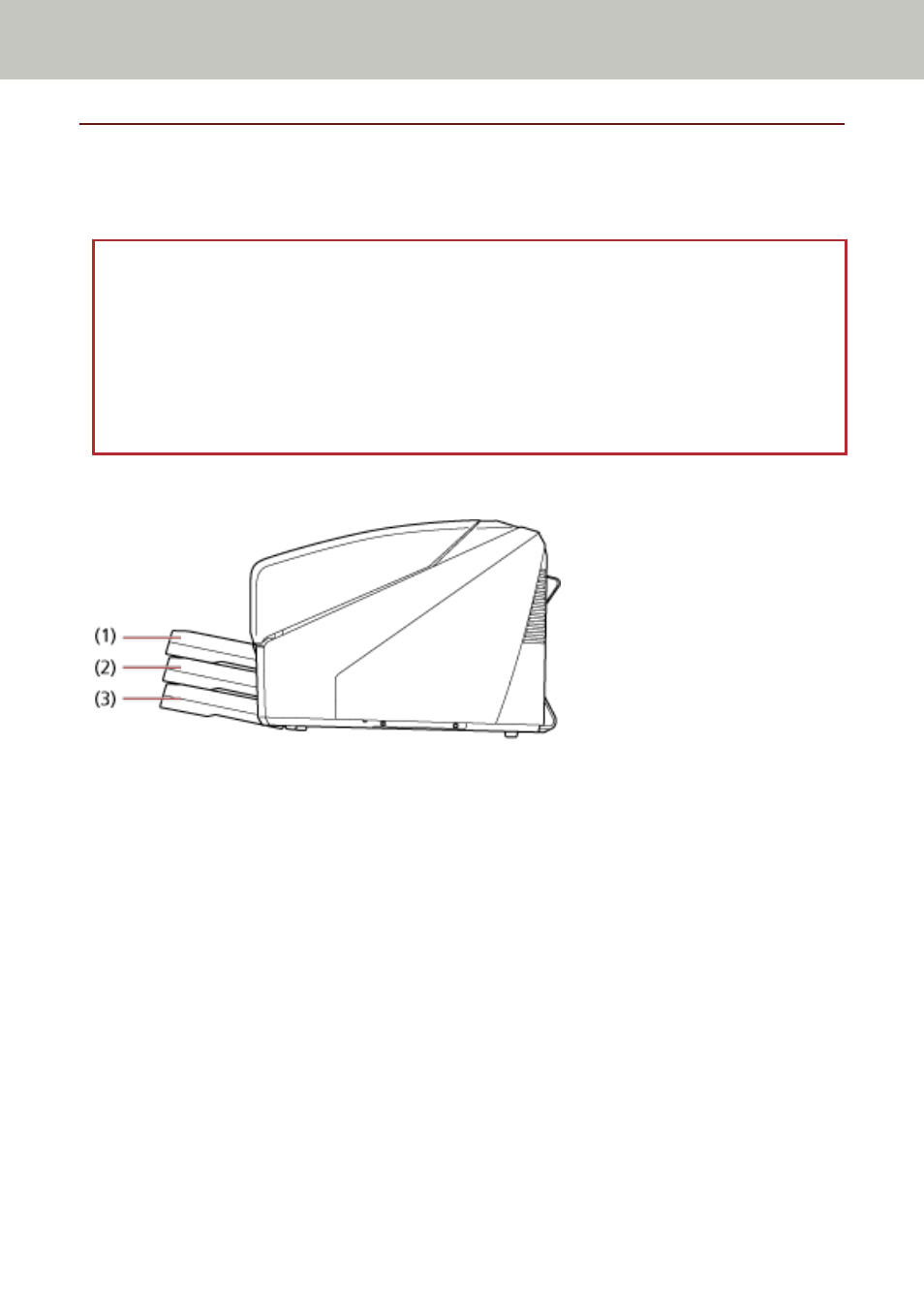
The hopper level can be set for three different capacities.
(1) Upper:
A maximum of 100 sheets (*1) can be loaded.
(2) Middle:
A maximum of 300 sheets (*1) can be loaded.
(3) Lower:
A maximum of 500 sheets (*1) can be loaded.
*1:For documents with a paper weight of 80 g/m
2
(20 lb).
The capacity varies depending on the paper weight of the document. For details, refer to
Documents for Scanning (page 59)
.
Use the operator panel to adjust the height of the hopper.
Configure by selecting [10: Hopper Level] in the [Main Menu] of the operator panel.
For details, refer to
How to Use the Main Menu (page 82)
.
When the scanner has just been powered on, it is set to the [4: Lower] position.
Scanner Overview
32