Enjoying movies, Shooting movies – Sony DSC-P41 User Manual
Page 74
74
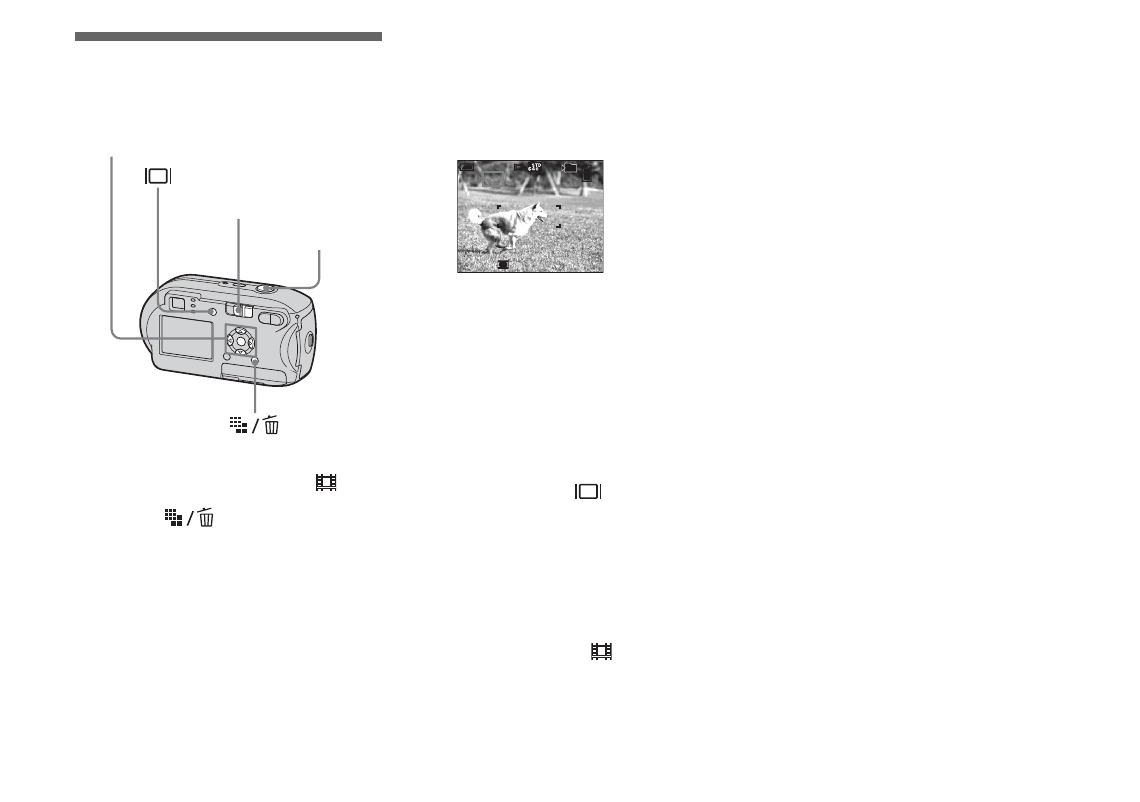
Shooting movies
You can shoot movies with audio.
a
Set the mode switch to
.
b
Press
(Image Size).
The Image Size setup item appears.
c
Select the desired mode with
v
/
V
.
You can choose from [640 (Fine)],
[640 (Standard)], or [160].
•
The [640 (Fine)] image size can be used
only when you record the image into the
“Memory Stick PRO.”
d
Press the shutter button fully
down.
“REC” appears on the LCD screen and
the camera starts recording the image
and sound.
•
When the capacity of the “Memory Stick”
is used up, recording stops.
e
Press the shutter button fully
down again to stop recording.
Indicators on the LCD screen
while you are shooting movies
These indicators are not recorded.
Each time you press
, the status of the
LCD screen changes as follows: Indicators
off
t
LCD screen off
t
Indicators on.
See page 117 for a detailed description of
the indicated items.
To shoot with a self-timer
Set the mode switch to
and follow the
procedure on page 28.
•
Be careful not to touch the microphone (page 8)
during shooting.
•
The following functions cannot be used.
–
Shooting with the zoom
–
Shooting with the flash
–
Inserting date and time
•
When you select [640 (Fine)] with the supplied
A/V connecting cable plugged in the A/V OUT
(MONO) jack, you cannot check the shooting
image using the LCD screen. The LCD screen
turns blue (DSC-P43 only).
•
See page 105 for the recording time allowed for
each image size.
Mode switch
Control button
Shutter button
00:00:02[00:10:48]
101
REC
Enjoying movies