5 select the desired export options, Importing touchprint jobs – QuickLabel Vivo! Touch User Manual
Page 67
Designing and Printing Labels
Vivo! Touch User Guide
53
5
Select the desired export options.
•
Choose whether to export all TouchPrint groups and jobs or just those
currently selected.
•
If necessary, you can change the export file name by choosing
Change
. A
keypad will appear. Enter the export file name and choose Done. The “.vtp”
file extension will be appended to the name when the file is exported.
Note: If a file with the same name exists on the USB memory device, you will have
the option to overwrite it.
•
Select the USB memory device as the export destination.
6
Choose
Export
. The export process will begin and a progress bar will be
displayed.
Importing TouchPrint jobs
After TouchPrint jobs have been exported to a USB memory device, you can import
those TouchPrint jobs on other Vivo! Touch printers.
1
Insert the USB memory device into a Vivo! Touch USB port.
2
Touch
TouchPrint
on the touchscreen. The
TouchPrint
icon shows and hides the
TouchPrint options. You can choose this icon again to return to the menu.
3
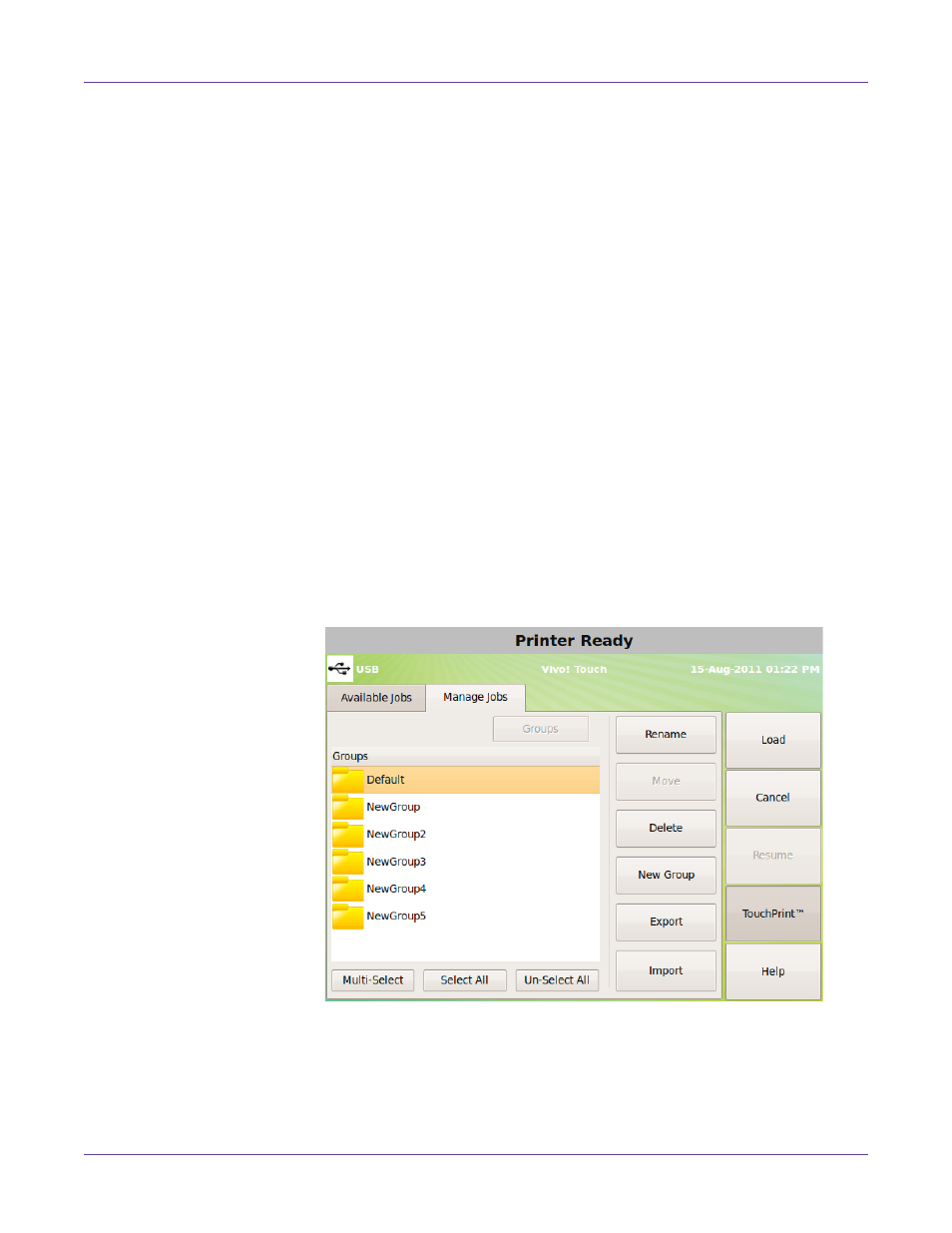
Choose the
Manage Jobs
tab. This tab displays a list of TouchPrint groups and jobs
saved on the printer hard drive.
Double touch or touch and hold a group to open it and view the list of jobs it
contains. Choose
Groups
to return to the group list. Note that groups cannot
contain sub-groups.