Managing the inter-site topology, Viewing site details – H3C Technologies H3C Intelligent Management Center User Manual
Page 34
25
When No Label is selected, the link label does not appear.
•
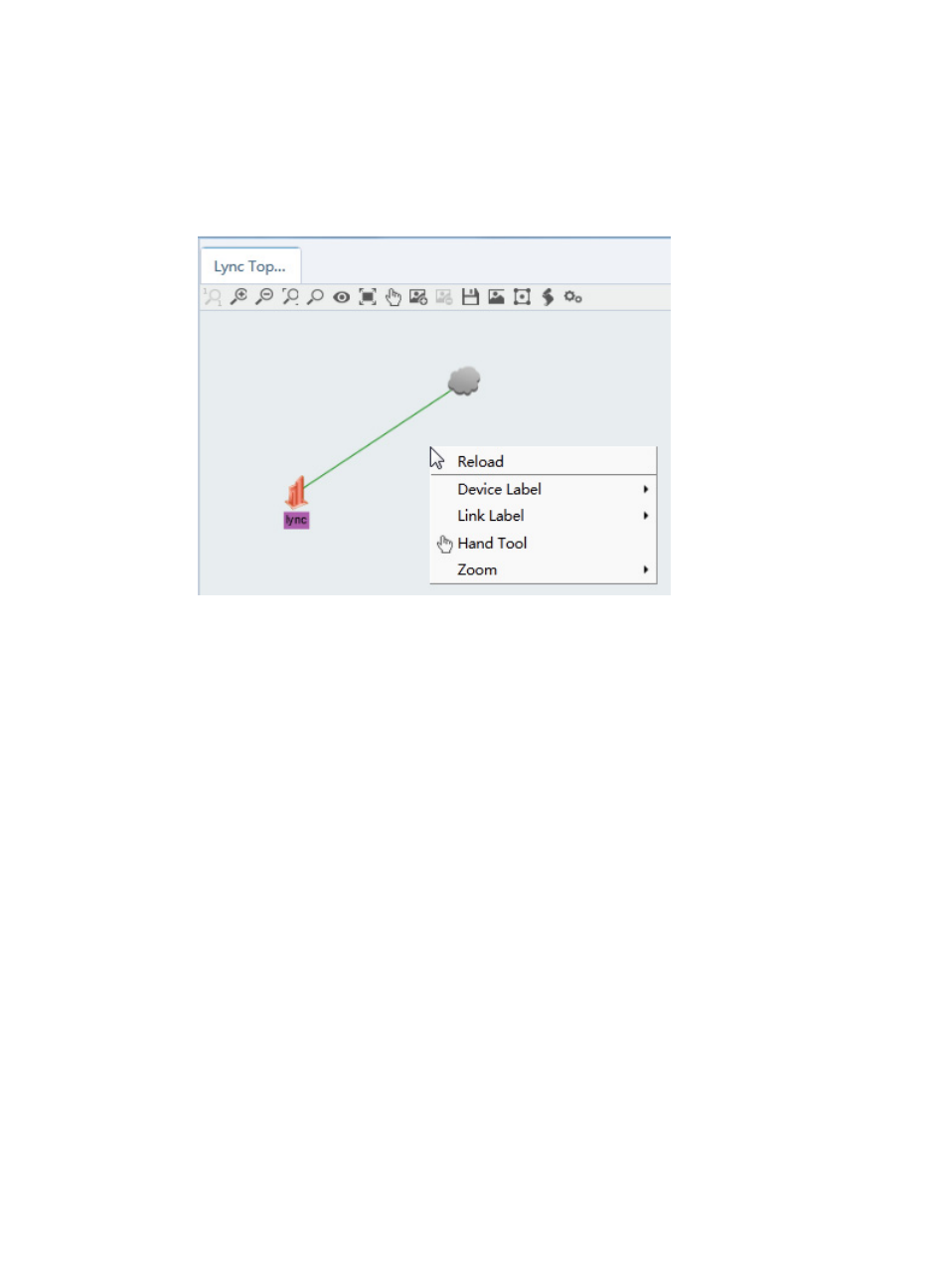
Hand/Pointer—Switches between the hand tool and the pointer tool. The hand tool is used for
dragging the topology.
•
Zoom—Adjusts the size of the topology. Options are 1:1, Zoom In, Zoom Out, and Fit Content.
Figure 25 Shortcut menu on a blank area
Managing the inter-site topology
The Lync Topology tab is an inter-site topology and displays connections among all Lync sites.
Viewing site details
1.
Access the Lync Topology page.
2.
Click a Lync site.
The site's details window appears, as shown in
. It includes the following parameters:
•
Site Name—Name of the site.
•
Number of Lync Servers—Number of Lync Servers within the site.
•
Number of PSTN Gateways—Number of PSTN gateways within the site.
•
Total Calls—Sum of Lync endpoint calls within the site.
•
Number of Audio Calls—Total number and percentage of the audio calls on the Lync
endpoints within the site.
•
Number of Audio and Video Calls—Total number and percentage of the audio and video
calls on the Lync endpoints within the site.
•
Number of Application Sharing Calls—Total number and percentage of the application
sharing calls on the Lync endpoints within the site.
•
Number of Other Calls—Total number and percentage of the other calls on the Lync
endpoints within the site.