Viewing an intra-site topology, Viewing lync server pool details, Opening a lync server pool – H3C Technologies H3C Intelligent Management Center User Manual
Page 39
30
Viewing an intra-site topology
1.
Access an intra-site topology page.
2.
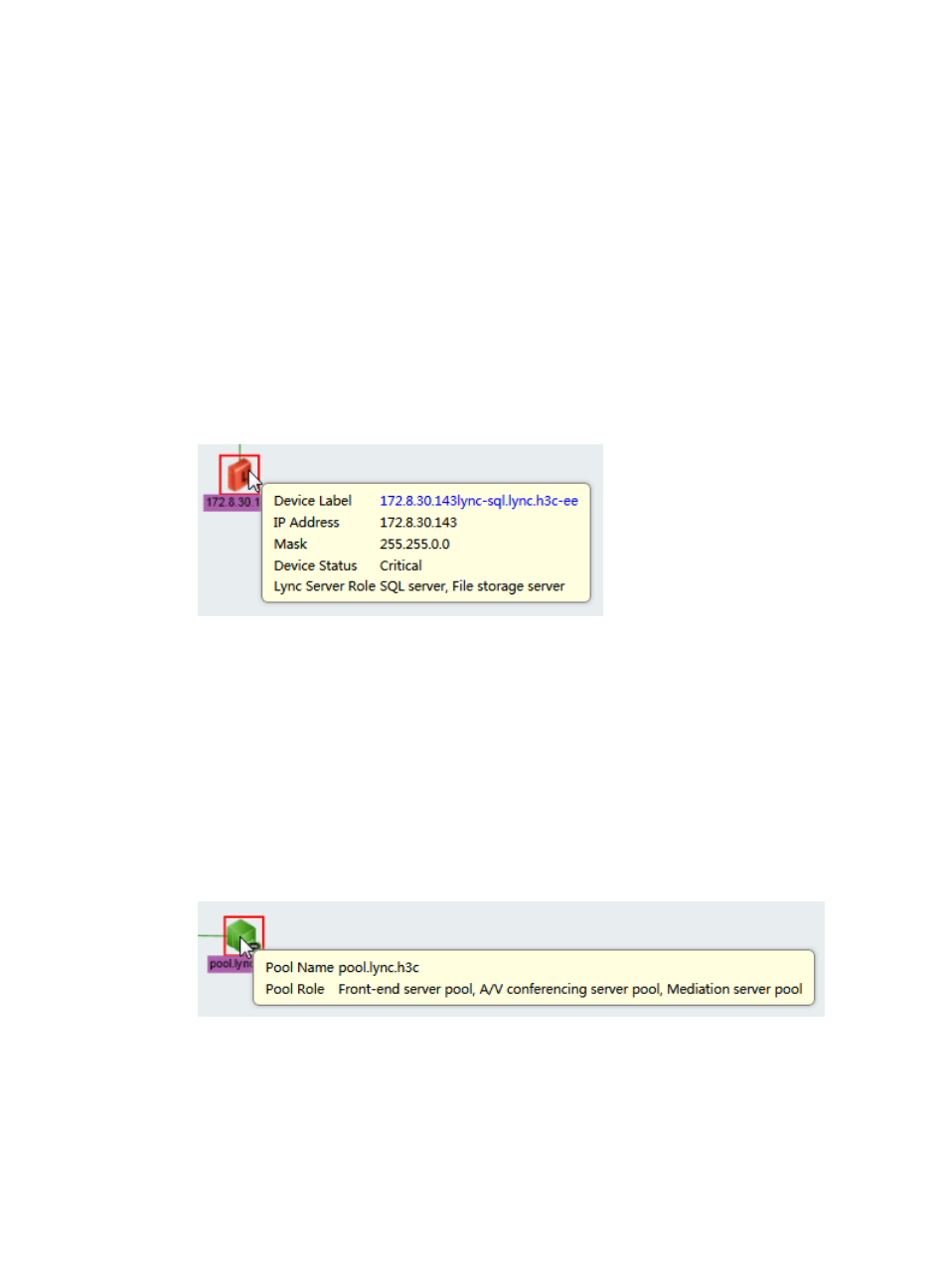
Click a Lync Server.
The Lync Server's details window appears, as shown in
. It includes the following
parameters:
•
Device Label—Name of the Lync Server device when it was added to IMC. Click the link to
view the device details.
•
IP Address/Mask—IP address and mask of the Lync Server.
•
Device Status—Status of the Lync Server device.
•
Lync Server Role—Role of the Lync Server that is configured in the Lync Server Topology
Builder.
Figure 35 Lync Server details
Viewing Lync Server pool details
1.
Access an intra-site topology page.
2.
Click a Lync Server pool.
The Lync Server pool's details window appears, as shown in
Figure 36
. It includes the following
parameters:
•
Pool Name—Name of the Lync Server pool.
•
Pool Role—Role of the Lync Server pool that is configured in the Lync Server Topology Builder.
Figure 36 Lync Server pool information
Opening a Lync Server pool
1.
Access an intra-site topology page.
2.
Double-click a Lync Server pool, or right-click a Lync Server pool and select Open from the shortcut
menu.