Changing the timeline view – Grass Valley NewsEdit LT v.4.1 User Manual
Page 68
Advertising
Chapter 4
Editing In the Timeline
68
Digital News Production
Changing the Timeline View
You can zoom in and out of the Timeline to see a specific area of the Timeline
or to get an overall perspective of your sequence.
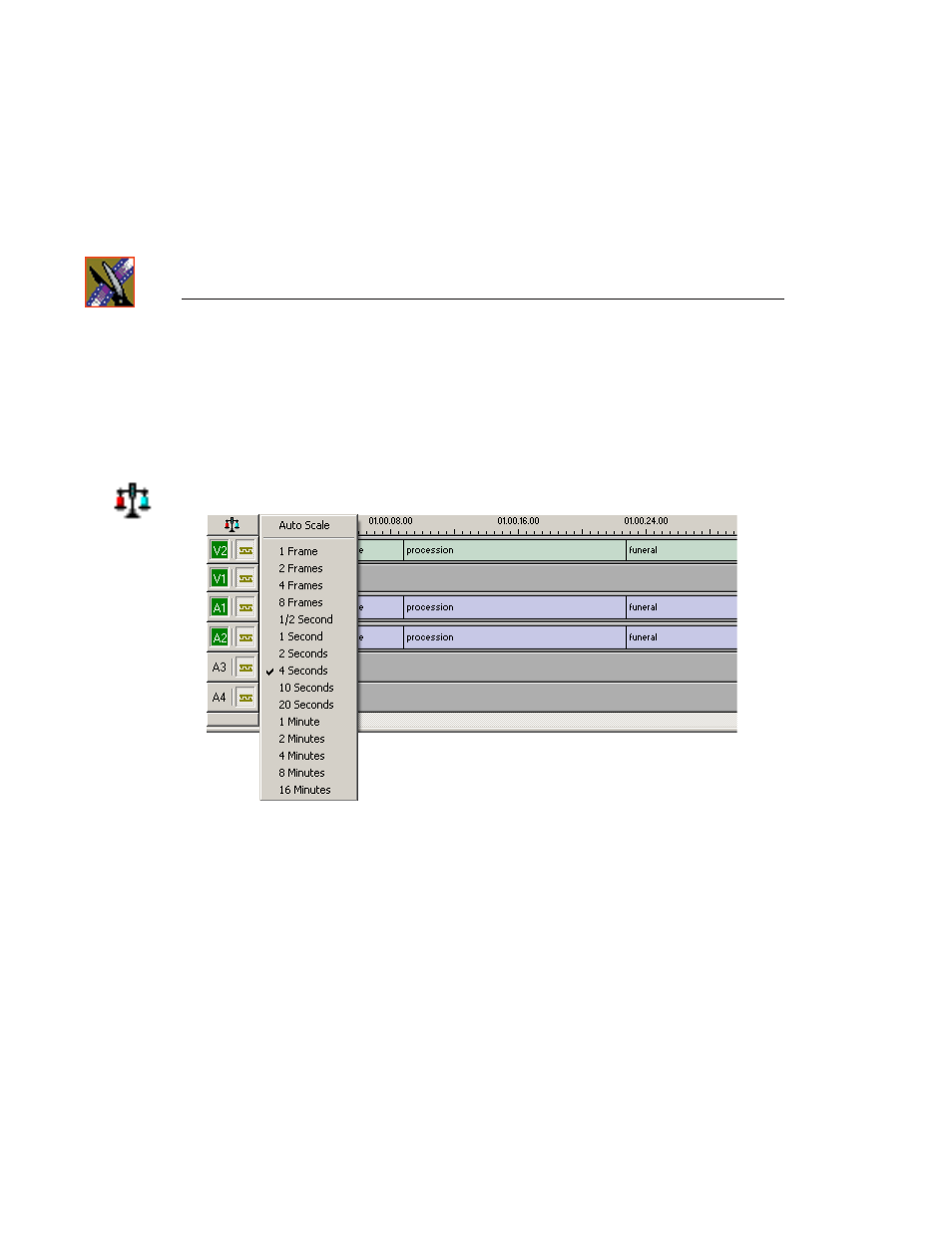
To change the Timeline view:
1. Click the
Scale
button in the Timeline.
2. Choose an increment to display.
NOTE: If a sequence extends beyond the Timeline view, choose
Auto
Scale
to compress and display the entire sequence in the Timeline.
You can also press
+
on your keyboard or click the
Zoom In
button in the
Timeline Toolbar to zoom in the Timeline view. Press
-
or click
Zoom Out
to
zoom out the Timeline view.
Advertising