Hardware overview – Novation Launchpad Mini MK3 64-Pad MIDI Grid Controller for Ableton Live User Manual
Page 8
8
Hardware Overview
2
6
4
1
3
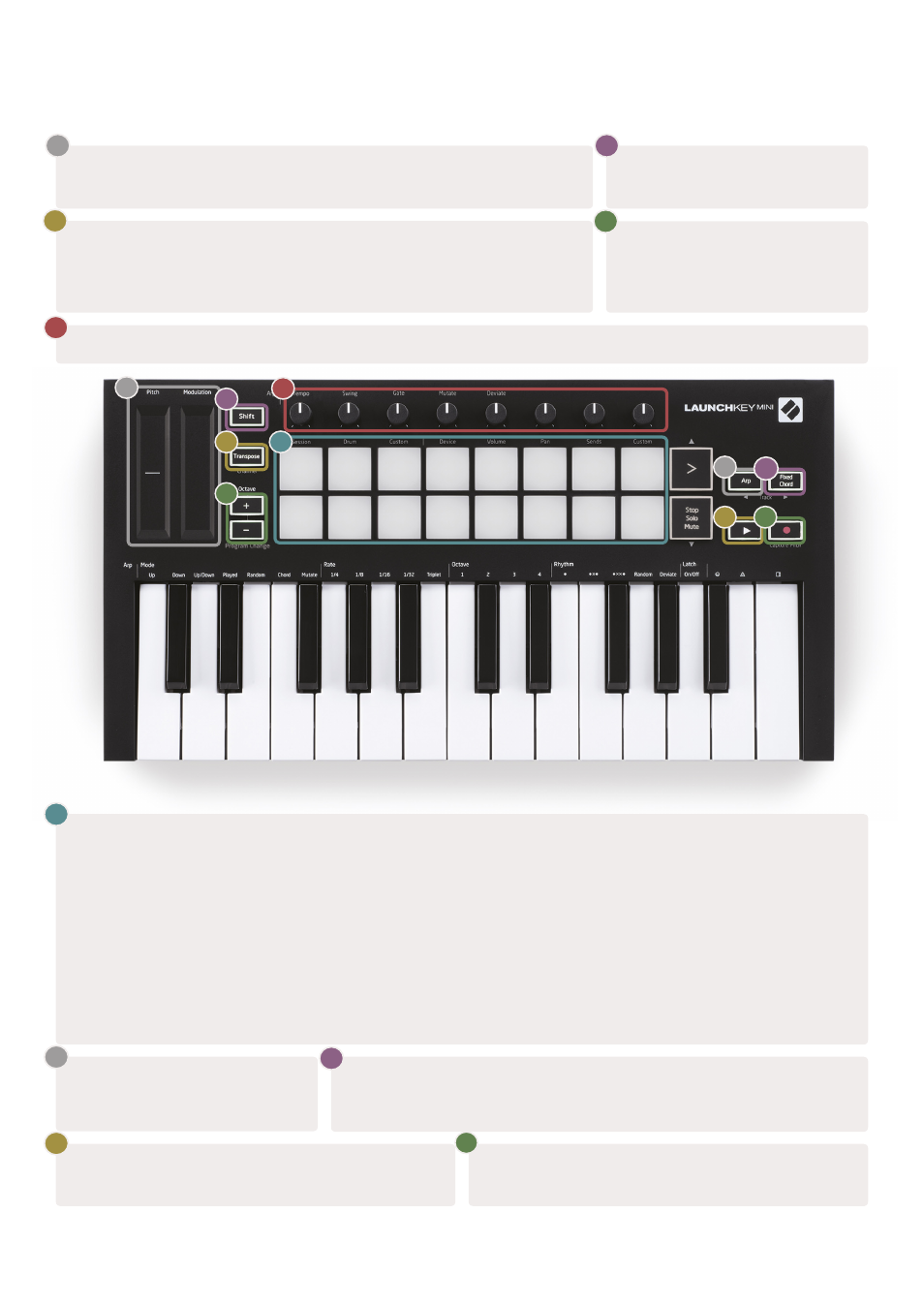
Pitch
and
Modulation
touch strips for bending pitch or adding
modulation.
1
Press
Shift
and other buttons to
access secondary functions.
2
Transpose
lets you transpose your keyboard plus or minus 11
semitones. Press Shift and Transpose to select MIDI Channel output
for the keyboard.
3
Octave +
and
-
buttons move
the keyboard up or down across
7 octaves (C-1 to C5).
4
Rotary knobs
control hardware, software parameters, or settings on the Launchkey itself.
5
Pads
are great for triggering clips in Ableton Live’s Session View and playing drums. Holding Shift lights
up the top row of pads, with the current pad mode lit the brightest. You can then switch between the 3
pad modes:
•
Session
– For triggering clips and navigating Live’s Session View.
•
Drum
– For playing drums with the velocity-sensitive pads.
•
Custom
– For playing a custom selection of notes with personalised colours. Edit custom modes on
6
Press the
Arp
button to enable
the Arpeggiator.
7
This button controls your DAW’s
playback
.
9
5
7
10
The
Record
button starts the recording process in
your DAW.
10
9
8
While holding the
Fixed Chord
button, press and release the keys
that you wish to be part of the stored, ‘fixed’ chord.
8