Identifying jam locations – Lexmark CX622ade Color Laser Printer User Manual
Page 179
Advertising
•
Flex, fan, and align the paper edges before loading.
•
Do not use paper that has been cut or trimmed by hand.
•
Do not mix paper sizes, weights, or types in the same tray.
•
Make sure that the paper size and type are set correctly on the computer or printer control panel.
•
Store paper according to manufacturer recommendations.
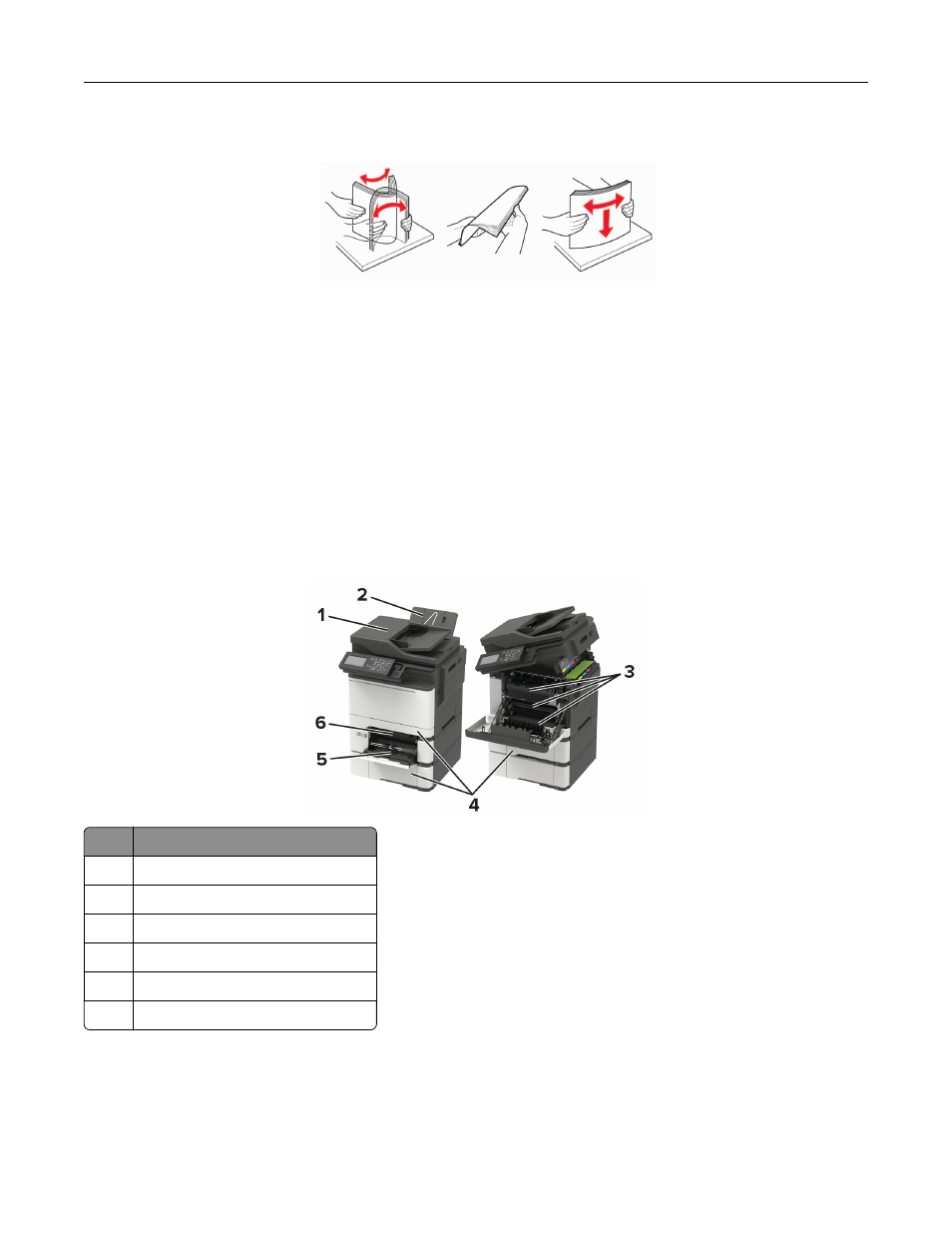
Identifying jam locations
Notes:
•
When Jam Assist is set to On, the printer flushes blank pages or pages with partial prints after a jammed
page has been cleared. Check your printed output for blank pages.
•
When Jam Recovery is set to On or Auto, the printer reprints jammed pages.
Jam location
1
Automatic document feeder (ADF)
2
Standard bin
3
Door A
4
Trays
5
Multipurpose feeder
6
Manual feeder
Clearing jams
179
Advertising